Running a manual DRBD failover moves a replicated filesystem and its workload from the current primary node to a secondary node without a cluster manager. Use it for planned maintenance on a standalone active/passive pair, or for a controlled takeover after the old primary has been stopped cleanly.
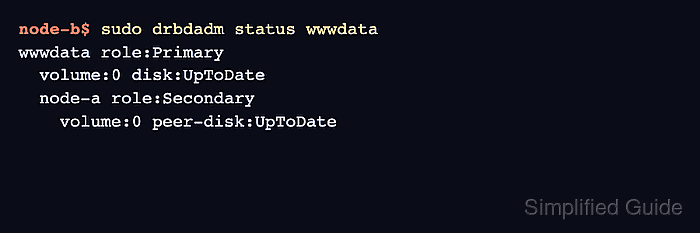
The safe order is to stop the writer, unmount the DRBD device, demote the old primary, promote the target node, mount the device there, and start the workload again. In DRBD single-primary mode, the target node can become writable only when the resource state allows a normal drbdadm primary operation.
A planned manual failover assumes the old primary is reachable enough to release the filesystem and demote the resource. If the old primary is unreachable, fence or power it off and confirm that the target has UpToDate data before promotion; do not use forced promotion to bypass an unknown or split-brain state.
Related: How to check DRBD resource status
Related: How to promote a DRBD resource to primary
Related: How to recover DRBD split brain
Steps to run a manual DRBD failover:
- Check the resource on the current primary node.
node-a$ sudo drbdadm status wwwdata
wwwdata role:Primary
  volume:0 disk:UpToDate
  node-b role:Secondary
    volume:0 peer-disk:UpToDate
Replace wwwdata with the resource name from your DRBD configuration. Do not continue with planned failover while any volume shows Inconsistent, Outdated, Diskless, or an active resync.
Related: How to check DRBD resource status - Stop the workload on the current primary node.
node-a$ sudo systemctl stop webapp.service
Replace webapp.service with the service, mount unit, database, or application that writes to the DRBD filesystem.
- Unmount the DRBD filesystem on the current primary node.
node-a$ sudo umount /srv/wwwdata
If unmounting fails because the device is busy, find and stop the remaining writer before retrying. Do not demote a resource while a filesystem or application still has the device open.
- Demote the old primary resource to secondary.
node-a$ sudo drbdadm secondary wwwdata
drbdadm secondary returns no output when the role change succeeds. The command fails if the replicated device is still in use.
- Verify that the old primary is now secondary.
node-a$ sudo drbdadm role wwwdata
Secondary
- Check the target node before promotion.
node-b$ sudo drbdadm status wwwdata
wwwdata role:Secondary
  volume:0 disk:UpToDate
  node-a role:Secondary
    volume:0 peer-disk:UpToDate
The target needs local UpToDate data before it hosts the filesystem.
- Promote the target resource to primary.
node-b$ sudo drbdadm primary wwwdata
In default single-primary mode, promotion fails when another connected node is still Primary. Resolve the old primary state instead of forcing promotion around it.
Related: How to promote a DRBD resource to primary - Mount the DRBD volume on the target node.
node-b$ sudo mount /dev/drbd/by-res/wwwdata/0 /srv/wwwdata
Replace volume 0 and /srv/wwwdata with the device volume and mount point used by the resource. A service-managed mount can be started through its normal systemd unit instead.
- Start the workload on the target node.
node-b$ sudo systemctl start webapp.service
- Confirm that the filesystem is mounted from the DRBD device.
node-b$ findmnt /srv/wwwdata
TARGET       SOURCE                        FSTYPE OPTIONS
/srv/wwwdata /dev/drbd/by-res/wwwdata/0    xfs    rw,relatime
- Verify the workload after failover.
node-b$ sudo systemctl is-active webapp.service
active
Use the application's real health check after the service starts, such as an HTTP health endpoint, database connection test, or file-level write test that belongs to the workload.
- Check the final DRBD role and disk state from the target node.
node-b$ sudo drbdadm status wwwdata
wwwdata role:Primary
  volume:0 disk:UpToDate
  node-a role:Secondary
    volume:0 peer-disk:UpToDate

Mohd Shakir Zakaria is a cloud architect with deep roots in software development and open-source advocacy. Certified in AWS, Red Hat, VMware, ITIL, and Linux, he specializes in designing and managing robust cloud and on-premises infrastructures.


