Viewing device logs for a Detox test lets a developer see what the app and simulator or emulator printed while a specific end-to-end spec was running. The log is useful when Detox reports a matcher, launch, or connection failure but the screen state does not explain the app-side error.
Detox records device logs through its artifact system. The --record-logs option writes log files under the artifact root selected with --artifacts-location, alongside screenshots or videos only when those separate artifact options are also enabled.
A focused rerun keeps the artifact folder limited to one spec and one device target. An ios.sim.debug Jest configuration keeps the log paths readable; use the matching Android or iOS configuration from the project.
Related: How to save Detox test artifacts
Related: How to debug Detox synchronization timeouts
Related: How to run Detox tests locally
Steps to view Detox device logs:
- Run the affected Detox spec with device log recording enabled.
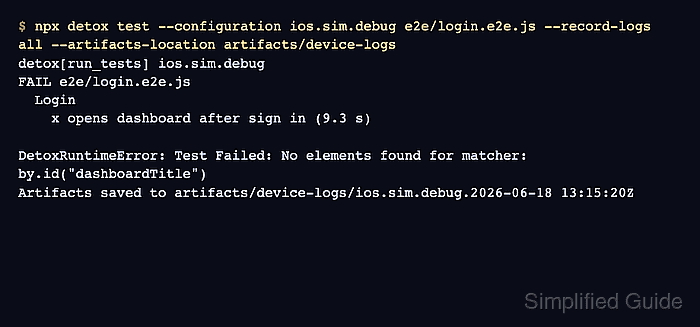
$ npx detox test --configuration ios.sim.debug e2e/login.e2e.js --record-logs all --artifacts-location artifacts/device-logs
detox[run_tests] ios.sim.debug
FAIL e2e/login.e2e.js
  Login
    x opens dashboard after sign in (9.3 s)

DetoxRuntimeError: Test Failed: No elements found for matcher: by.id("dashboardTitle")
Artifacts saved to artifacts/device-logs/ios.sim.debug.2026-06-18 13:15:20Z
Use --record-logs all for a focused rerun so a log remains even if the failure does not reproduce. Use --record-logs failing for routine CI storage.
- List the saved log files under the artifact root.
$ find artifacts/device-logs -name "*.log"
artifacts/device-logs/ios.sim.debug.2026-06-18 13:15:20Z/startup.log
artifacts/device-logs/ios.sim.debug.2026-06-18 13:15:20Z/Login/test.log
startup.log covers app launch and early device output. test.log covers the device output captured while the named test was running.
- Open the per-test device log.
$ cat "artifacts/device-logs/ios.sim.debug.2026-06-18 13:15:20Z/Login/test.log"
13:15:24.102 ExampleApp[9312] LoginScreen mounted
13:15:25.441 ExampleApp[9312] API POST https://api.example.net/session -> 401
13:15:25.448 ExampleApp[9312] LoginScreen rendered authentication error
##### snipped #####
Open the log for the failing test folder first. That file usually contains the app-side error closest to the Detox assertion failure.
- Open the startup log when the app fails before the test body runs.
$ cat "artifacts/device-logs/ios.sim.debug.2026-06-18 13:15:20Z/startup.log"
13:15:20.871 ExampleApp[9312] Launching with Detox session
13:15:21.036 ExampleApp[9312] Loaded launch arguments
13:15:21.284 ExampleApp[9312] Detox ready
Check startup.log for launch arguments, early native crashes, cleartext-network blocks, and app initialization errors.
- Search the per-test log for the app-side signal that matches the Detox failure.
$ grep -n "LoginScreen" "artifacts/device-logs/ios.sim.debug.2026-06-18 13:15:20Z/Login/test.log"
1:13:15:24.102 ExampleApp[9312] LoginScreen mounted
3:13:15:25.448 ExampleApp[9312] LoginScreen rendered authentication error
Keep the matching test.log with the failed test output when filing an app bug. Add screenshots or video only when the log does not show the visible state clearly.
Related: How to save Detox test artifacts
Related: How to capture screenshots in Detox tests
Tool: Application Log Pattern Analyzer

Mohd Shakir Zakaria is a cloud architect with deep roots in software development and open-source advocacy. Certified in AWS, Red Hat, VMware, ITIL, and Linux, he specializes in designing and managing robust cloud and on-premises infrastructures.


