Upgrading packages with APT keeps a Debian host current within the release and repositories it already uses. A routine package upgrade refreshes metadata, reviews the pending transaction, applies same-release package changes, and confirms that no expected upgrades remain.
apt upgrade installs available upgrades for installed packages and can add new dependency packages when needed, but it does not remove installed packages. apt full-upgrade gives the resolver permission to remove packages, so use it only after a separate simulation and review.
Do not change source codenames during a normal package upgrade. Moving from one Debian release to another is a release-upgrade workflow with backups, source-file edits, package transitions, and reboot checks.
Related: How to upgrade Debian to a newer release
Related: How to enable automatic updates on Debian
Related: How to hold a Debian package
Steps to upgrade Debian packages with apt:
- Refresh the APT package lists.
$ sudo apt update
Get:1 http://deb.debian.org/debian trixie InRelease [140 kB]
Get:2 http://deb.debian.org/debian trixie-updates InRelease [47.3 kB]
Get:3 http://deb.debian.org/debian-security trixie-security InRelease [43.4 kB]
##### snipped #####
Reading package lists...
Building dependency tree...
Reading state information...
All packages are up to date.
If this command reports signature, certificate, suite, or release-file errors, fix the source problem before upgrading packages.
- List packages that can be upgraded.
$ apt list --upgradable
Listing...
No package lines after Listing… means APT has no available upgrades from the enabled repositories. When package lines appear, check the package names, suites, versions, and architecture before continuing.
- Check whether any packages are held.
$ apt-mark showhold
No output means no package is held by apt-mark. Held packages can explain an unexpected Not Upgrading count in a simulated upgrade.
Related: How to hold a Debian package - Simulate the routine upgrade.
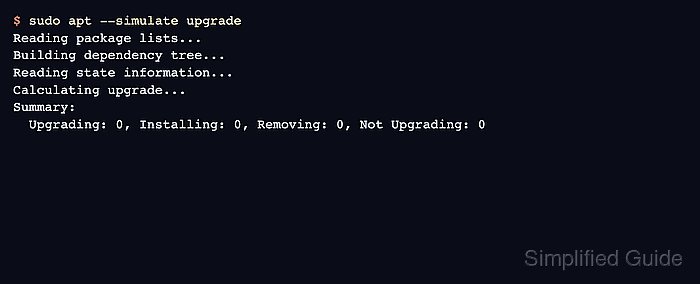
$ sudo apt --simulate upgrade
Reading package lists...
Building dependency tree...
Reading state information...
Calculating upgrade...
Summary:
  Upgrading: 0, Installing: 0, Removing: 0, Not Upgrading: 0
The simulation prints the resolver plan without changing installed packages. Stop when the package list does not match the maintenance window.
- Apply the package upgrades.
$ sudo apt upgrade
Reading package lists...
Building dependency tree...
Reading state information...
Calculating upgrade...
Summary:
  Upgrading: 0, Installing: 0, Removing: 0, Not Upgrading: 0
Review the Summary before confirming on production hosts. Do not continue if the plan includes removals or package changes outside the intended maintenance window.
- Confirm no same-release package upgrades remain.
$ apt list --upgradable
Listing...
An empty list means APT has no remaining upgradable package from the enabled sources. If packages remain, review holds, pins, backports, and repository mixing before considering apt full-upgrade.
Related: How to pin a Debian package version - Simulate a full upgrade only when dependency transitions remain.
$ sudo apt --simulate full-upgrade
Reading package lists...
Building dependency tree...
Reading state information...
Calculating upgrade...
Summary:
  Upgrading: 0, Installing: 0, Removing: 0, Not Upgrading: 0
apt full-upgrade may remove installed packages. Treat any removal as a separate change decision, not as part of a routine same-release upgrade.

Mohd Shakir Zakaria is a cloud architect with deep roots in software development and open-source advocacy. Certified in AWS, Red Hat, VMware, ITIL, and Linux, he specializes in designing and managing robust cloud and on-premises infrastructures.


