Removing a package with APT lets Debian delete software through the package database instead of leaving manual file edits behind. A controlled removal confirms the installed package, previews the resolver plan, removes only the intended target, and reviews orphaned dependencies separately.
apt remove deletes the package's installed files but usually keeps package-owned configuration files. apt purge also removes those package-owned configuration files, while user data under home directories and files created outside package ownership remain outside APT's cleanup boundary.
A small package such as jq makes the removal and dependency-cleanup boundary visible because it leaves two auto-installed dependencies after the main package is removed. Replace jq with the package being removed, and stop whenever the simulated plan includes packages that do not belong to the intended change.
Steps to remove a Debian package with apt:
- Check that the target package is installed.
$ dpkg-query -W jq
jq	1.7.1-6+deb13u2
Replace jq with the exact Debian package name. If the package name is uncertain, search or inspect it before running a removal command.
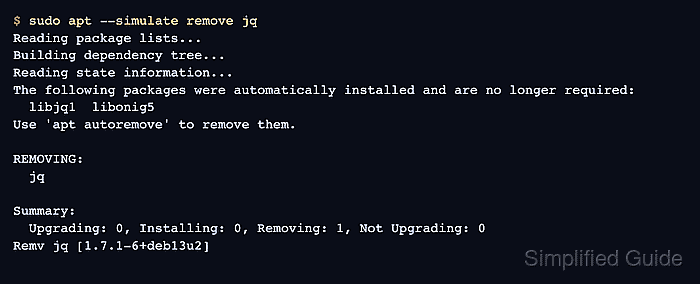
- Simulate the package removal.
$ sudo apt --simulate remove jq
Reading package lists...
Building dependency tree...
Reading state information...
The following packages were automatically installed and are no longer required:
  libjq1  libonig5
Use 'apt autoremove' to remove them.

REMOVING:
  jq

Summary:
  Upgrading: 0, Installing: 0, Removing: 1, Not Upgrading: 0
Remv jq [1.7.1-6+deb13u2]
Stop if APT proposes removing a desktop, service, driver, metapackage, or dependency chain outside the intended cleanup.
- Remove the package after the plan matches the target.
$ sudo apt remove jq
Reading package lists...
Building dependency tree...
Reading state information...
The following packages were automatically installed and are no longer required:
  libjq1  libonig5
Use 'apt autoremove' to remove them.

REMOVING:
  jq

Summary:
  Upgrading: 0, Installing: 0, Removing: 1, Not Upgrading: 0
  Freed space: 164 kB

##### snipped #####
Removing jq (1.7.1-6+deb13u2) ...
Use sudo apt purge jq instead when package-owned configuration files should also be removed. APT does not remove user data in home directories.
- Confirm that the package is no longer installed.
$ dpkg-query -W jq
dpkg-query: no packages found matching jq
No package record means the target package is absent. A package removed but not purged can still have residual package-owned configuration under dpkg status.
- Simulate cleanup for auto-installed dependencies.
$ sudo apt --simulate autoremove
Reading package lists...
Building dependency tree...
Reading state information...
REMOVING:
  libjq1  libonig5

Summary:
  Upgrading: 0, Installing: 0, Removing: 2, Not Upgrading: 0
Remv libjq1 [1.7.1-6+deb13u2]
Remv libonig5 [6.9.9-1+b1]
Do not run apt autoremove blindly on shared systems. If the list includes a package that should stay, mark that package as manual before retrying cleanup.
- Remove unused dependencies only when the simulated list is expected.
$ sudo apt autoremove
Reading package lists...
Building dependency tree...
Reading state information...
REMOVING:
  libjq1  libonig5

Summary:
  Upgrading: 0, Installing: 0, Removing: 2, Not Upgrading: 0
  Freed space: 1134 kB

##### snipped #####
Removing libjq1:arm64 (1.7.1-6+deb13u2) ...
Removing libonig5:arm64 (6.9.9-1+b1) ...
- Confirm that the auto-removed dependencies are absent.
$ dpkg-query -W libjq1 libonig5
dpkg-query: no packages found matching libjq1
dpkg-query: no packages found matching libonig5

Mohd Shakir Zakaria is a cloud architect with deep roots in software development and open-source advocacy. Certified in AWS, Red Hat, VMware, ITIL, and Linux, he specializes in designing and managing robust cloud and on-premises infrastructures.


