A Debian host that runs out of space under /var can lose package updates, log writes, and service state before the whole disk appears full. Cleaning space safely starts by confirming the affected filesystem, then removing known disposable package and log data instead of deleting random large files.
Debian systems commonly accumulate downloaded .deb files in the APT archive, unused auto-installed dependency packages after software is removed, and retained systemd journal files under /var/log/journal. Those areas are safer cleanup candidates than application data directories, databases, container layers, mail queues, or virtual machine images.
The cleanup path keeps the scope narrow. It clears the local package archive, asks APT to review removable dependencies before deletion, and trims old journal files only when journal storage is actually consuming space. If the final df check barely changes, switch to a low-space investigation instead of repeating destructive commands.
Steps to clean up disk space on Debian:
- Check the filesystem that is reporting low space.
$ df -hP /var
Filesystem      Size  Used Avail Use% Mounted on
/dev/vda2        59G   54G  2.6G  96% /
Replace /var with the path that is failing, such as /home, /srv, or an application mount. Reuse the Mounted on value when comparing the final result.
- Check the common Debian package and log cleanup areas.
$ sudo du -sh /var/cache/apt/archives /var/log
1.4G	/var/cache/apt/archives
2.8G	/var/log
Large application directories under /var/lib, container storage, database files, mail queues, and virtual machine images need their own maintenance process. Do not remove those files as generic disk cleanup.
- Clear downloaded APT package files from the local archive.
$ sudo apt-get clean
apt-get clean removes retrieved package files from /var/cache/apt/archives and /var/cache/apt/archives/partial. Installed packages stay installed. Use apt-get autoclean instead when only obsolete downloads should be removed.
- Confirm that the APT archive is no longer the large directory.
$ sudo du -sh /var/cache/apt/archives
12K	/var/cache/apt/archives
- Remove unused auto-installed dependencies only after reviewing the package list.
$ sudo apt autoremove
The following packages were automatically installed and are no longer required:
  libexample1 example-data

The following packages will be REMOVED:
  example-data libexample1

After this operation, 187 MB disk space will be freed.
Continue? [Y/n]
Read the package list before confirming. If APT proposes removing an application or library that is still needed, stop and mark that package as manually installed before running cleanup again.
- Check whether the systemd journal is consuming enough space to trim.
$ sudo journalctl --disk-usage
Archived and active journals take up 1.2G in the file system.
Some minimal containers and non-systemd systems do not have journalctl or persistent journal files. Skip journal cleanup when this command reports no journal files or the host stores logs only as plain text under /var/log.
Related: View system logs using journalctl
- Vacuum old journal files only when the previous step shows meaningful journal usage.
$ sudo journalctl --rotate --vacuum-time=7d
Vacuuming done, freed 896.0M of archived journals from /var/log/journal/.
This removes older journal history. Keep a longer retention period when the host needs local logs for incident review, audits, or application troubleshooting.
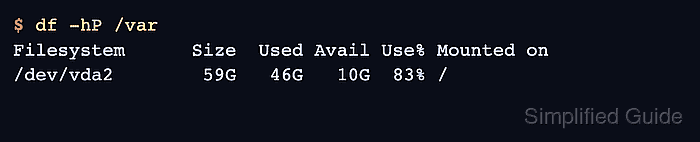
- Recheck the affected filesystem and confirm that enough space was reclaimed.
$ df -hP /var
Filesystem      Size  Used Avail Use% Mounted on
/dev/vda2        59G   46G   10G  83% /
If Use% barely changes, stop deleting files and investigate deleted-but-open files, another heavy subtree, snapshots, or filesystem overhead on the same mount.

Mohd Shakir Zakaria is a cloud architect with deep roots in software development and open-source advocacy. Certified in AWS, Red Hat, VMware, ITIL, and Linux, he specializes in designing and managing robust cloud and on-premises infrastructures.


