Saving cURL output to local files keeps response bodies, download artifacts, and API samples available after terminal scrollback is gone. Saved copies can be inspected later, handed to another tool, or attached to a ticket without repeating the same request.
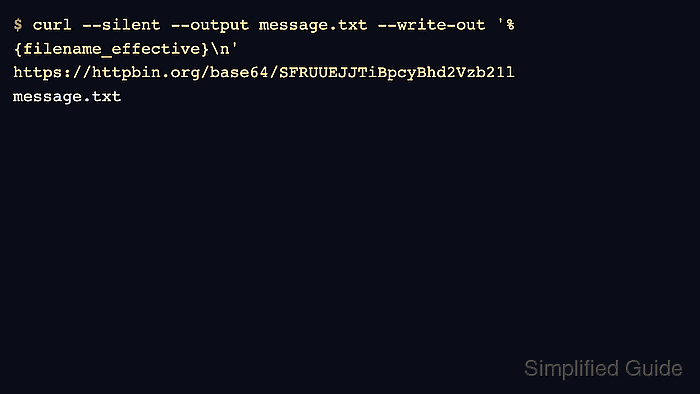
By default, cURL writes the response body to standard output. --output writes to a chosen filename, --remote-name uses the last path segment from the URL, and --write-out with filename_effective prints the filename that cURL actually wrote.
Local files are overwritten by default when the same target name is reused. --no-clobber and --remove-on-error reduce that risk, but both options require cURL 7.83.0 or later and older systems may reject them as unknown options.
Steps to save cURL output to a file:
- Save the response body to a chosen filename with --output.
$ curl --silent --output message.txt --write-out '%{filename_effective}\n' https://httpbin.org/base64/SFRUUEJJTiBpcyBhd2Vzb21l
message.txt
filename_effective prints the path that cURL wrote after the transfer finishes.
- Read the saved file to confirm that the response body went to disk instead of the terminal.
$ cat message.txt
HTTPBIN is awesome
Reading the saved file immediately catches cases where the target path or the returned content is not the data expected.
- Save with the URL's filename when the last path segment is already the local name wanted.
$ curl --silent --remote-name --write-out '%{filename_effective}\n' https://httpbin.org/robots.txt
robots.txt
--remote-name uses the last path segment from the URL, so this request creates robots.txt in the current directory unless --output-dir is also used.
- Prevent an existing file from being overwritten with --no-clobber.
$ curl --silent --remote-name --no-clobber --write-out '%{filename_effective}\n' https://httpbin.org/robots.txt
robots.txt.1
--no-clobber appends a numeric suffix such as .1 when the original name already exists, and it requires cURL 7.83.0 or later.
- Remove failed output automatically with --fail and --remove-on-error.
$ curl --fail --silent --show-error --remove-on-error --output missing.txt https://httpbin.org/status/404
curl: (22) The requested URL returned error: 404
--fail turns an HTTP error response into a curl failure, and --remove-on-error deletes the incomplete output file instead of leaving stale content behind.
- Check that the failed transfer did not leave the target file behind.
$ ls missing.txt
ls: cannot access 'missing.txt': No such file or directory
If cURL reports unknown option –remove-on-error, the local build is older than 7.83.0 and failed saves need manual cleanup.

Mohd Shakir Zakaria is a cloud architect with deep roots in software development and open-source advocacy. Certified in AWS, Red Hat, VMware, ITIL, and Linux, he specializes in designing and managing robust cloud and on-premises infrastructures.


