An interactive Codex session is the right starting point when a local repository needs iterative review, edits, or command output that should stay visible in one terminal. Launching it from the intended working directory gives the terminal UI the project context before the first prompt is sent.
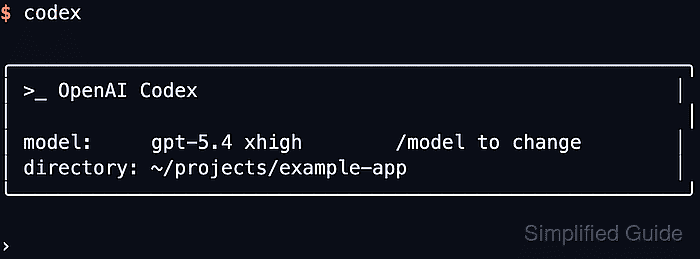
The base codex command launches the terminal UI when no subcommand is supplied. It also accepts an optional first prompt, -C or --cd for choosing the working root, plus sandbox and approval flags for that session.
Use a cached ChatGPT or API-key login before opening the session, and keep automation under codex exec instead of the interactive UI. A plain interactive launch expects a real terminal; in a non-TTY shell the CLI exits with stdin is not a terminal.
Related: How to resume the last Codex session
Related: How to run Codex exec with a prompt
Related: How to run a Codex subagent workflow
Steps to start a Codex interactive session:
- Open a terminal in the project that should own the session.
$ pwd
/home/user/projects/example-app
Use codex -C ~/projects/example-app instead when the current shell is not already in the target workspace.
Related: How to set the working directory for Codex - Confirm that the current terminal has a cached Codex login.
$ codex login status
Logged in using ChatGPT
If this prints Not logged in, complete a supported login flow before starting the interactive session.
Related: How to check Codex login status
Related: How to log in to Codex with device authentication
Related: How to log in to Codex with an API key - Start the interactive Codex terminal UI.
$ codex

╭────────────────────────────────────────────────────╮
│ >_ OpenAI Codex                                    │
│                                                    │
│ model:     gpt-5.5        /model to change         │
│ directory: ~/projects/example-app                  │
╰────────────────────────────────────────────────────╯

›
The model, approval mode, and sandbox labels can differ by account and configuration. The session is ready when the input prompt is open in the intended directory.
Related: How to set the default model in Codex - Enter the first request at the Codex prompt.
› Explain this repository and point out the main entrypoints.
Codex starts the turn in the same terminal window, so plans, command requests, diffs, and replies remain visible as the session continues.
- Pass the first request at launch when the session should open with an initial prompt.
$ codex "Explain this repository and point out the main entrypoints."
Use codex exec instead when the task must run non-interactively from a script, CI job, or shell pipeline.

Mohd Shakir Zakaria is a cloud architect with deep roots in software development and open-source advocacy. Certified in AWS, Red Hat, VMware, ITIL, and Linux, he specializes in designing and managing robust cloud and on-premises infrastructures.


