A native Claude Code installation manages releases independently of the operating system’s package manager. Its manual updater brings the CLI to the newest build on the selected release channel.
The latest channel receives new releases immediately, while stable normally trails by about a week and skips releases with major regressions. The channel controls both manual and background updates, so a stable installation can be current even when a newer release exists elsewhere.
Native installations normally update in the background. Keeping updates manual makes their timing predictable, but leaves you responsible for installing fixes. A minimum-version setting prevents an update from installing a build below that floor; it does not freeze the CLI at one exact release.
Steps to update Claude Code:
- Record the installed Claude Code version.
$ claude --version
2.1.309 (Claude Code)
The version recorded here can serve as the minimum acceptable version in your update settings.
- Inspect the Claude Code installation method.
$ claude doctor
Claude Code doctor

Running: native (2.1.309)
##### snipped #####
Auto-updates: enabled
Auto-update channel: latest
##### snipped #####
No installation issues found.
##### snipped #####
Running: native identifies the installation used here. Homebrew, WinGet, APT, DNF, and APK installations receive upgrades through their package manager; the native update settings do not select their package channel.
Related: How to install Claude Code on Linux
Related: Package-manager update instructions - Load ~/.claude/settings.json into your text editor.
~ means your home directory. If the file does not exist, a new file at that location can hold the settings.
- Set the top-level update keys and the env.DISABLE_AUTOUPDATER entry in ~/.claude/settings.json.
{
  "autoUpdatesChannel": "latest",
  "minimumVersion": "2.1.309",
  "env": {
    "DISABLE_AUTOUPDATER": "1"
  }
}
The other settings and existing env entries stay in place, with each key appearing only once. The floor shown is the version recorded earlier; your installed version may differ. latest selects immediate releases, while stable selects the delayed channel. A floor newer than the stable build prevents the updater from installing that older build. DISABLE_AUTOUPDATER stops background updates while leaving claude update available. Without this entry, native background updates remain enabled. DISABLE_UPDATES is a different control that also blocks manual updates.
- Save ~/.claude/settings.json.
- Confirm that Claude Code loaded the update policy.
$ claude doctor
Claude Code doctor

Running: native (2.1.309)
##### snipped #####
Auto-updates: disabled (set by env: DISABLE_AUTOUPDATER)
Auto-update channel: latest
##### snipped #####
No installation issues found.
##### snipped #####
The Auto-updates line should show the disabled state and the channel should match your selection. Invalid JSON or a settings validation error needs correction before updating. Installation diagnostics and the update itself do not require sign-in.
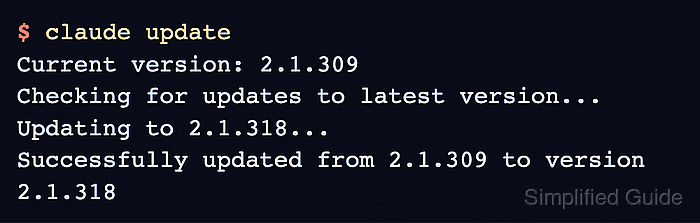
- Apply the update as the user who owns the native installation.
The update changes the executable used by new sessions; an already-running session keeps its current version. If a new release causes problems, the native installer accepts a specific release version for recovery. A minimum-version floor constrains updates, rather than providing a rollback.
$ claude update
Current version: 2.1.309
Checking for updates to latest version...
Updating to 2.1.318...
Successfully updated from 2.1.309 to version 2.1.318
The release numbers change over time. Claude Code is up to date means there is no newer build to install on the selected channel. A failed download or permission error does not confirm an update; running with sudo can leave a user-owned native installation with the wrong ownership.
- Verify that the active Claude Code executable reports the updated version.
$ claude --version
2.1.318 (Claude Code)
The version should match the updater’s result. An older result can indicate a second installation earlier on PATH.
Related: How to fix "command not found: claude" in Claude Code - Send a short request through the updated Claude Code executable.
$ claude -p --model haiku "Reply with exactly READY."
READY
A response confirms that the new executable can still complete a request with your account. The request uses your plan allowance or API credits. An authentication error requires sign-in, rather than another update.
Related: Claude Code authentication