An installed program can remain invisible to a shell when its directory is missing from PATH. After a native Claude Code install on Linux or macOS, adding the launcher directory to the shell's startup configuration resolves the command not found: claude error.
The native installer places a launcher in your home directory and reports a missing PATH entry without changing your shell configuration. A launcher that runs by its full path needs a shell fix; a missing launcher needs an installation repair instead.
Bash and Zsh read different startup files, and macOS Terminal normally starts Bash as a login shell. The saved change must reach a new terminal, including an editor's terminal, before it can replace that terminal's old environment. No Claude sign-in is needed to check command discovery or the installed version.
Steps to fix "command not found: claude" in Claude Code:
- Confirm that the shell cannot start Claude Code by name.
$ claude --version
bash: claude: command not found
Zsh reports zsh: command not found: claude. These instructions cover the native installer on Linux and macOS; other installation methods have different launcher locations.
- Identify the shell running in the affected terminal.
$ ps -p $$ -o comm=
bash
The result identifies the current shell, unlike $SHELL, which can still name your login shell after you switch shells.
- Inspect the native Claude Code launcher.
$ ls -la ~/.local/bin/claude
lrwxrwxrwx 1 user user 47 Nov  4 21:35 /home/user/.local/bin/claude -> /home/user/.local/share/claude/versions/2.1.318
The version and timestamp vary. A native launcher points into ~/.local/share/claude/versions/. If the launcher is absent or its target is missing, a PATH edit cannot restore it; see Anthropic's installation instructions.
- Test the launcher without relying on PATH.
$ "$HOME/.local/bin/claude" --version
2.1.318 (Claude Code)
If this also fails, the installation itself needs attention before changing PATH.
- Check whether the launcher directory is in the affected shell's PATH.
$ printf '%s\n' "$PATH" | tr ':' '\n' | grep -Fx "$HOME/.local/bin"
No output means the directory is absent. A matching line means it is already present; in that case, the command-resolution check below can expose an alias, function or competing installation.
- Open the startup file for the affected shell in your text editor.
For Linux Bash, the file is ~/.bashrc. For Zsh on either platform, it is ~/.zshrc, or $ZDOTDIR/.zshrc if you deliberately set ZDOTDIR. For Bash in macOS Terminal, it is the first existing file in this order: ~/.bash_profile, ~/.bash_login, ~/.profile; if none exists, create ~/.bash_profile.
Related: Claude Code PATH troubleshooting - Add the launcher directory after the last PATH assignment in that file.
export PATH="$HOME/.local/bin:$PATH"
If there is no PATH assignment, add the line at the end. If the same export already exists, move that line after any assignment that overwrites PATH instead of adding a duplicate. Keeping $PATH preserves access to your other commands; the leading directory gives the native launcher priority. Other existing file contents stay in place.
- Save the startup file.
- Open a new terminal window for the same shell.
If the terminal runs inside an editor that still has the old environment, fully quit and reopen the editor. The new shell must load the file you edited.
- Inspect the new shell's definitions of claude.
$ type -a claude
claude is /home/user/.local/bin/claude
If this identifies an obsolete alias or function, remove only its definition from the startup file and reopen the terminal.
- List the claude launchers available on PATH.
$ which -a claude
/home/user/.local/bin/claude
Your home path will differ. The native launcher should be the only installation listed. If another installed copy appears, Anthropic's conflict-removal instructions explain how to remove that specific extra install. Removing a copy makes it unavailable to any scripts that use its old path.
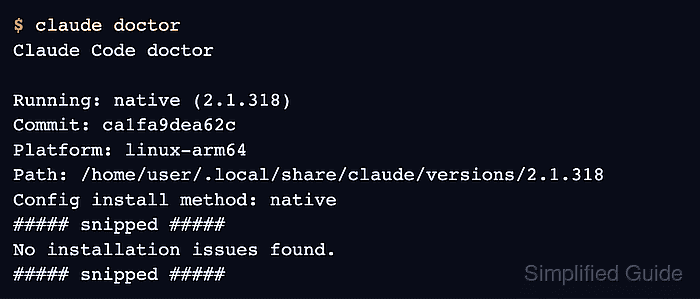
- Check Claude Code for remaining installation issues.
$ claude doctor
Claude Code doctor

Running: native (2.1.318)
##### snipped #####
No installation issues found.
##### snipped #####
The PATH warning should be gone. Sign-in or Remote Control notices concern account features and do not mean the shell still cannot find the executable.
- Verify that the new terminal starts Claude Code by name.
$ claude --version
2.1.318 (Claude Code)
A version response confirms that the saved startup configuration lets the new shell find and run the launcher.