External tools reach Claude Code through the Model Context Protocol (MCP). A local MCP server adds tools from a program on your own machine, so Claude can call that program during a conversation.
The reference Memory server stores entities and observations in a local knowledge graph. Giving it an explicit storage file keeps that data outside the temporary package cache and makes a tool call visible on disk.
Claude Code must already be installed and signed in, with Node.js 24 or later available for the Memory server. A local server runs with your operating-system permissions, and tool results enter the Claude conversation. Only connect software you trust and use nonsensitive data for the first call.
Steps to add a local MCP server to Claude Code:
- Change to the project directory where you want the server available.
$ cd ~/project
~/project represents your existing project. Local scope belongs to this directory; a session started in a different project will not load the entry.
- Register the Memory server with a storage file in this project.
npx -y downloads and executes the pinned package without an installation prompt. The server can access files available to your account; –scope local limits where Claude loads the entry, not the server's operating-system permissions.
$ claude mcp add --scope local \
  --env MEMORY_FILE_PATH="$PWD/memory.jsonl" \
  --transport stdio memory -- npx -y @modelcontextprotocol/server-memory@2.1.0
Added stdio MCP server memory with command: npx -y @modelcontextprotocol/server-memory@2.1.0 to local config
##### snipped #####
The File modified: line names the configuration file. local is the default scope and saves a private entry under this project's path in ~/.claude.json. –scope user instead saves a top-level mcpServers entry there for all your projects. –scope project writes .mcp.json in the project root for sharing and requires project-server approval. Scope precedence applies when names collide.
–env supplies the server's settings. The following –transport stdio prevents the server name from being consumed as another environment value. Everything after -- is the server launch command, including its flags. The same separation works for a server's documented uvx or executable command.
For a README that provides an mcpServers JSON block, the alternative claude mcp add-json --scope local memory '<server-object>' accepts the object under memory, including its command, args and env fields. It does not accept the surrounding mcpServers wrapper. This replaces the add command rather than adding a second definition with the same name.
Tool: MCP Config Generator can prepare a server entry for import. - Check that the Memory server connects.
$ claude mcp list
Checking MCP server health…

##### snipped #####
memory: npx -y @modelcontextprotocol/server-memory@2.1.0 - ✔ Connected
Connected means the launch command started and the MCP connection succeeded. If the server reports Failed to connect, the upstream troubleshooting instructions cover startup failures.
- Inspect the saved definition for memory.
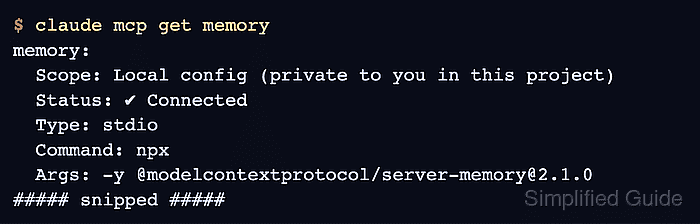
$ claude mcp get memory
memory:
  Scope: Local config (private to you in this project)
  Status: ✔ Connected
  Type: stdio
  Command: npx
  Args: -y @modelcontextprotocol/server-memory@2.1.0
##### snipped #####
The Environment section also shows MEMORY_FILE_PATH with the absolute path expanded from $PWD when the server was added.
- Start a new Claude Code session in Manual permission mode.
$ claude --permission-mode default
The current CLI calls this manual mode in the status line. It allows the first tool call to ask for permission even if your usual session uses Auto mode. An untrusted project's folder prompt appears before the conversation starts.
- Approve the project folder if Claude Code displays its trust prompt.
Yes, I trust this folder allows Claude Code to work with the project's files and commands. An unfamiliar checkout needs review before approval.
- Open the server manager with /mcp.
/mcp
The memory row should have a connected checkmark and 9 tools for this package version.
- Select memory in the server manager.
The server detail view shows Status: connected and the pinned npx command.
- Select View tools to inspect the Memory server's tool list.
The list includes create_entities, read_graph, search_nodes and open_nodes, alongside tools that update or delete graph data.
- Close the MCP menus with Esc until the conversation prompt returns.
- Ask Claude to create a nonsensitive entity through the Memory server.
Use the memory server create_entities tool to create one entity named MCP_check with entityType test and the observation "Local MCP works". Do not use any other tools.
- Approve the memory — Create Entities call once with Yes.
The permission prompt shows MCP_check, test and Local MCP works in the proposed input. The one-time Yes choice avoids saving an ongoing permission rule. The resulting tool call is labeled memory - create_entities (MCP); Ctrl+O expands its details if they are collapsed.
- Exit the conversation with /exit.
/exit
- Confirm that the Memory server wrote the entity to its storage file.
$ cat memory.jsonl
{"type":"entity","name":"MCP_check","entityType":"test","observations":["Local MCP works"]}
The entity on disk confirms that Claude used the connected server to persist data. The memory registration remains available to later sessions in this project. If you later stop using it, claude mcp remove memory --scope local removes the registration without deleting memory.jsonl.