Updating a Checkmk site moves a named OMD site from its current Checkmk version to a newer installed version. It is the maintenance step that makes a downloaded security, bug-fix, or major-version package active for the monitoring site that users actually open.
Checkmk keeps installed software versions under /omd/versions and keeps each site's configuration and runtime data below /omd/sites. Installing a new package only adds another available version; omd update changes the selected site so its version link, default files, and configuration checks match the target release.
Plan the update around a maintenance window, a current site backup, and the supported update path for the source and target versions. Major-version updates must move one major release at a time, and the package must match the server distribution, architecture, and Checkmk edition.
Related: How to restore a Checkmk site backup
Steps to update a Checkmk site with OMD:
- Install the target Checkmk package on the server.
$ sudo apt install /tmp/check-mk-community-2.5.0p7_0.jammy_amd64.deb
Reading package lists... Done
Building dependency tree... Done
Reading state information... Done
The following NEW packages will be installed:
  check-mk-community-2.5.0p7
##### snipped #####
Setting up check-mk-community-2.5.0p7 (0.jammy) ...
Use the package file that matches the site's edition, Linux distribution, release, and CPU architecture. For RPM-based servers, install the matching RPM with the platform package manager instead.
Related: How to install Checkmk on Ubuntu - List the Checkmk versions installed on the server.
$ omd versions
2.4.0p32.community
2.5.0p7.community (default)
The target version must appear here before any site can be moved to it.
- Check which version the site currently uses.
$ omd sites
SITE             VERSION              COMMENTS
mysite           2.4.0p32.community
test             2.5.0p7.community    default version
- Create or confirm a current backup before changing the site.
$ sudo su - mysite
OMD[mysite]:~$ omd backup /var/backups/checkmk/mysite-before-2.5.0p7.tar.gz
Store the archive outside /omd/sites/mysite so later site backups do not include older backup files.
Related: How to back up a Checkmk site - Stop the site for the update window.
OMD[mysite]:~$ omd stop
Stopping agent-receiver...OK
Stopping mkeventd...OK
Stopping rrdcached...OK
Stopping redis...OK
Stopping npcd...OK
Stopping automation-helper...OK
Stopping ui-job-scheduler...OK
Stopping nagios...OK
Stopping apache...OK
Removing Crontab...OK
Stopping the site keeps the update boundary clear and prevents users from working against services that are being replaced.
Related: How to start and stop a Checkmk site - Run the site update as the site user.
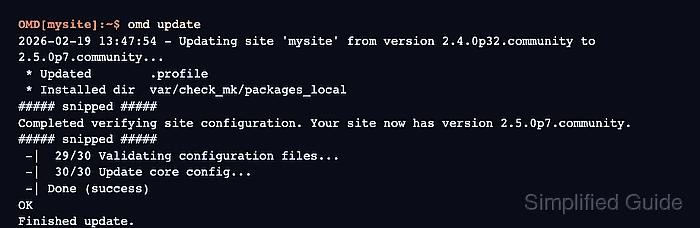
OMD[mysite]:~$ omd update
2026-02-19 13:47:54 - Updating site 'mysite' from version 2.4.0p32.community to 2.5.0p7.community...
 * Updated        .profile
 * Installed dir  var/check_mk/packages_local
##### snipped #####
Completed verifying site configuration. Your site now has version 2.5.0p7.community.
##### snipped #####
 -|  29/30 Validating configuration files...
 -|  30/30 Update core config...
 -| Done (success)
OK
Finished update.
If more than one target version is installed, select the intended target from the omd update dialog. Resolve any reported file conflict before accepting the update result.
Do not treat a downgrade as a normal rollback path. Checkmk supports omd update to a lower version only for regressions, and configuration compatibility can require manual repair.
- Confirm that the site now reports the target version.
OMD[mysite]:~$ omd version
OMD - Open Monitoring Distribution Version 2.5.0p7.community
- Start the updated site.
OMD[mysite]:~$ omd start
Starting agent-receiver...OK
Starting mkeventd...OK
Starting rrdcached...OK
Starting redis...OK
Starting npcd...OK
Starting automation-helper...OK
Starting ui-job-scheduler...OK
Starting nagios...OK
Starting apache...OK
Initializing Crontab...OK
Open a new site-user shell after a major update when the release notes require refreshed environment variables.
- Check the site services after startup.
OMD[mysite]:~$ omd status
agent-receiver:     running
mkeventd:           running
rrdcached:          running
redis:              running
npcd:               running
automation-helper:  running
ui-job-scheduler:   running
nagios:             running
apache:             running
crontab:            running
---------------------------
Overall state:      running
- Open the Checkmk site URL and log in as an administrator.
https://monitoring.example.net/mysite/
After major-version updates, review any incompatible Werks shown in the Checkmk Help menu and activate pending changes after making required adjustments.

Mohd Shakir Zakaria is a cloud architect with deep roots in software development and open-source advocacy. Certified in AWS, Red Hat, VMware, ITIL, and Linux, he specializes in designing and managing robust cloud and on-premises infrastructures.


