Distributed monitoring in Checkmk connects a remote site to a central site so monitoring can run close to the hosts while operators work from one central interface. This is useful when remote networks, branch offices, or segmented environments should keep checks local but still report status to the central site.
The central site stores the shared configuration and queries remote monitoring state through Livestatus. When Push configuration to this site is enabled, the central site also sends configuration snapshots to the remote site over the remote web interface, so the remote site must expose both its web URL and its Livestatus TCP endpoint to the central site.
Use this flow after both Checkmk sites already exist and the central site can reach the remote site by name. The remote site's local configuration is overwritten when it is integrated into the central setup, so migrate or recreate any existing remote-only hosts before enabling central replication.
Steps to configure Checkmk distributed monitoring:
- Choose the central site ID, remote site ID, remote host name, and remote web URL before changing either site.
Central site: central
Remote site: remote_dc1
Remote host: remote-monitoring.example.net
Remote web URL: https://remote-monitoring.example.net/remote_dc1/
The remote site ID must match the actual Checkmk site name on the remote server.
- Log in to the remote server as the remote Checkmk site user.
$ sudo omd su remote_dc1
OMD[remote_dc1]:~$
- Stop the remote site before changing its site-level access settings.
OMD[remote_dc1]:~$ omd stop
Stopping mkeventd...OK
Stopping liveproxyd...OK
Stopping mknotifyd...OK
Stopping rrdcached...OK
Stopping apache...OK
Stopping redis...OK
Stopping crontab...OK
Stopping the site interrupts monitoring from that remote site until it is started again.
- Enable external Livestatus access on the remote site.
OMD[remote_dc1]:~$ omd config set LIVESTATUS_TCP on
Livestatus is the status-data interface that the central site uses to read host and service states from the remote site.
- Set the remote Livestatus TCP port that the central site will use.
OMD[remote_dc1]:~$ omd config set LIVESTATUS_TCP_PORT 6557
Use a different port only when the remote server already has another site or service using 6557.
- Enable TLS for the remote Livestatus TCP connection.
OMD[remote_dc1]:~$ omd config set LIVESTATUS_TCP_TLS on
The central site must use the matching Encrypt data using TLS setting when the remote connection is added.
- Enable the remote piggyback hub when piggyback data must move between distributed sites.
OMD[remote_dc1]:~$ omd config set PIGGYBACK_HUB on
Commercial sites that use piggyback data need the message broker path as well as Livestatus. The remote RABBITMQ_PORT value is used later in the central connection form.
- Start the remote site again.
OMD[remote_dc1]:~$ omd start
Starting mkeventd...OK
Starting liveproxyd...OK
Starting mknotifyd...OK
Starting rrdcached...OK
Starting apache...OK
Starting redis...OK
Starting crontab...OK
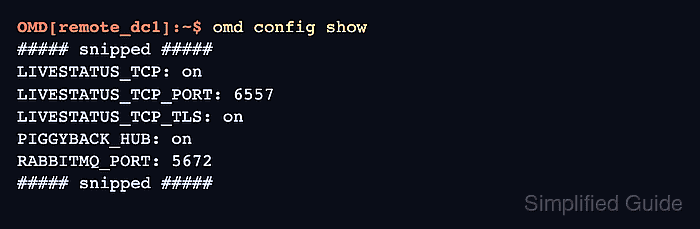
- Check the remote site settings that the central site will depend on.
OMD[remote_dc1]:~$ omd config show
##### snipped #####
LIVESTATUS_TCP: on
LIVESTATUS_TCP_PORT: 6557
LIVESTATUS_TCP_TLS: on
PIGGYBACK_HUB: on
RABBITMQ_PORT: 5672
##### snipped #####
- Open the central site as a Checkmk administrator.
- Enable Enable piggyback-hub under Setup → General → Global settings → Site management when piggyback data must move between distributed sites.
Activate the setting before relying on cross-site piggyback forwarding because Checkmk restarts the affected site when the piggyback hub changes.
- Open Setup → General → Distributed monitoring.
- Click Add connection.
- Enter the remote site ID and alias.
Use remote_dc1 as the Site ID when the remote site was created with that exact name.
- Enter the remote web URL in URL prefix.
https://remote-monitoring.example.net/remote_dc1/
Use the remote site's web interface URL for this field, not a copied browser URL from inside the check_mk/ application path.
- Configure the status connection to use the remote host name, Livestatus port, and TLS setting from the remote site.
Host name: remote-monitoring.example.net
Port: 6557
Encryption: Encrypt data using TLS
- Enable Push configuration to this site when the central site should manage the remote site's configuration.
- Enter the remote Message broker port from the remote site's RABBITMQ_PORT value.
Message broker port: 5672
Skip piggyback-specific broker settings only when the environment does not use distributed piggyback forwarding.
- Save the connection.
- Log in to the remote site from the central connection page and confirm the overwrite prompt.
The central setup replaces the remote site's local configuration. Do not continue until any remote-only hosts or rules have been migrated or intentionally discarded.
- Activate the pending changes on the central site.
The activation view should list the central site and the remote site, then synchronize and activate the selected sites.
Related: How to activate Checkmk pending changes - Confirm the remote connection shows Online in the Status column.
Online means the central site can query the remote site through Livestatus.
- Open the host or folder that should be monitored by the remote site.
For a new host, create the host first and return to the same host properties page.
Related: How to add a host in Checkmk - Set Monitored on site to the remote site and save the host or folder.
- Run service discovery or an agent connection test from the central site for a host assigned to the remote site.
Checkmk performs host access, service discovery, diagnostics, notifications, and similar monitoring actions from the site selected in Monitored on site.
- Activate the pending host or folder changes on the central site.
- Open the host from Monitor and confirm the host details show the remote site as the monitoring site.

Mohd Shakir Zakaria is a cloud architect with deep roots in software development and open-source advocacy. Certified in AWS, Red Hat, VMware, ITIL, and Linux, he specializes in designing and managing robust cloud and on-premises infrastructures.


