A problem-monitoring dashboard in Checkmk gives operators one screen for current host and service issues, unhandled counts, and the views needed during triage. It fits wall displays, shift handovers, and team workspaces where the default dashboard is too broad or too private.
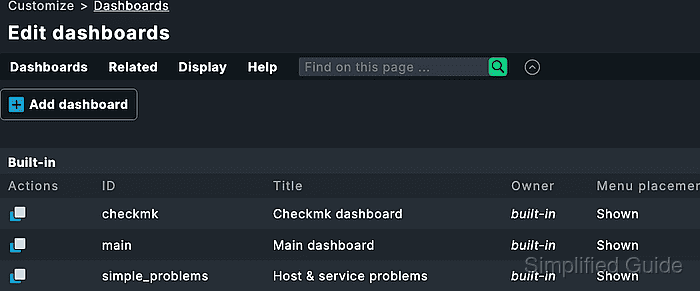
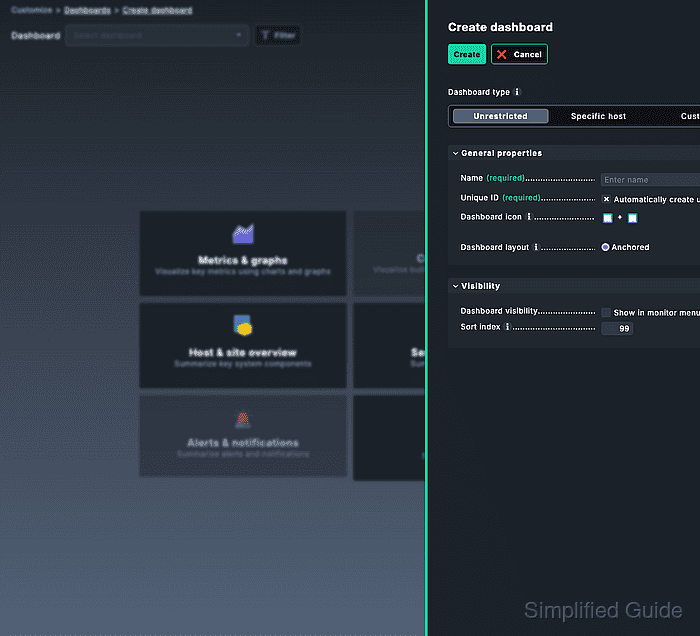
Customize → Visualization → Dashboards creates the dashboard shell. The Unrestricted dashboard type works for a shared problem dashboard because dashboard and widget filters can narrow the content later, while Specific host or Custom limits the available data before widgets are added.
Built-in dashboards are protected from direct editing, so clone one when it already has the right shape or create a new dashboard for a focused operations view. The Anchored layout works in all editions, while Responsive layout is a commercial-edition option in current Checkmk releases; choose the layout before saving because the layout type controls how widgets are placed.
Related: How to acknowledge a problem in Checkmk
Related: How to inspect a Checkmk service metric graph
Related: How to schedule Checkmk downtime
Steps to create a Checkmk problem-monitoring dashboard:
- Sign in to the Checkmk site with an account that can customize dashboards.
- Open Customize → Visualization → Dashboards.
- Click Add dashboard.
Clone a built-in dashboard instead when the existing Problems dashboard already has most of the widgets and filters the operations team needs.
- Select Unrestricted as the Dashboard type.
- Enter a descriptive dashboard name.
A name such as Operations problem watch is easier to recognize in dashboard menus than a generic team or location name.
- Keep the generated Unique ID or set a stable ID such as ops_problem_watch before saving.
- Select the Dashboard layout.
Use Anchored for Checkmk Community or for dashboards that must work across editions. Use Responsive only when the site edition provides it and manual drag-and-drop placement is required.
- Set Visibility so the dashboard appears in the intended Monitor menu category, such as Problems.
- Save the dashboard.
- Open Settings → Dashboard settings.
- Open the Access tab and grant access to the operators or roles that should see the dashboard.
New dashboards are private by default until access is widened.
- Open Settings → Filter settings when the dashboard should show only one site, folder, host group, or naming pattern.
- Add the dashboard-level filters that define the operations scope.
For host names, Checkmk evaluates regex filters. Use a precise pattern such as ^web- when the dashboard should show only hosts whose names start with web-.
- Click Add widget → Host & site overview → Host statistics.
- Save the widget and place it near the top of the dashboard.
- Click Add widget → Service overview → Service statistics.
- Save the widget and place it beside or below the host statistics widget.
- Open Monitor → Problems → Host problems in another browser tab.
- Open Export → Add to dashboard.
- Select the new dashboard and confirm the export.
- Return to the dashboard and place the Host problems view widget below the statistics widgets.
- Open Monitor → Problems → Service problems.
- Open Export → Add to dashboard.
- Select the same dashboard and confirm the export.
- Return to the dashboard and place the Service problems view widget beside or below Host problems.
- Open the widget properties for each problem view and adjust the title, refresh behavior, and displayed rows so the dashboard remains readable on the target screen.
- Leave layout mode and reload the dashboard.
- Confirm that the host statistics, service statistics, Host problems, and Service problems widgets show live monitoring data for the intended scope.
- Open the dashboard from the Monitor menu category configured in Visibility.
- Verify access with a second operator account when the dashboard is meant to be shared.
Do not test shared access with an administrator session only; administrator permissions can hide missing access rules for normal operators.
- Copy the dashboard URL from the browser address bar when a wall display or bookmark should open it directly.
https://monitoring.example.net/mysite/check_mk/dashboard.py?name=ops_problem_watch

Mohd Shakir Zakaria is a cloud architect with deep roots in software development and open-source advocacy. Certified in AWS, Red Hat, VMware, ITIL, and Linux, he specializes in designing and managing robust cloud and on-premises infrastructures.


