Monitoring an AWS account in Checkmk lets the site collect cloud service status, metrics, and limits through the AWS special agent instead of installing agents on managed AWS services. A single monitoring view can then include EC2, EBS, S3, RDS, load balancers, billing checks, or other selected account services.
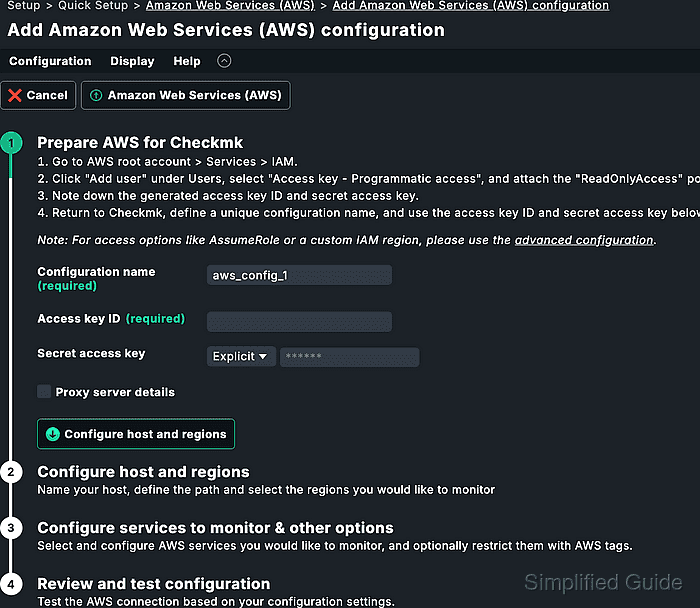
The current Checkmk workflow starts from Setup → Quick Setup → Amazon Web Services (AWS) for straightforward accounts. The quick setup creates the Checkmk host and special-agent rule together, runs connection checks during configuration, and leaves the resulting objects editable later under Setup → Quick Setup or the normal host and rule pages.
Use a dedicated AWS IAM identity for monitoring and grant only the read access required for the services being collected. Checkmk can use access keys directly, and larger environments can use STS AssumeRole so one monitoring identity can reach additional accounts without storing a separate long-term key for each account.
Steps to monitor an AWS account in Checkmk:
- Create a dedicated AWS IAM identity for Checkmk monitoring.
AWS recommends temporary security credentials where possible. If the Checkmk site must use an access key, create it for a dedicated monitoring identity rather than a root user or shared administrator user.
- Attach read-only permissions for the services Checkmk should collect.
The ReadOnlyAccess managed policy is the broad baseline recommended by Checkmk for account monitoring. Add billing and Cost Explorer read permissions only when the Costs and Usage check should be collected.
- Create or select the credential that Checkmk will use.
An AWS secret access key is shown only when it is created. Store it in the Checkmk password store or another controlled secret surface before leaving the AWS console.
- Confirm that the credential resolves to the intended account.
$ aws sts get-caller-identity --profile checkmk-aws --output json
{
    "UserId": "AIDAEXAMPLEMONITORING",
    "Account": "123456789012",
    "Arn": "arn:aws:iam::123456789012:user/checkmk-monitoring"
}
The Account value should match the account being added to Checkmk. Use an isolated profile or temporary credential files for this check instead of writing monitoring secrets into a shared operator profile.
- Open Setup → Quick Setup → Amazon Web Services (AWS) in Checkmk.
- Start a new AWS configuration with Add configuration.
- Enter the AWS account host name, site, and credential details requested by the quick setup.
Use a host name that identifies the source account clearly, such as aws-prod or aws-shared-services. The AWS source host does not represent a reachable server and should be configured without a normal IP address.
- Select the regions and AWS services to monitor.
Regional service selection controls which data the special agent requests from AWS. Restrict regions, service families, names, or tags when a large account would create unnecessary services or API calls.
- Enable STS AssumeRole only when the monitoring identity must assume another account role.
Use the role ARN and external ID policy required by the target account. Keep one configuration per trust boundary so credentials and account ownership remain auditable.
- Run the quick setup connection and configuration checks.
- Finish the quick setup after the connection check succeeds.
- Run service discovery for the AWS source host.
The AWS source host should discover account-level services such as costs, limits, S3, RDS, and other selected services.
Related: How to run Checkmk service discovery - Configure piggyback host creation for EC2 instances when the account should show instances as separate Checkmk hosts.
Commercial editions can use Setup → Hosts → Dynamic host management with a piggyback-data connection. In Checkmk Raw or smaller accounts, create piggyback hosts manually with names that match the special-agent output.
Related: How to create a Checkmk piggyback host - List orphaned piggyback data when expected EC2 hosts are missing.
OMD[monitoring]:~$ cmk-piggyback list orphans
172.31.12.44-us-east-1-i-0abc1234def567890
172.31.28.19-us-east-1-i-0def567890abc1234
Orphaned piggyback entries mean the AWS special agent produced data for objects that do not yet have matching Checkmk host objects.
- Activate the pending Checkmk changes.
The AWS host, special-agent rule, discovered services, and any piggyback host additions do not affect monitoring until the changes are activated.
Related: How to activate Checkmk pending changes - Open the AWS source host in Monitor and confirm that its services have current check results.
- Open an EC2 piggyback host when instance monitoring is enabled and confirm that the instance services have current metrics.
- Open Monitor → Cloud when using a commercial edition with built-in cloud dashboards.
Checkmk Ultimate includes AWS EC2 instances and AWS S3 dashboard entries under Monitor → Cloud. Other editions can still verify the setup from the host and service views.

Mohd Shakir Zakaria is a cloud architect with deep roots in software development and open-source advocacy. Certified in AWS, Red Hat, VMware, ITIL, and Linux, he specializes in designing and managing robust cloud and on-premises infrastructures.


