AWS CLI commands can wait too long before they even reach an AWS endpoint when a proxy, VPN, private link, or broken route delays the socket connection. Setting the connect timeout lets the client fail sooner on unreachable paths or wait longer on slow but valid network paths before the request is abandoned.
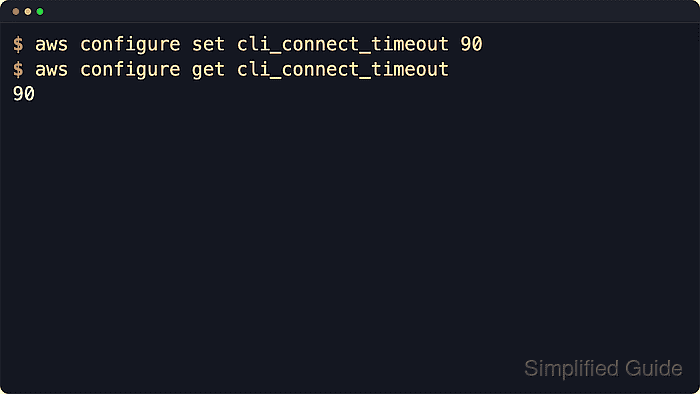
The saved profile setting is cli_connect_timeout in the shared AWS CLI config file. aws configure set writes it to the active profile, and aws configure get reads back the value saved in that config file without resolving environment variables or one-command overrides.
Current AWS CLI v2 documentation lists 60 seconds as the default connect timeout, and 0 makes the socket connect wait indefinitely. Keep a finite value for normal shells and automation unless another scheduler, retry policy, or watchdog will stop a command that cannot connect.
Related: How to set AWS CLI read timeout
Related: How to configure multiple AWS CLI profiles
Steps to set AWS CLI connect timeout:
- Choose a finite timeout window for the profile.
Value Use case 10 to 30 Fail faster when a proxy, VPN, or endpoint is often unreachable 60 Use the documented default when no saved profile override is needed 90 or higher Allow slower private routes or inspection proxies more time to connect 0 Use only when another timeout or job runner already limits stalled commands - Check whether the current profile already has a saved connect timeout.
$ aws configure get cli_connect_timeout
No output means no explicit value is saved in the shared config file, so the profile uses the AWS CLI default unless a command-line option overrides it.
- Save a connect timeout for the default profile.
$ aws configure set cli_connect_timeout 90
aws configure set creates the config file if it does not exist and writes non-credential settings to the shared config file.
- Read the saved default profile value.
$ aws configure get cli_connect_timeout
90
- Save a different connect timeout for a named profile.
$ aws configure set cli_connect_timeout 30 --profile audit
The --profile option writes the value under [profile audit] and leaves the default profile unchanged.
Related: How to configure multiple AWS CLI profiles - Read the named profile value.
$ aws configure get cli_connect_timeout --profile audit
30
- Inspect the shared config file when the profile section needs direct review.
$ cat ~/.aws/config
[default]
cli_connect_timeout = 90
[profile audit]
cli_connect_timeout = 30
If AWS_CONFIG_FILE is set, inspect that path instead of ~/.aws/config. On Windows, the default config path is
%UserProfile%\.aws\config
.
Related: How to find the AWS CLI config file location - Override the saved timeout for one command when a single request needs a different connection window.
$ aws sts get-caller-identity --profile audit --cli-connect-timeout 10
The --cli-connect-timeout option applies only to that command and takes precedence over the saved profile setting.

Mohd Shakir Zakaria is a cloud architect with deep roots in software development and open-source advocacy. Certified in AWS, Red Hat, VMware, ITIL, and Linux, he specializes in designing and managing robust cloud and on-premises infrastructures.


