Retired AWS CLI profiles can keep old account names, roles, Regions, or file-backed access keys visible long after the access should stop being used. Removing the stale profile from the shared files prevents scripts and operators from selecting that local name by mistake.
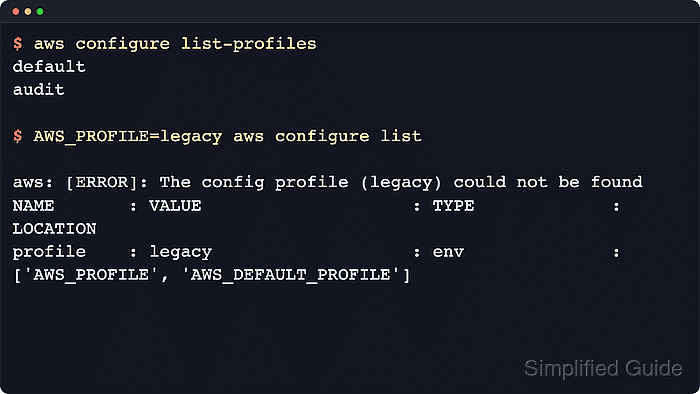
The AWS CLI builds its profile list from the shared config file and the shared credentials file. Named profiles appear as [profile name] sections in ~/.aws/config and as [name] sections in ~/.aws/credentials, while the default profile uses [default] in both files.
AWS_CONFIG_FILE and AWS_SHARED_CREDENTIALS_FILE can move those files for the current shell or process, so confirm the active path before editing a scripted or temporary environment. AWS documents profile cleanup as a manual file edit, not as an aws configure delete-profile command, and shared sso-session blocks should stay in place when another profile still references them.
Related: How to configure multiple AWS CLI profiles
Related: How to switch AWS CLI profiles
Steps to delete an AWS CLI profile:
- List the configured profiles and confirm the exact name to remove.
$ aws configure list-profiles
default
legacy
audit
base
aws configure list-profiles reads the active shared config and credentials files. The profile name remains visible until every matching section is removed from those files.
- Back up the shared config file.
$ cp -p ~/.aws/config ~/.aws/config.bak
If AWS_CONFIG_FILE is set, back up that file instead of ~/.aws/config.
Related: How to find the AWS CLI config file location - Back up the shared credentials file when it exists.
$ cp -p ~/.aws/credentials ~/.aws/credentials.bak
Skip this step when the file is absent. If AWS_SHARED_CREDENTIALS_FILE is set, back up that file instead of ~/.aws/credentials. Profiles that use IAM Identity Center may not have a matching credentials section.
Related: How to find the AWS CLI shared credentials file location - Open the shared credentials file.
$ nano ~/.aws/credentials
Delete the entire [legacy] section, including aws_access_key_id, aws_secret_access_key, and aws_session_token lines that belong only to that profile. For the default profile, delete only the [default] credentials section.
- Open the shared config file.
$ nano ~/.aws/config
Delete the entire [profile legacy] section, including settings such as region, output, role_arn, source_profile, credential_process, sso_session, and legacy sso_* values that belong only to that profile.
- Remove or update any remaining profile that depends on the deleted name.
[profile audit]
role_arn = arn:aws:iam::123456789012:role/AuditRole
source_profile = base
region = us-east-1
A profile with source_profile = legacy fails after legacy is removed. Point the dependent profile at a valid source profile or remove the dependent profile during the same edit.
Related: How to assume an IAM role using AWS CLI - Clear shell-level profile selection that still points at the deleted name.
$ unset AWS_PROFILE
Update shell startup files, wrapper scripts, CI variables, or scheduler entries separately if they still export the retired profile name.
Related: How to use AWS CLI environment variables - Clear IAM Identity Center cached credentials only when that sign-in should be ended for all local SSO profiles.
$ aws sso logout
Successfully signed out of all SSO profiles.
aws sso logout signs out every cached IAM Identity Center profile for the current user, not only the deleted profile. Skip this step when other profiles still need the same active SSO session.
Related: How to log in to AWS CLI with IAM Identity Center - List the profiles again and confirm the removed name no longer appears.
$ aws configure list-profiles
default
audit
base
If legacy still appears, a matching section remains in the active file selected by AWS_CONFIG_FILE or AWS_SHARED_CREDENTIALS_FILE.

Mohd Shakir Zakaria is a cloud architect with deep roots in software development and open-source advocacy. Certified in AWS, Red Hat, VMware, ITIL, and Linux, he specializes in designing and managing robust cloud and on-premises infrastructures.


