Package updates in an Anaconda environment can change the dependency set used by notebooks, scripts, and command-line tools. Target the environment explicitly with conda update and --name so the solver changes the intended project environment instead of whichever environment happens to be active.
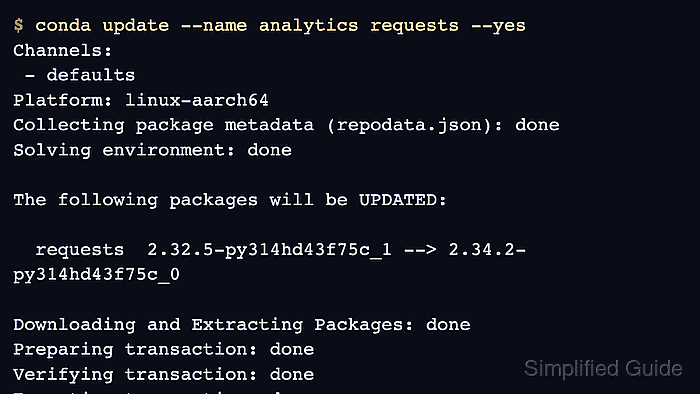
conda update asks the solver for the newest compatible build of the requested package from configured channels. A dry run prints the planned transaction before files change, including dependency packages that may move to satisfy the package request.
Anaconda's defaults channels can require Terms of Service acceptance before package metadata is read. Review any channel prompt under your organization's policy, and keep version pins or environment YAML files updated when a project must stay on a tested package release.
Steps to update a Conda package in an Anaconda environment:
- Open a terminal where Conda is available.
- Check the installed package in the target environment.
$ conda list --name analytics requests
# packages in environment at /opt/conda/envs/analytics:
#
# Name                     Version          Build            Channel
requests                   2.32.5           py314hd43f75c_1
Replace analytics with the environment that should receive the update and requests with the package name. Install the package first if no matching row appears.
Related: How to list packages in an Anaconda environment
Related: How to install a package with Conda - Accept a blocked Anaconda channel Terms of Service only after review.
$ conda tos accept --override-channels --channel https://repo.anaconda.com/pkgs/main
accepted Terms of Service for https://repo.anaconda.com/pkgs/main
Run this only for channels your organization allows. Repeat the command for each blocked channel URL that Conda prints, or remove the channel before continuing.
- Review the planned package update without changing the environment.
$ conda update --name analytics requests --dry-run
Channels:
 - defaults
Platform: linux-aarch64
Collecting package metadata (repodata.json): done
Solving environment: done

## Package Plan ##

  environment location: /opt/conda/envs/analytics

  added / updated specs:
    - requests

The following packages will be UPDATED:

  requests                           2.32.5-py314hd43f75c_1 --> 2.34.2-py314hd43f75c_0

DryRunExit: Dry run. Exiting.
--dry-run shows the solver plan without writing to the environment. Review any dependency updates, removals, or pinned-package conflicts before applying the transaction.
- Apply the package update to the target environment.
$ conda update --name analytics requests --yes
Channels:
 - defaults
Platform: linux-aarch64
Collecting package metadata (repodata.json): done
Solving environment: done

## Package Plan ##

  environment location: /opt/conda/envs/analytics

  added / updated specs:
    - requests

The following packages will be UPDATED:

  requests                           2.32.5-py314hd43f75c_1 --> 2.34.2-py314hd43f75c_0

Downloading and Extracting Packages: done
Preparing transaction: done
Verifying transaction: done
Executing transaction: done
Leave off --yes when the package plan should pause for interactive confirmation.
- Confirm the updated package row.
$ conda list --name analytics requests
# packages in environment at /opt/conda/envs/analytics:
#
# Name                     Version          Build            Channel
requests                   2.34.2           py314hd43f75c_0
- Run a package-specific smoke test from the same environment.
$ conda run --name analytics python -c "import requests; print(requests.__version__)"
2.34.2
Replace the sample Python import with the module, executable, notebook check, or project command that proves the updated package works.
Related: How to run a command in a Conda environment without activating it

Mohd Shakir Zakaria is a cloud architect with deep roots in software development and open-source advocacy. Certified in AWS, Red Hat, VMware, ITIL, and Linux, he specializes in designing and managing robust cloud and on-premises infrastructures.


