Copying a Conda environment directory directly can leave scripts and compiled packages pointing at the old prefix. Packing the environment creates a portable archive that can be moved as one file and repaired after extraction on the destination system.
conda-pack reads an existing environment and writes an archive such as analytics.tar.gz. The archive includes activation scripts, package metadata, and conda-unpack, which rewrites embedded paths after the archive is unpacked in its final location.
Packed environments are platform-specific. Build the archive on the same operating system and architecture family that will run it, keep the source package cache available while packing, and run conda-unpack after extraction before handing the environment to a notebook, script, scheduler, or service.
Steps to pack a Conda environment for transfer:
- Open a terminal where Conda is available.
- Install conda-pack in the base environment.
$ conda install --name base --override-channels --channel conda-forge conda-pack --yes
Channels:
 - conda-forge
Platform: linux-aarch64
Collecting package metadata (repodata.json): done
Solving environment: done

## Package Plan ##

  environment location: /opt/conda

  added / updated specs:
    - conda-pack

The following NEW packages will be INSTALLED:

  conda-pack         conda-forge/noarch::conda-pack-0.9.1-pyhcf101f3_0
##### snipped #####
Preparing transaction: done
Verifying transaction: done
Executing transaction: done
Use a channel that is allowed for the environment. The example uses --override-channels so the install reads only conda-forge instead of any default channels configured on the workstation.
Related: How to enable conda-forge in Conda - Confirm the environment name before packing it.
$ conda env list

# conda environments:
#
# * -> active
# + -> frozen
base                     /opt/conda
analytics                /opt/conda/envs/analytics
Replace analytics with the environment that already runs the project correctly. Use --prefix with conda-pack when the source environment is identified by path instead of name.
Related: How to list Anaconda environments - Pack the environment into a tar archive.
$ conda-pack --name analytics --output analytics.tar.gz --force
Collecting packages...
Packing environment at '/opt/conda/envs/analytics' to 'analytics.tar.gz'
[########################################] | 100% Completed |  6.6s
--force overwrites an existing archive with the same name. Omit it when preserving an earlier archive matters.
- List the archive contents before transfer.
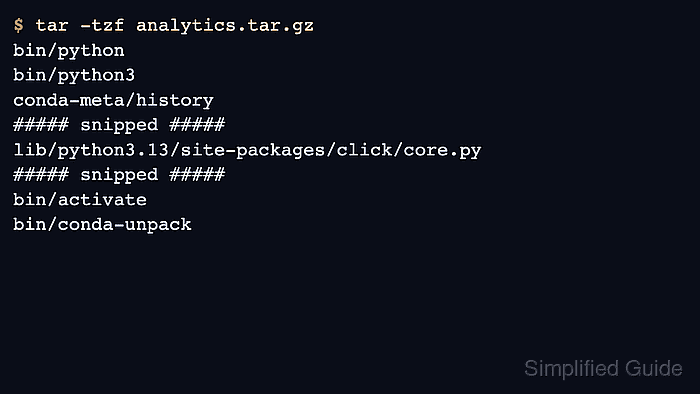
$ tar -tzf analytics.tar.gz
bin/python
bin/python3
conda-meta/history
##### snipped #####
lib/python3.13/site-packages/click/core.py
##### snipped #####
bin/activate
bin/conda-unpack
The listing should show runtime files, conda-meta records, activation scripts, and conda-unpack. The archive is ready to copy only after this check shows the expected environment contents.
- Create a temporary restore directory for a local unpack test.
$ mkdir -p restore/analytics
- Extract the archive into the restore directory.
$ tar -xzf analytics.tar.gz -C restore/analytics
- Activate the unpacked environment.
$ source restore/analytics/bin/activate
(analytics) $
On the real destination, run conda-unpack only after the archive is in its final path. A local restore test should use a disposable directory so it can be removed after verification.
- Rewrite the unpacked environment prefixes.
(analytics) $ conda-unpack
- Run a package smoke test from the unpacked environment.
(analytics) $ python -c 'import importlib.metadata as md; print(md.version("click"))'
8.4.1
Replace the sample click check with the import, command, or notebook kernel that proves the packed environment runs the project workload.
- Deactivate the unpacked environment.
(analytics) $ conda deactivate
- Remove the local restore test directory.
$ rm -rf restore

Mohd Shakir Zakaria is a cloud architect with deep roots in software development and open-source advocacy. Certified in AWS, Red Hat, VMware, ITIL, and Linux, he specializes in designing and managing robust cloud and on-premises infrastructures.


