How to add an XCUITest UI testing target
An XCUITest UI testing target gives an Xcode project a separate bundle for automation that launches the app and drives its interface through XCTest. Add one when an existing app was created without UI tests or when another app target needs its own UI automation bundle.
Xcode creates the target from the UI Testing Bundle template and connects it to an app through the Target to be Tested setting. The generated files live in a separate group, usually named MyAppUITests, and the app scheme's Test action decides whether the bundle runs from Product → Test or xcodebuild test.
Use the full Xcode app on macOS for this setup. The Command Line Tools package alone cannot run iOS Simulator UI tests, and a UI testing target should point at the app target rather than a framework, package, or unit test bundle.
Related: How to write a first XCUITest UI test
Related: How to run XCUITest tests locally
Steps to add an XCUITest UI testing target in Xcode:
- Open the app project or workspace in Xcode.
- Choose File → New → Target.
- Select the app platform in the target template sheet.
- Type Test in the template filter.
- Select UI Testing Bundle and click Next.
Choose Unit Testing Bundle only for tests that call app code directly. UI Testing Bundle is the template that launches the app and automates its interface.
- Enter MyAppUITests as the product name.
- Select Swift as the language.
- Select MyApp in Target to be Tested.
If the app target is not available in the picker, return to the template screen and choose the same platform as the app target.
- Click Finish.
- Select the project in the Project navigator.
- Confirm MyAppUITests appears in the project target list.
- Open Product → Scheme → Edit Scheme.
- Select Test in the scheme editor.
- Confirm MyAppUITests is enabled for the app scheme.
Add the UI test target to the Test action if the target was created but is not listed. The app scheme controls what runs when Xcode uses Product → Test.
- Open the generated MyAppUITests/MyAppUITests.swift file.
The template normally includes a sample method that launches XCUIApplication(). Replace the sample after the target runs once.
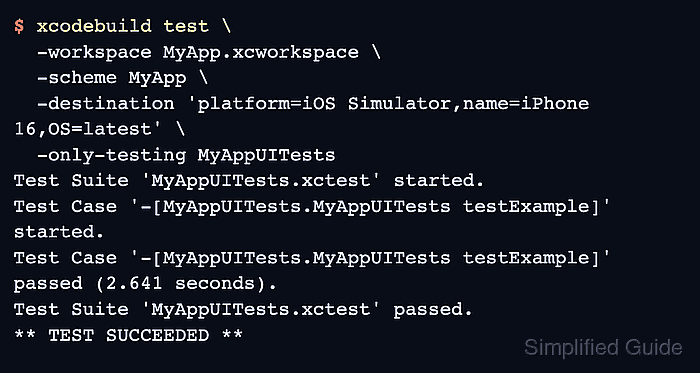
Related: How to write a first XCUITest UI test - Run the generated UI test target on an iOS Simulator.
$ xcodebuild test \
  -workspace MyApp.xcworkspace \
  -scheme MyApp \
  -destination 'platform=iOS Simulator,name=iPhone 16,OS=latest' \
  -only-testing MyAppUITests
Test Suite 'MyAppUITests.xctest' started.
Test Case '-[MyAppUITests.MyAppUITests testExample]' started.
Test Case '-[MyAppUITests.MyAppUITests testExample]' passed (2.641 seconds).
Test Suite 'MyAppUITests.xctest' passed.
** TEST SUCCEEDED **
Use -project MyApp.xcodeproj instead of -workspace MyApp.xcworkspace when the app does not use a workspace.
Related: How to run XCUITest tests locally