How to migrate a WordPress site to a new host
Moving WordPress to a new host is safest when the cutover is treated as a controlled handoff instead of a last-minute copy. A complete move keeps the database, uploads, plugins, themes, custom files, and public URL state aligned while preventing new comments, orders, or edits from landing on the old server after the final snapshot starts.
The migration has two parts that must stay in sync: the database and the document root that contains wp-config.php, plugins, themes, uploads, and any custom drop-ins. When the public URL stays the same, copy both parts to the new host, point wp-config.php at the target database, and verify that home and siteurl still match the public address.
Start with shell access on both hosts, a working WP-CLI installation, and enough space to stage the migration bundle outside the web root. Lower the DNS TTL before the cutover window, keep the old host available until the new host is verified, and run URL rewriting only when the public domain or protocol changes.
Related: How to back up a WordPress site
Related: How to restore a WordPress site
Related: How to update WordPress URLs from HTTP to HTTPS
Steps to migrate a WordPress site to a new host:
- Change into the source WordPress document root.
$ cd /var/www/html
Run the wp commands from the directory that contains wp-config.php. On subdirectory installs, home and siteurl can differ by design.
Related: How to install WP-CLI on Ubuntu or Debian
Related: How to install WP-CLI on Fedora or RHEL-compatible Linux - Record the current home URL.
$ wp option get home
http://www.example.com
- Record the current siteurl value.
$ wp option get siteurl
http://www.example.com
- Lower the DNS TTL for the live record before the migration window.
Make the TTL change far enough in advance for the old cache lifetime to drain before the final switch. Keeping the old TTL until cutover can leave visitors pinned to the old host after the new site is ready.
Tool: DNS TTL Change Window Calculator - Enable maintenance mode on the source host immediately before the final export.
$ wp maintenance-mode activate
Enabling Maintenance mode...
Success: Activated Maintenance mode.
Keep the old host read-only from this point forward. Do not disable maintenance mode on the source site unless the migration is intentionally rolled back.
- Confirm that the source site is in maintenance mode.
$ wp maintenance-mode status
Maintenance mode is active.
- Create a migration bundle directory outside the web root.
$ mkdir -p /srv/migration/wordpress
Use a dated or ticket-specific directory when several migrations may be staged on the same server.
- Export the source database into the migration bundle.
$ wp db export /srv/migration/wordpress/site.sql
Success: Exported to '/srv/migration/wordpress/site.sql'.
The SQL dump is the fastest rollback path if the target import or a later URL rewrite fails.
Related: How to back up a WordPress site - Archive the matching source files while excluding the maintenance marker.
$ tar -czf /srv/migration/wordpress/site-files.tar.gz --exclude=".maintenance" -C /var/www/html .
Excluding .maintenance prevents the target host from opening in maintenance mode after extraction.
- Record checksums for the database dump and file archive.
$ sha256sum /srv/migration/wordpress/site.sql /srv/migration/wordpress/site-files.tar.gz
dd3a9db91f9e277752c11e99c850a939732c72108e5897ccb2d9d5b7bb499508  /srv/migration/wordpress/site.sql
a16546734224724d477f9cbee60efc681fc321ac7df174f4b0d98f00c1626352  /srv/migration/wordpress/site-files.tar.gz
Checksums make a truncated or replaced transfer visible before the target import begins.
- Transfer the migration bundle to the new host.
$ rsync -avP /srv/migration/wordpress/ user@new-host:/srv/migration/wordpress/
Keep site.sql, site-files.tar.gz, and any checksum file together so the target-side restore uses matching artifacts.
- Create an empty target database when the new host has not already provisioned one.
$ mysql -u dbadmin -p -e "CREATE DATABASE wp_target CHARACTER SET utf8mb4 COLLATE utf8mb4_unicode_ci;"
Skip this step when the hosting panel or DBA has already created an empty database and assigned the correct user.
- Extract the file archive into the target document root.
$ tar -xzf /srv/migration/wordpress/site-files.tar.gz -C /var/www/html
If the target document root already contains an older site tree, move it aside first. Extracting over an existing tree can leave stale plugins, old uploads, or mixed-theme files in place.
- Remove any copied maintenance marker from the target tree.
$ rm -f /var/www/html/.maintenance
- Update wp-config.php on the new host so the migrated files point at the target database.
define( 'DB_NAME', 'wp_target' );
define( 'DB_USER', 'wpuser' );
define( 'DB_PASSWORD', 'strong-password' );
define( 'DB_HOST', '127.0.0.1:3306' );
Keep the existing table_prefix unless the migration intentionally targets a different table set.
- Import the source database after the target database settings are correct.
$ wp db import /srv/migration/wordpress/site.sql
Success: Imported from '/srv/migration/wordpress/site.sql'.
Importing into the wrong database overwrites data quickly. Re-check the live wp-config.php values before running the command.
- Confirm that the target host reports the expected home URL before DNS changes.
$ wp option get home
http://www.example.com
- Confirm that the target host reports the expected siteurl value.
$ wp option get siteurl
http://www.example.com
- Check the imported database on the target host.
$ wp db check
wordpress.wp_commentmeta                           OK
wordpress.wp_comments                              OK
wordpress.wp_links                                 OK
wordpress.wp_options                               OK
wordpress.wp_postmeta                              OK
wordpress.wp_posts                                 OK
##### snipped #####
wordpress.wp_terms                                 OK
wordpress.wp_usermeta                              OK
wordpress.wp_users                                 OK
Success: Database checked.
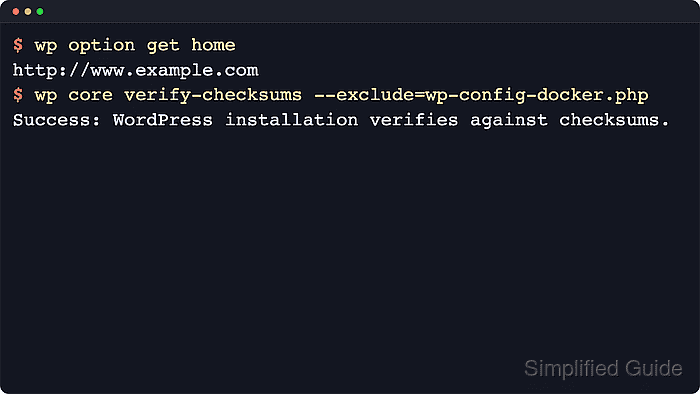
Run wp core verify-checksums separately when the target should contain an unmodified WordPress core tree. Pass --version or --locale if the installed release or locale differs from the value WP-CLI detects.
- Create a target-side rollback dump before changing URLs.
$ wp db export /srv/migration/wordpress/target-pre-url-change.sql
Success: Exported to '/srv/migration/wordpress/target-pre-url-change.sql'.
Skip this step when the public URL and protocol stay exactly the same.
- Dry-run the URL replacement when the public domain or protocol changes.
$ wp search-replace 'http://www.example.com' 'https://www.example.com' --all-tables-with-prefix --skip-columns=guid --dry-run
Table	Column	Replacements	Type
wp_options	option_value	2	PHP
wp_posts	post_content	3	SQL
wp_users	user_url	1	SQL
##### snipped #####
Success: 6 replacements to be made.
If wp-config.php defines WP_HOME or WP_SITEURL, update those constants first because they override the database values.
Related: How to update WordPress URLs from HTTP to HTTPS - Apply the URL replacement after the dry run matches the expected scope.
$ wp search-replace 'http://www.example.com' 'https://www.example.com' --all-tables-with-prefix --skip-columns=guid
Table	Column	Replacements	Type
wp_options	option_value	2	PHP
wp_posts	post_content	3	SQL
wp_users	user_url	1	SQL
##### snipped #####
Success: Made 6 replacements.
Avoid raw SQL string replacement for this job. Serialized option and metadata values can break when string lengths are not recalculated.
- Flush the target object cache after a URL rewrite.
$ wp cache flush
Success: The cache was flushed.
On multisite installations with a persistent object cache, flushing the object cache can affect every site that shares the cache backend.
- Confirm the target home URL after the replacement.
$ wp option get home
https://www.example.com
- Test wp-login.php, the front page, and a few media-heavy or transactional URLs against the new host before switching DNS.
Use a hosts-file override, provider preview URL, or another temporary route that sends the real hostname to the new server. Validate logins, uploads, forms, scheduled workflows, and any cache or proxy layer in front of WordPress.
- Refresh permalink rules on the new host if front-end URLs return rewrite-related 404 errors.
$ wp rewrite flush
Success: Rewrite rules flushed.
On Apache, saving Settings → Permalinks or running wp rewrite flush --hard can also regenerate rewrite files when needed. On Nginx, confirm the server block already matches the expected WordPress rewrite rules.
- Change DNS to the new host after target validation passes.
If the cutover fails before the new host accepts writes, point DNS back to the old host and deactivate maintenance mode there only after confirming that no newer content was created on the target.
Keep the old host read-only until traffic, logs, admin actions, and resolver checks stay clean through propagation.
Tool: DNS Propagation Checker