How to use client certificates with wget
Mutual TLS is common on private package mirrors, internal APIs, and partner download endpoints that identify the caller by certificate instead of by password. wget can make the same authenticated HTTPS request from a shell, script, or scheduled job without moving the transfer back into a browser.
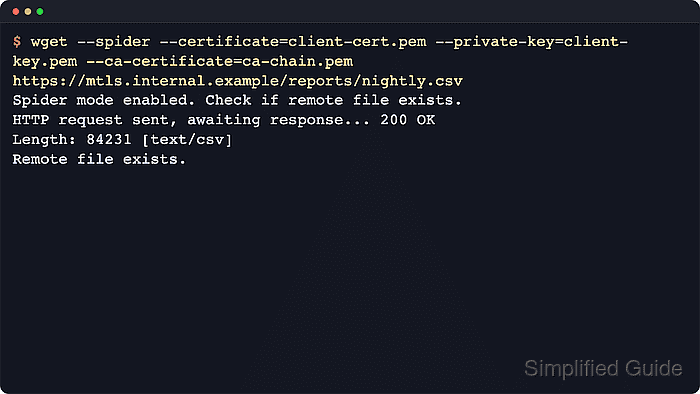
GNU wget sends the client certificate with --certificate and the matching private key with --private-key. PEM is the default format, so add --certificate-type=DER or --private-key-type=DER only when the files are actually DER encoded, and use --ca-certificate when the server certificate is signed by a CA that the system trust store does not already trust.
Keep the certificate and key readable only by the account running wget, confirm they match before the first request, and probe the endpoint before starting a large transfer. That catches the usual failures early: the wrong private key, the wrong CA chain, or a client certificate that is already expired.
Steps to use client certificates with wget:
- Stage the client certificate, private key, and private CA bundle in a directory that only the calling account can read.
$ install -d -m 700 "$HOME/.local/share/wget/client-auth"
$ install -m 600 client-cert.pem "$HOME/.local/share/wget/client-auth/client-cert.pem"
$ install -m 600 client-key.pem "$HOME/.local/share/wget/client-auth/client-key.pem"
$ install -m 600 issuing-ca-chain.pem "$HOME/.local/share/wget/client-auth/issuing-ca-chain.pem"
$ ls -l "$HOME/.local/share/wget/client-auth"
total 12
-rw-------  1 deploy deploy 1346 Mar 28 06:44 client-cert.pem
-rw-------  1 deploy deploy 1704 Mar 28 06:44 client-key.pem
-rw-------  1 deploy deploy 1261 Mar 28 06:44 issuing-ca-chain.pem
If the server certificate already chains to a public CA trusted by the system, omit the CA bundle and later omit --ca-certificate. Export .p12 or .pfx identities to separate certificate and key files first because wget expects PEM or DER files.
- Confirm that the certificate and private key belong to the same client identity before contacting the remote service.
$ openssl x509 -in "$HOME/.local/share/wget/client-auth/client-cert.pem" -pubkey -noout | openssl sha256
SHA2-256(stdin)= 2b7e218fcbab115f77db890bd8863b7306b792d9afc869bbde5950964a577999
$ openssl pkey -in "$HOME/.local/share/wget/client-auth/client-key.pem" -pubout | openssl sha256
SHA2-256(stdin)= 2b7e218fcbab115f77db890bd8863b7306b792d9afc869bbde5950964a577999
Matching digests show that the certificate and private key are a valid pair instead of two unrelated files with similar names.
- Inspect the certificate metadata so the subject, issuer, and expiry match the client identity that the service expects.
$ openssl x509 -in "$HOME/.local/share/wget/client-auth/client-cert.pem" -noout -subject -issuer -enddate
subject=CN = billing-sync-client-01.ops.example.net, O = Example Finance Delivery, OU = Automated Exports
issuer=CN = Example Internal Issuing CA, O = Example Operations
notAfter=Sep 18 01:50:57 2029 GMT
Fixing an expired or mis-issued certificate before the first request is faster than debugging a rejected handshake later.
- Probe the endpoint in spider mode so certificate, key, and CA problems surface before the real download starts.
$ wget --spider \
  --certificate="$HOME/.local/share/wget/client-auth/client-cert.pem" \
  --private-key="$HOME/.local/share/wget/client-auth/client-key.pem" \
  --ca-certificate="$HOME/.local/share/wget/client-auth/issuing-ca-chain.pem" \
  https://feed.ops.example.net/exports/billing-ledger-2026-03-28.csv
Spider mode enabled. Check if remote file exists.
--2026-03-28 06:45:22--  https://feed.ops.example.net/exports/billing-ledger-2026-03-28.csv
Loaded CA certificate '/home/deploy/.local/share/wget/client-auth/issuing-ca-chain.pem'
Resolving feed.ops.example.net (feed.ops.example.net)... 198.51.100.42
Connecting to feed.ops.example.net (feed.ops.example.net)|198.51.100.42|:443... connected.
HTTP request sent, awaiting response... 200 OK
Length: 101 [text/csv]
Remote file exists.
If the service trusts a public CA, omit --ca-certificate. If the endpoint rejects HEAD requests, run the download step against a small test object instead of using spider mode.
- Download the file with the same certificate, private key, and CA settings after the probe succeeds.
$ wget \
  --certificate="$HOME/.local/share/wget/client-auth/client-cert.pem" \
  --private-key="$HOME/.local/share/wget/client-auth/client-key.pem" \
  --ca-certificate="$HOME/.local/share/wget/client-auth/issuing-ca-chain.pem" \
  https://feed.ops.example.net/exports/billing-ledger-2026-03-28.csv
--2026-03-28 06:45:29--  https://feed.ops.example.net/exports/billing-ledger-2026-03-28.csv
Loaded CA certificate '/home/deploy/.local/share/wget/client-auth/issuing-ca-chain.pem'
Resolving feed.ops.example.net (feed.ops.example.net)... 198.51.100.42
Connecting to feed.ops.example.net (feed.ops.example.net)|198.51.100.42|:443... connected.
HTTP request sent, awaiting response... 200 OK
Length: 101 [text/csv]
Saving to: 'billing-ledger-2026-03-28.csv'

     0K                                                       100% 2.78M=0s

2026-03-28 06:45:29 (2.78 MB/s) - 'billing-ledger-2026-03-28.csv' saved [101/101]
Reuse the exact same option set from the probe so the successful handshake and the real transfer go through the same trust path.
- Confirm that the saved file is the expected payload before handing it to the next job.
$ cat billing-ledger-2026-03-28.csv
billing_date,account_id,delivery_state
2026-03-28,ACCT-48271,complete
2026-03-28,ACCT-48288,complete
The HTTPS handshake proves the client certificate was accepted, but the local file still needs a quick content check before another script imports it.