How to configure a JNDI datasource in Tomcat
A Tomcat-hosted application can start successfully and still fail on the first database request when the datasource name, driver location, or context descriptor is wrong. Defining the datasource as a Tomcat JNDI resource puts the connection pool under the container and gives the application one stable lookup name instead of hardcoded JDBC settings.
Tomcat exposes application resources under java:comp/env. The web application declares the resource it expects in WEB-INF/web.xml, while the Tomcat context descriptor supplies the driver, URL, credentials, and pool attributes. The two names must match, such as jdbc/InventoryDB, or the lookup fails even when the database driver is installed.
Ubuntu's tomcat10 package layout stores external context descriptors under /etc/tomcat10/Catalina/localhost and instance libraries under /var/lib/tomcat10/lib. The example uses an H2 in-memory datasource for a safe smoke test; production hosts should use their database driver, JDBC URL, credentials, and credential-management process while keeping secrets out of the application WAR when operations owns deployment.
Related: How to install Tomcat on Ubuntu
Related: How to deploy a WAR file to Tomcat on Ubuntu
Related: How to view Tomcat logs on Linux
Steps to configure a Tomcat JNDI datasource:
- Open a terminal with sudo privileges.
- Confirm the active Tomcat package paths.
$ ls -ld /etc/tomcat10 /var/lib/tomcat10/webapps /var/lib/tomcat10/lib
drwxr-xr-x 4 root   root   4096 Jun 10 20:41 /etc/tomcat10
drwxrwxr-x 3 tomcat tomcat 4096 Jun 10 20:41 /var/lib/tomcat10/webapps
drwxr-xr-x 2 tomcat tomcat 4096 Jun  9 12:08 /var/lib/tomcat10/lib
For a tarball or custom instance, use that instance's CATALINA_BASE/conf directory for context descriptors and CATALINA_BASE/lib for the driver JAR.
- Install the JDBC driver JAR into the Tomcat instance library.
$ sudo install -m 0644 /usr/share/java/h2.jar /var/lib/tomcat10/lib/h2.jar
Replace the H2 JAR with the driver for the target database, such as a PostgreSQL, MySQL, MariaDB, Oracle, or SQL Server driver. The driver must be visible to Tomcat when it creates the datasource, not only bundled inside one web application.
- Confirm the driver JAR is readable from the instance library.
$ ls -l /var/lib/tomcat10/lib/h2.jar
-rw-r--r-- 1 root root 2656321 Jun 10 20:41 /var/lib/tomcat10/lib/h2.jar
- Create the external context descriptor directory when it does not already exist.
$ sudo install -d -o tomcat -g tomcat -m 0755 /etc/tomcat10/Catalina/localhost
- Add the datasource resource to the application context descriptor.
$ sudoedit /etc/tomcat10/Catalina/localhost/inventory.xml
- inventory.xml
<Context docBase="/var/lib/tomcat10/webapps/inventory">
  <Resource name="jdbc/InventoryDB"
            auth="Container"
            type="javax.sql.DataSource"
            driverClassName="org.h2.Driver"
            url="jdbc:h2:mem:inventory;DB_CLOSE_DELAY=-1"
            username="sa"
            password=""
            maxTotal="20"
            maxIdle="10"
            maxWaitMillis="5000"/>
</Context>
The descriptor file name, inventory.xml, maps this external context to the /inventory application. Leaving out the factory attribute uses Tomcat's standard datasource factory with maxTotal and maxWaitMillis style pool attributes.
Do not paste production database passwords into source control, tickets, screenshots, or shared transcripts. Use the host's normal secret-management path and sanitize any evidence saved for handoff.
- Declare the same resource name in the web application's deployment descriptor.
$ sudoedit /var/lib/tomcat10/webapps/inventory/WEB-INF/web.xml
- WEB-INF/web.xml
<?xml version="1.0" encoding="UTF-8"?>
<web-app xmlns="https://jakarta.ee/xml/ns/jakartaee"
         xmlns:xsi="http://www.w3.org/2001/XMLSchema-instance"
         xsi:schemaLocation="https://jakarta.ee/xml/ns/jakartaee
                             https://jakarta.ee/xml/ns/jakartaee/web-app_6_0.xsd"
         version="6.0">
  <resource-ref>
    <res-ref-name>jdbc/InventoryDB</res-ref-name>
    <res-type>javax.sql.DataSource</res-type>
    <res-auth>Container</res-auth>
  </resource-ref>
</web-app>
Edit the source project copy before building a WAR. Direct edits under webapps are useful for a lab check, but they can be overwritten during the next deployment.
- Add a temporary datasource smoke-test page on a staging or localhost-only application.
$ sudoedit /var/lib/tomcat10/webapps/inventory/db-check.jsp
- db-check.jsp
<%@ page import="javax.naming.InitialContext" %>
<%@ page import="javax.sql.DataSource" %>
<%@ page import="java.sql.Connection" %>
<%@ page import="java.sql.ResultSet" %>
<%@ page import="java.sql.Statement" %>
<%
InitialContext ctx = new InitialContext();
DataSource ds = (DataSource) ctx.lookup("java:comp/env/jdbc/InventoryDB");
try (Connection conn = ds.getConnection();
     Statement stmt = conn.createStatement()) {
    stmt.execute("create table if not exists items (id int primary key, name varchar(40))");
    stmt.executeUpdate("merge into items key(id) values (1, 'inventory')");
    try (ResultSet rs = stmt.executeQuery("select name from items where id = 1")) {
        rs.next();
        out.println("JNDI datasource OK: " + rs.getString(1));
    }
}
%>
Do not leave this page exposed on a public application. Use the application's existing authenticated health check when one already proves datasource checkout and query execution.
- Test the Tomcat server configuration before restarting.
$ sudo env CATALINA_BASE=/var/lib/tomcat10 \
  CATALINA_HOME=/usr/share/tomcat10 \
  /usr/share/tomcat10/bin/configtest.sh
INFO: Server version name:   Apache Tomcat/10.1.40 (Ubuntu)
INFO: CATALINA_BASE:         /var/lib/tomcat10
INFO: CATALINA_HOME:         /usr/share/tomcat10
INFO: Server initialization in [246] milliseconds
configtest.sh confirms the main server configuration can initialize. Datasource name, driver, and credential errors still need the application smoke test after restart.
- Restart Tomcat to deploy the context descriptor and load the driver.
$ sudo systemctl restart tomcat10
- Request the datasource smoke-test URL through the local connector.
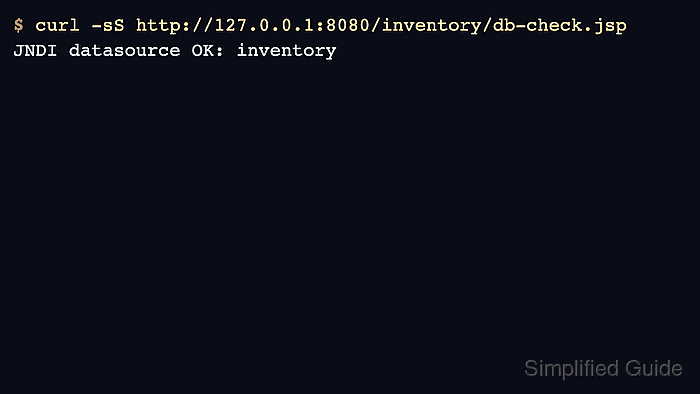
$ curl -sS http://127.0.0.1:8080/inventory/db-check.jsp
JNDI datasource OK: inventory
A response from the page proves the application resolved java:comp/env/jdbc/InventoryDB, borrowed a connection from the Tomcat datasource, and completed a small SQL query. If the request fails, check the Tomcat logs for naming, driver class, credential, or SQL connection errors. Related: How to view Tomcat logs on Linux
- Remove the temporary smoke-test page after the datasource is verified.
$ sudo rm /var/lib/tomcat10/webapps/inventory/db-check.jsp