How to enable Tomcat access logs
Tomcat access logs show which HTTP requests reached the container, which status code Tomcat returned, how many response bytes were sent, and how long the request took at the Tomcat layer. They are the right evidence source when a load balancer, reverse proxy, or application owner needs request-level proof instead of only startup logs or application framework messages.
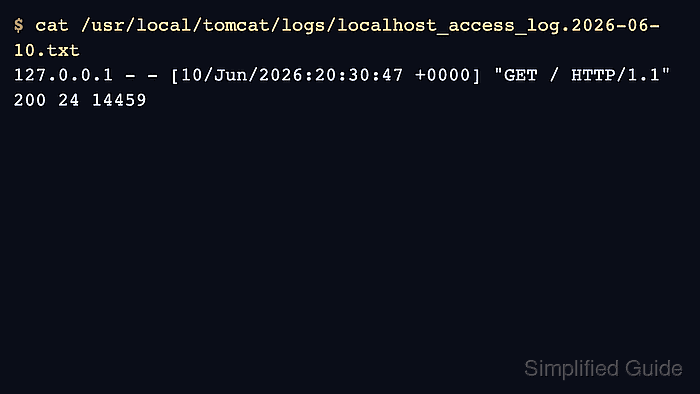
Tomcat writes request logs through an AccessLogValve in server.xml. A valve attached to a Host records requests processed by that virtual host, then writes files from the configured directory, prefix, date stamp, and suffix. A Host-level valve for the default virtual host writes files such as localhost_access_log.2026-06-10.txt.
In the examples, /opt/tomcat is CATALINA_BASE. Package-managed systems may keep the same setting in /etc/tomcat11/server.xml or /etc/tomcat10/server.xml and write logs under /var/log/tomcat11 or /var/log/tomcat10. Use the active instance paths for the Tomcat service being changed, and configure reverse proxy client-IP handling separately when the log should show browser addresses instead of proxy addresses.
Related: How to view Tomcat logs on Linux
Related: How to configure RemoteIpValve in Tomcat
Related: How to start and stop Tomcat with systemd
Steps to enable Tomcat access logs:
- Confirm the active server.xml file for the Tomcat instance.
$ sudo ls /opt/tomcat/conf/server.xml
/opt/tomcat/conf/server.xml
On packaged Linux installs, check the service-specific file such as /etc/tomcat11/server.xml before editing. A host with multiple Tomcat instances can have more than one CATALINA_BASE.
- Back up server.xml before changing the request pipeline.
$ sudo cp -p /opt/tomcat/conf/server.xml /opt/tomcat/conf/server.xml.bak
- Open server.xml in a text editor.
$ sudoedit /opt/tomcat/conf/server.xml
- Add or update one AccessLogValve inside the target Host block.
- /opt/tomcat/conf/server.xml
<Host name="localhost" appBase="webapps" unpackWARs="true" autoDeploy="true"> <Valve className="org.apache.catalina.valves.AccessLogValve" directory="logs" prefix="localhost_access_log" suffix=".txt" pattern="%a %l %u %t "%r" %s %b %D" buffered="false" /> </Host>
The example pattern records remote IP, authenticated user placeholders, timestamp, request line, status code, bytes sent, and %D request duration in microseconds. Use pattern="common" or pattern="combined" only when duration is not needed.
The /logs directory value is relative to CATALINA_BASE when it is not absolute. Keep only one valve writing to a given file name pattern; if another AccessLogValve already exists, update it or choose a different prefix.
buffered="false" makes the first smoke-test row appear immediately. On high-traffic systems, remove that attribute or set it to true after validation if buffered writes are preferred.
- Validate that Tomcat can parse the updated configuration.
$ sudo /opt/tomcat/bin/catalina.sh configtest
##### snipped #####
INFO: CATALINA_BASE:         /opt/tomcat
INFO: CATALINA_HOME:         /opt/tomcat
INFO: Initializing ProtocolHandler ["http-nio-8080"]
INFO: Server initialization in [665] milliseconds
A syntax or XML parse error here means Tomcat did not accept server.xml. Restore the backup or fix the valve placement before restarting the service.
- Restart Tomcat so the host valve is loaded.
$ sudo systemctl restart tomcat
Use the service name for the installed package or unit, such as tomcat11, tomcat10, or a custom tomcat unit.
- Send one request to an application URL that reaches Tomcat.
$ curl -sS -o /dev/null -w "%{http_code}\n" http://127.0.0.1:8080/
200
A 404, 401, or 403 can still prove access logging if that status is expected for the tested URL. The important part is that the request reaches the Tomcat connector and produces a matching access-log row.
- Read the access log file and confirm the new request row appears.
$ sudo cat /opt/tomcat/logs/localhost_access_log.2026-06-10.txt
127.0.0.1 - - [10/Jun/2026:20:30:47 +0000] "GET / HTTP/1.1" 200 24 14459
The final field comes from %D and is measured in microseconds. The row above shows the request reached Tomcat, returned HTTP 200, sent 24 response bytes, and took 14459 microseconds at the Tomcat layer.