How to kill a window in tmux
A finished tmux window can keep a shell, editor, log view, or temporary command running after that workspace is no longer needed. Killing one window removes that terminal workspace and the panes inside it while the other windows in the same session stay available.
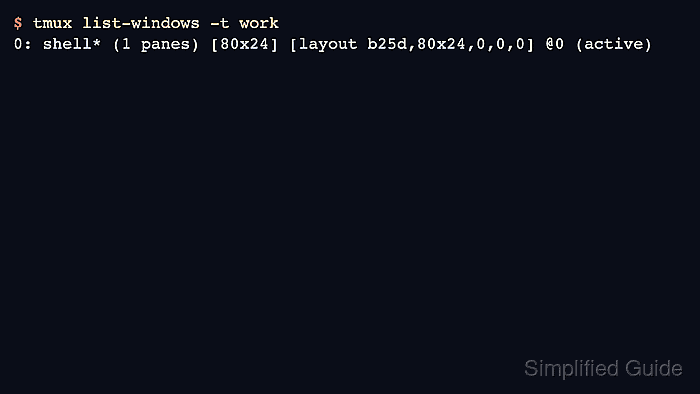
The kill-window command removes the current window or a target given with -t. A target such as work:logs narrows the removal to one named window, while an index such as work:1 or the window ID from list-windows avoids ambiguity when names are reused. From an attached client, the default Ctrl+b & binding runs kill-window against the current window after a confirmation prompt.
Confirm the target before removing it because command-line kill-window does not ask for confirmation and every pane in that window is closed. If the target is the last window in a session, tmux removes the session too, so list the windows first when other work should remain attached.
Related: How to create a window in tmux
Related: How to select a window in tmux
Related: How to kill a tmux session
Steps to kill a tmux window:
- List the windows in the target session and identify the exact window to remove.
$ tmux list-windows -t work
0: shell- (1 panes) [80x24] [layout b25d,80x24,0,0,0] @0
1: logs* (1 panes) [80x24] [layout b25e,80x24,0,0,1] @1 (active)
The value after -t is the session name. The number before each colon is the window index, and the window name appears before the pane count.
The asterisk marks the active window. In this example, work:logs and work:1 both identify the logs window.
- After saving any work in the target window, kill only that window.
$ tmux kill-window -t work:logs
A successful kill-window command returns without output. Use the window index, such as work:1, or the window ID, such as @1, when duplicated names make a text target unclear.
This closes the panes in logs and ends the processes running there. Save editors, shells, and long-running commands before removing the window.
Inside an attached client, select the target window first, then press Ctrl+b & and confirm the prompt to kill the current window.
- List the windows again and confirm the removed window is absent while the session still has the remaining window.
$ tmux list-windows -t work
0: shell* (1 panes) [80x24] [layout b25d,80x24,0,0,0] @0 (active)
The logs window no longer appears, and the shell window is still present in the work session.
Related: How to select a window in tmux
Related: How to kill a tmux session