How to swap panes in tmux
Swapping panes in tmux exchanges two pane positions inside one window without killing the shells, editors, or commands running in those panes. Use it when the right processes are open but the layout places them in the wrong parts of the screen.
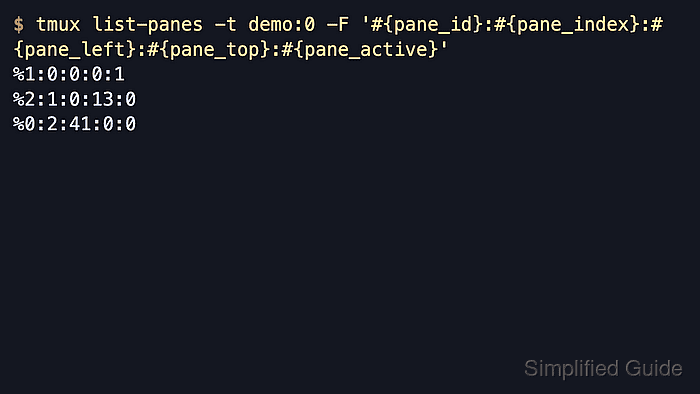
The swap-pane command targets panes by index, pane ID, or a full session:window.pane target. Pane indexes are the numbers shown for a window, while pane IDs such as %0 identify the running pane and make before-and-after checks easier to read.
Start from the tmux window that contains both panes. Current tmux releases still include C-b { and C-b } for nearby pane swaps, but explicit -s and -t targets are clearer when two non-adjacent panes need to trade positions.
Related: How to select a pane in tmux
Related: How to split a pane horizontally in tmux
Related: How to split a pane vertically in tmux
Related: How to resize panes in tmux
Related: How to use the tmux command prompt
Steps to swap panes in tmux:
- Confirm the current window already contains at least two panes before swapping positions.
Need another pane first: How to split a pane horizontally in tmux or How to split a pane vertically in tmux.
- List the panes in the target window so the source and destination pane indexes are visible before the swap.
$ tmux list-panes -t demo:0 -F '#P:#{pane_id}'
0:%0
1:%2
2:%1
The fields are index:pane-id. #P prints the pane index used by demo:0.0, demo:0.1, and demo:0.2.
- Run swap-pane with the two pane indexes that should exchange positions.
$ tmux swap-pane -s demo:0.0 -t demo:0.2
The -s flag selects the source pane and -t selects the destination pane. Inside the tmux command prompt opened with C-b :, the same current-window swap can be run as swap-pane -s :.0 -t :.2.
- Add -d when the active pane should remain active after the swap.
$ tmux swap-pane -d -s demo:0.0 -t demo:0.2
Without -d, tmux may move focus as part of the swap. Use -d before running the command from a script or a detached shell when focus changes would be distracting.
- Use the default adjacent-swap bindings only when the active pane should trade with the previous or next pane in tmux's pane order.
C-b {
C-b }
Use the configured prefix instead of C-b when the session has a custom prefix. Related: How to change tmux prefix key to Ctrl-a
- List the panes again to confirm the target pane IDs moved to each other's positions.
$ tmux list-panes -t demo:0 -F '#P:#{pane_id}'
0:%1
1:%2
2:%0
Pane ID %1 moved from index 2 to index 0, while pane ID %0 moved from index 0 to index 2. Pane ID %2 stayed at index 1 because it was not one of the swap targets.