A split tmux window can become hard to use when one command needs more columns or rows than the neighboring pane. Resizing the active pane moves that pane's border without closing shells, changing sessions, or rebuilding the whole window layout.
Tmux exposes pane resizing through default prefix bindings and the resize-pane command. With the default prefix, C-b C-Left, C-b C-Right, C-b C-Up, and C-b C-Down adjust by one cell, while the matching Meta arrow bindings adjust by five cells.
The resize target is the active pane unless a command names another pane with -t. A split window is required before resizing has a visible effect, and terminals that intercept Ctrl or Alt arrow keys can use the command prompt or a shell command with -L, -R, -U, -D, -x, or -y.
Related: How to split a pane horizontally in tmux
Related: How to split a pane vertically in tmux
Related: How to enable mouse support in tmux
Steps to resize panes in tmux:
- Confirm the current window already contains at least two panes.
Need another pane first: How to split a pane horizontally in tmux or How to split a pane vertically in tmux.
- Select the pane whose border should move.
C-b q
C-b Left
C-b Right
C-b Up
C-b Down
Use the configured prefix instead of C-b when the session has a custom prefix.
Related: How to select a pane in tmux
- Resize by one column or row with the default Ctrl arrow binding.
C-b C-Left
C-b C-Right
C-b C-Up
C-b C-Down
The default resize bindings are repeatable, so after the prefix you can keep pressing the same arrow while tmux still accepts repeat input.
- Resize by five cells with the default Meta arrow binding when the pane needs a larger adjustment.
C-b M-Left
C-b M-Right
C-b M-Up
C-b M-Down
On many keyboards Meta is Alt. Use the command prompt when the terminal or desktop environment captures that key.
- Open the tmux command prompt when a resize shortcut is unavailable.
C-b :
resize-pane -R 5
Use -L, -R, -U, or -D to move the active pane edge left, right, up, or down by the number of columns or rows given after the command.
Related: How to use the tmux command prompt
- Set a fixed active-pane width from the tmux command prompt when exact columns matter.
resize-pane -x 80
Use resize-pane -y 20 when the active pane needs a fixed height in rows. Exact sizes are still limited by the total window size and the minimum size of neighboring panes.
- Resize an explicit pane from a normal shell when a script or detached session needs a target.
$ tmux resize-pane -t demo:0.0 -R 10
The target format is session:window.pane. In this example demo:0.0 means pane 0 in window 0 of session demo.
- Verify the pane sizes after resizing with tmux list-panes.
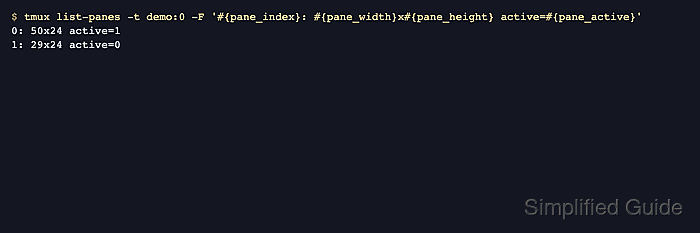
$ tmux list-panes -t demo:0 -F '#P:#{pane_width}x#{pane_height}:#{pane_active}'
0:80x30:1
1:19x30:0
The fields are pane:widthxheight:active because #P prints the pane index. The value 0:80x30:1 confirms pane 0 is active and 80 columns wide after the exact-width resize.

Mohd Shakir Zakaria is a cloud architect with deep roots in software development and open-source advocacy. Certified in AWS, Red Hat, VMware, ITIL, and Linux, he specializes in designing and managing robust cloud and on-premises infrastructures.


