Table of Contents
How to split a pane vertically in tmux
A vertical pane split in tmux usually means a vertical divider with one shell on the left and another on the right. That layout keeps two commands visible inside the same window without changing sessions, opening another terminal, or losing the current working context.
In tmux command names, the default Ctrl-b % binding runs split-window -h. tmux calls it a horizontal split because it divides the current pane from left to right, while many terminal users describe the same result by the vertical divider drawn between the panes.
The new pane opens on the right and becomes active immediately unless -d is used with split-window -h. The command examples were verified with tmux 3.6 on Ubuntu 26.04 using a clean config; use the configured prefix or custom binding when the session has changed the default Ctrl-b or % keys.
Related: How to split a pane horizontally in tmux
Related: How to resize panes in tmux
Steps to split a pane vertically in tmux:
- Show pane numbers if the target pane is not obvious.
Ctrl-b q
The temporary overlay marks each pane and lets one number key jump focus to that pane before you split it.
- Press the default left-and-right split binding in the active pane.
Ctrl-b %
If tmux reports there is no space for another pane, enlarge the terminal or close an unused pane before splitting again.
- List the panes to confirm the window now has a left pane and a right active pane.
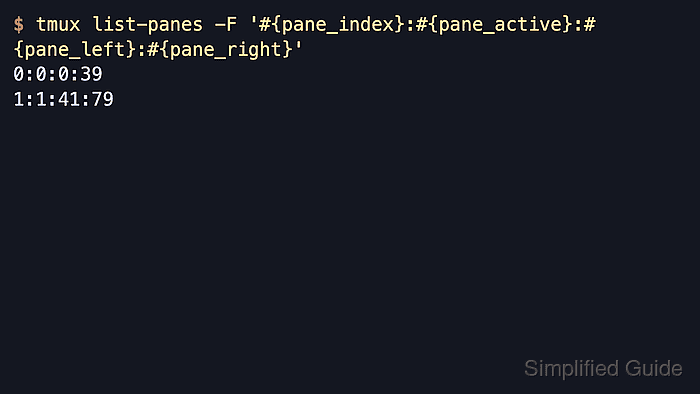
$ tmux list-panes -F '#{pane_index}:#{pane_active}:#{pane_left}:#{pane_right}'
0:0:0:39
1:1:41:79
The fields are pane:active:left:right, so 1:1:41:79 confirms pane 1 is active on the right side; the exact coordinates change with the window width.
- Move focus back to the left pane when work should continue there.
Ctrl-b Left
tmux vertical split command options:
- Run split-window -h -d from the tmux command prompt when the right pane should open without moving focus into it.
- Run split-window -h -b when the new pane should open on the left instead of the right.
- Run split-window -h -l 80 or split-window -h -l 50% when the new pane needs a fixed width or a percentage of the current window instead of an even split.