How to enable mouse support in tmux
In a crowded tmux session, mouse support lets the pointer select status-line windows, move focus between panes, resize pane borders, and scroll through pane history without stepping through key bindings. It is most useful when pane layout changes often or when long command output needs quick scrollback review.
Current tmux releases use one mouse option for mouse handling. The tmux server reads its config from ~/.tmux.conf or an XDG config path when the server starts, and source-file reloads later changes into an already running server so the new setting applies to current sessions.
Mouse support changes how scroll and selection events are divided between tmux, the terminal emulator, and programs inside a pane. When mouse is on, tmux receives mouse events as a group instead of letting the terminal keep only selected behaviors. Full-screen tools such as vim, less, or man may still take mouse events for themselves while they are active.
Related: How to reload the tmux config
Related: How to use copy mode in tmux
Steps to enable mouse support in tmux:
- Open or create the tmux config file used by your user account.
$ vi ~/.tmux.conf
tmux also reads $XDG_CONFIG_HOME/tmux/tmux.conf or ~/.config/tmux/tmux.conf when those paths are used instead of ~/.tmux.conf.
- Add the mouse setting to the config file.
set -g mouse on
Current tmux releases use this single option instead of older settings such as mode-mouse, mouse-select-pane, or mouse-resize-pane.
- Save the file and return to the shell prompt.
- Reload the active tmux server so the updated setting is applied to current sessions.
$ tmux source-file ~/.tmux.conf
No output means the config file was accepted. If no tmux server is running yet, start a new session instead because source-file needs an existing server to reload.
Related: How to reload the tmux config
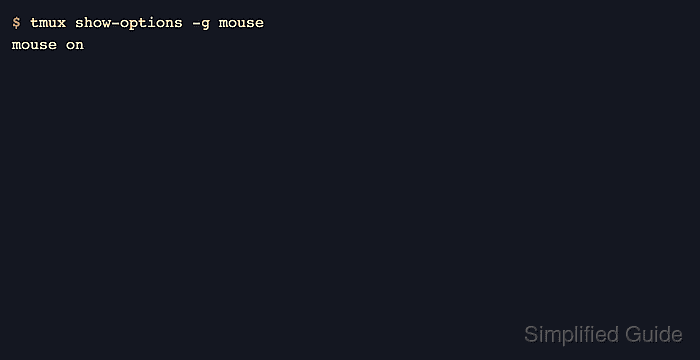
- Confirm that the current tmux server now reports mouse support as enabled.
$ tmux show-options -g mouse
mouse on
The same check works after starting a new session when the config was not reloaded into an existing server.
- Test the new behavior by clicking another pane or status-line window, then scroll inside a pane that has command output above the visible screen.
The default mouse bindings let tmux select and resize panes, copy text, scroll pane history, and change windows from the status line when mouse is on.
Applications running inside a pane can enable their own mouse handling, so wheel and drag events may go to the program instead of tmux until that program exits or its mouse mode is disabled.
Related: How to use copy mode in tmux