How to use copy mode in tmux
Copy mode lets tmux freeze the current pane view, move through pane history, and copy text into tmux's own paste buffer without leaving the session. It is the built-in way to review long command output, logs, or scrollback when the pane is still busy.
A new tmux server normally uses the emacs-style copy mode key table, so the standard flow is Ctrl-b then [ to enter copy mode, the cursor and search keys to move, Ctrl-Space to start the selection, and Alt-w or Ctrl-w to copy and exit. If the window option mode-keys is set to vi, or the server started with a VISUAL or EDITOR value that contains vi, tmux switches to the copy-mode-vi key table instead.
The common failure case is using the wrong key table for the current window. If Ctrl-Space, Alt-w, or Ctrl-w does nothing, check whether the window is using vi bindings before assuming copy mode is broken. The copy keys still fill tmux's paste buffer; they only send the same text to the system clipboard when clipboard integration or the copy-command option has been configured separately.
Related: How to reload the tmux config
Related: How to enable mouse support in tmux
Related: How to save tmux scrollback to a file
Steps to use copy mode in tmux:
- Press your tmux prefix key and then press [ to enter copy mode in the active pane.
Ctrl-b [
With the default configuration the prefix key is Ctrl-b. Press q to leave copy mode without copying anything.
- Move to the start of the text you want to copy with the default emacs-style movement keys.
Up Down PageUp PageDown Ctrl-r Ctrl-s
Ctrl-r searches upward, Ctrl-s searches downward, Left and Right move by character, Ctrl-a and Ctrl-e jump to the start or end of the line, and Alt-b and Alt-f move by word.
- Start the selection at the current cursor position.
Ctrl-Space
- Move to the end of the text you want to copy while the selection stays active.
- Copy the selection into tmux and leave copy mode with the emacs copy key.
Alt-w
Ctrl-w is bound to the same copy action in the emacs copy-mode table. The copied text is stored in tmux's paste buffer, so it can be pasted into another tmux pane even if your terminal emulator clipboard is separate.
- Confirm the copied text is in tmux's paste buffer before pasting it into a live shell.
$ tmux show-buffer
expr 6 + 7
The verified check copied expr 6 + 7 from pane history and read it back from tmux's most recent paste buffer.
- Paste the most recent tmux buffer into a safe prompt or editor if you want to use the copied text immediately.
Ctrl-b ]
Paste into a safe location first. If the copied text contains shell syntax or a trailing newline, pressing Enter afterwards can run it.
- Check which key table the current window is using if the default selection keys do not match what you see.
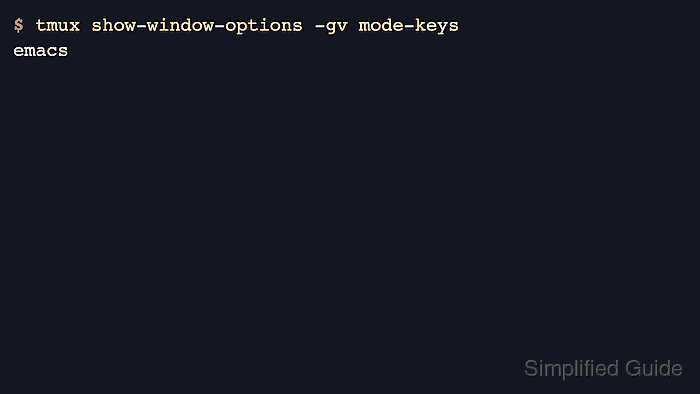
$ tmux show-window-options -gv mode-keys
emacs
If this returns vi, use Space to begin a selection, Enter to copy and exit, Escape to clear a selection, and h j k l / ? n N g G b w 0 $ to move around the history.