How to create a systemd slice unit
A custom systemd slice puts related services or transient jobs under one cgroup branch so they share the same CPU, memory, and task limits. That is useful when queue workers, batch jobs, or helper daemons should compete inside one resource budget instead of each unit carrying its own separate limits.
A *.slice unit creates a node in the Linux control-group tree, and the slice name itself defines where that node sits in the hierarchy. Upstream systemd.slice documentation still describes dash-separated names as parent-child paths, so apps-web.slice lives below apps.slice instead of acting as a flat label.
This example creates a top-level workload.slice under /etc/systemd/system and assigns CPUWeight=, MemoryMax=, and TasksMax= in the [Slice] section. The slice stays static with no [Install] section because a custom slice normally starts when a service or scope joins it, and upstream systemd.special guidance says adding it to slices.target is generally unnecessary unless the slice must stay active after boot; for a per-user slice, write the file under /~/.config/systemd/user and use systemctl --user instead.
Steps to create a systemd slice unit:
- Create the slice unit file under /etc/systemd/system.
[Unit]
Description=Workload resource slice

[Slice]
CPUWeight=200
MemoryMax=500M
TasksMax=64
CPUWeight= sets the slice's relative CPU share among sibling cgroups, MemoryMax= sets a hard memory ceiling, and TasksMax= limits how many tasks units inside the slice may create. A name such as workload.slice creates a top-level slice, while each extra dash adds another parent level in the path, so apps-web.slice becomes a child of apps.slice.
- Verify that the unit file parses cleanly before the manager loads it.
$ sudo systemd-analyze verify /etc/systemd/system/workload.slice
No output is the expected result.
- Reload the systemd manager so the new slice definition is available.
$ sudo systemctl daemon-reload
- Confirm that the slice definition is loaded but still inactive.
$ systemctl show -p LoadState -p ActiveState -p SubState workload.slice
LoadState=loaded
ActiveState=inactive
SubState=dead
This is normal before any service or scope joins the slice.
- Start a safe transient service inside the new slice.
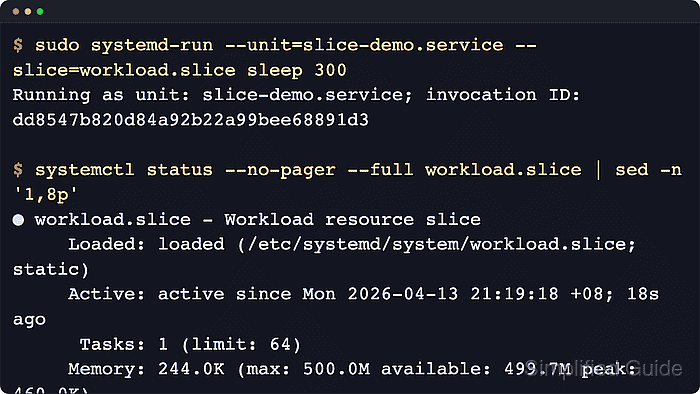
$ sudo systemd-run --unit=slice-demo.service --slice=workload.slice sleep 300
Running as unit: slice-demo.service; invocation ID: bb6911a96b2b42829687065cd3e9fb90
--slice= places the transient *.service in the named slice instead of the default system.slice. You do not need a separate systemctl start workload.slice because the slice activates when the member unit starts.
- Check that the transient service joined the expected slice.
$ systemctl show -p Slice slice-demo.service
Slice=workload.slice
- Inspect the applied resource properties on the slice.
$ systemctl show -p CPUWeight -p MemoryMax -p TasksMax workload.slice
CPUWeight=200
MemoryMax=524288000
TasksMax=64
MemoryMax is reported in bytes in the normalized property view.
- Review the live slice status and child cgroup tree.
$ systemctl status --no-pager --full workload.slice
● workload.slice - Workload resource slice
     Loaded: loaded (/etc/systemd/system/workload.slice; static)
     Active: active since Wed 2026-04-22 02:43:44 UTC; 7s ago
      Tasks: 1 (limit: 64)
     Memory: 184.0K (max: 500.0M available: 499.8M peak: 308.0K)
        CPU: 3ms
     CGroup: /workload.slice
             └─slice-demo.service
               └─145 /usr/bin/sleep 300

Apr 22 02:43:44 server systemd[1]: Created slice workload.slice - Workload resource slice.
The CGroup: tree shows that the slice is active and that slice-demo.service is running inside it.
- Stop the disposable test service when validation is finished.
$ sudo systemctl stop slice-demo.service
For a permanent assignment, set Slice=workload.slice in the real service unit or a drop-in override, reload the manager, and restart that service.