How to enable a service using systemctl
Enabling a service with systemctl tells systemd to install the unit into its boot or target startup graph so the service comes back automatically after a reboot or when the matching target is reached.
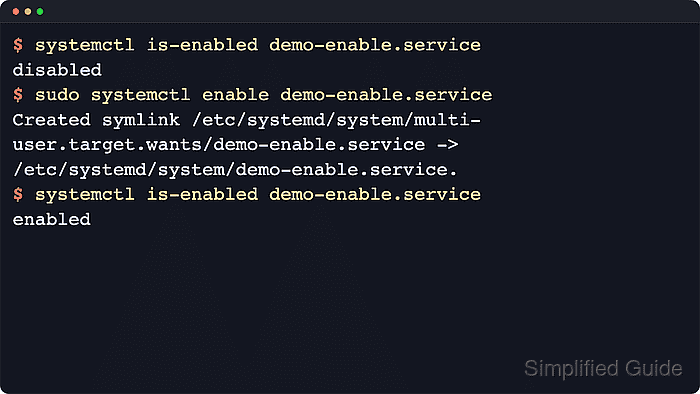
The systemctl enable command reads the unit's [Install] section, creates the required symlinks, and reloads the system manager after those file changes are written. It does not start the service process unless --now is included.
Examples below use demo-enable.service as a stand-in unit name so the change from disabled to enabled stays obvious. Replace it with the real unit on the host, use systemctl --user enable for a per-user service, and expect static, masked, or template units to behave differently from a regular service unit.
Steps to enable a service using systemctl:
- Check the current install state of the service before changing it.
$ systemctl is-enabled demo-enable.service
disabled
Use the full unit name when possible. disabled means the unit has installation rules but no active enablement symlinks yet.
- Enable the service so systemd creates its startup links.
$ sudo systemctl enable demo-enable.service
Created symlink /etc/systemd/system/multi-user.target.wants/demo-enable.service -> /etc/systemd/system/demo-enable.service.
The created path depends on the unit's [Install] rules. Long-running services commonly land under /*.wants/, but other units can create /*.requires/ or alias symlinks instead.
Use sudo systemctl enable --now demo-enable.service when the service should start immediately as part of the same change.
- Treat compatibility-script output as normal when enabling older packaged services.
On Debian-family systems, units that still integrate with a SysV init script can print systemd-sysv-install while systemctl creates the boot symlink. The final is-enabled check is still the deciding state.
- Confirm that the service is now enabled.
$ systemctl is-enabled demo-enable.service
enabled
enabled means the install symlink is stored persistently under /etc/systemd/system/. enabled-runtime means the change lives under /run/systemd/system/ and disappears after reboot.
- Read non-enabled states before retrying the same command.
$ systemctl is-enabled systemd-journald.service
static
static means the unit has no [Install] rules of its own and is usually pulled in by another unit, socket, path, or timer instead of being enabled directly.
masked units must be unmasked before they can be enabled. Template units usually need a real instance name such as example@daily.service unless the template defines DefaultInstance=.