How to check whether a service is active using systemctl
Checking whether a systemd service is active shows whether the unit is running right now and available to do its job. It is a fast read-only check before a restart, after boot, or while confirming whether a dependent application should be able to connect.
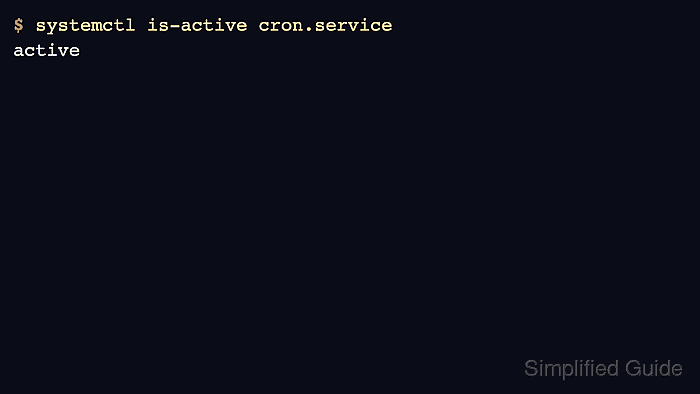
systemctl is-active asks the systemd manager for the unit's current active state and prints a short answer such as active, inactive, or failed. When a script or monitoring check needs stable fields instead of the formatted status view, systemctl show exposes ActiveState and SubState directly.
Examples below use Ubuntu Server 24.04 with cron.service as the sample unit because it is loaded and running by default on the verified host. Other distributions can use different unit names for the same service, such as crond.service instead of cron.service, and a wrong or missing unit name needs a different response than a service that is simply stopped.
Steps to check whether a systemd service is active:
- Check the target unit with systemctl is-active.
$ systemctl is-active cron.service
active
The command prints a short active-state answer. Replace cron.service with the exact unit name that systemd manages on the host.
- Read the normalized state fields when the short answer needs more detail.
$ systemctl show --property=ActiveState --property=SubState cron.service
ActiveState=active
SubState=running
ActiveState is the broad service state, while SubState shows the more specific runtime condition such as running or dead.
systemctl show is the stable property view for scripts, monitors, and other machine-readable checks.
- Run the quiet form when the check is part of a script or health probe.
$ systemctl is-active --quiet cron.service
The quiet form suppresses the printed state and leaves the answer in the shell exit status instead.
- Print the shell exit status immediately after the quiet check.
$ echo $?
0
Exit status 0 means the unit is active. Any non-zero result means the unit is not active or the name could not be resolved cleanly, so use the printed form or the property view when the distinction matters.
- Inspect the full unit status when the short answer needs more context.
$ systemctl status cron.service --no-pager
● cron.service - Regular background program processing daemon
     Loaded: loaded (/usr/lib/systemd/system/cron.service; enabled; preset: enabled)
     Active: active (running) since Wed 2026-04-22 06:10:48 +08; 4min 21s ago
       Docs: man:cron(8)
   Main PID: 959 (cron)
      Tasks: 1 (limit: 4545)
     Memory: 432.0K (peak: 1.6M)
        CPU: 77ms
     CGroup: /system.slice/cron.service
             └─959 /usr/sbin/cron -f -P
##### snipped #####
The Loaded: line confirms the unit file path, while the Active: line shows the high-level state and current substate.
If the status view shows Loaded: not-found, the unit name is wrong or the package that provides it is not installed.