How to create a systemd mount unit
Native systemd mount units are useful when a mount needs explicit ordering, dependency control, or a paired automount unit instead of a plain /etc/fstab line. They place the mount inside the same unit graph as services, timers, sockets, and targets, so systemctl can start, stop, enable, and inspect it like other system components.
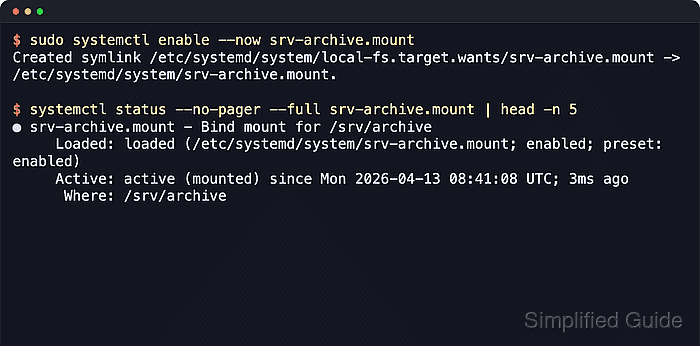
A *.mount unit is named from the mount point in Where=, not from the source path or device. That means /srv/archive becomes srv-archive.mount, and systemd-escape –path –suffix=mount generates the correct filename automatically. The steps use a bind mount from /srv/source-archive to /srv/archive because it is easy to validate without attaching another disk.
The current systemd.mount(5) documentation still treats /etc/fstab as the preferred human-managed path for routine mounts, while native mount units are a better fit when a mount needs explicit unit dependencies, drop-ins, or a companion *.automount unit. What= and Where= are mandatory, systemd can create the target directory automatically, and DirectoryMode= controls its permissions. A wrong source path, filesystem type, or option leaves the unit in failed state, so validate the file before enabling it.
Steps to create a systemd mount unit:
- Generate the escaped mount-unit name from the target path.
$ systemd-escape --path --suffix=mount /srv/archive
srv-archive.mount
The resulting unit file for /srv/archive is /etc/systemd/system/srv-archive.mount.
- Create the source directory for the bind mount.
$ sudo mkdir -p /srv/source-archive
- Add a sample file to the bind-mount source.
$ sudo touch /srv/source-archive/report-2026.txt
- Create the mount unit file under /etc/systemd/system.
[Unit]
Description=Bind mount for /srv/archive

[Mount]
What=/srv/source-archive
Where=/srv/archive
Type=none
Options=bind
DirectoryMode=0755

[Install]
WantedBy=local-fs.target
Leave /srv/archive absent. systemd creates it with the mode from DirectoryMode= when the unit starts. Keep WantedBy=local-fs.target for a normal local mount, and add _netdev when a network-backed mount needs systemd to treat it as dependent on the network.
- Validate the unit file before reloading the manager.
$ sudo systemd-analyze verify /etc/systemd/system/srv-archive.mount
No output means the unit name, syntax, and required mount settings were accepted.
- Reload the systemd manager after saving the new unit file.
$ sudo systemctl daemon-reload
- Enable the mount unit at boot and start it immediately.
$ sudo systemctl enable --now srv-archive.mount
Created symlink /etc/systemd/system/local-fs.target.wants/srv-archive.mount → /etc/systemd/system/srv-archive.mount.
The [Install] section lets systemctl enable attach the mount to local-fs.target for boot-time activation. Related: How to manage a service using systemctl
- Check the unit state for an active mount.
$ systemctl status --no-pager --full srv-archive.mount
● srv-archive.mount - Bind mount for /srv/archive
     Loaded: loaded (/etc/systemd/system/srv-archive.mount; enabled; preset: enabled)
     Active: active (mounted) since Wed 2026-04-22 06:12:40 +08; 38ms ago
      Where: /srv/archive
##### snipped #####
active (mounted) is the success state for the mount unit itself.
- Confirm that the mount point resolves to the original source path.
$ findmnt /srv/archive
TARGET       SOURCE                         FSTYPE OPTIONS
/srv/archive /dev/sda2[/srv/source-archive] ext4   rw,relatime
For bind mounts, findmnt shows the backing filesystem plus the bound subdirectory in brackets.
- List the mounted path to confirm that the source content is visible.
$ ls /srv/archive
report-2026.txt
If the directory is empty or the unit enters failed state, inspect journalctl -u srv-archive.mount and confirm that the What= source path exists before starting the unit.