How to fix command not found when using sudo
When a command works in a normal shell but sudo returns command not found, sudo is usually searching a different PATH than the one that found the command for the user account. This often appears after installing an internal tool under /opt, /usr/local/bin, a language-managed directory, or another location that is present in the user's shell but absent from sudo's command lookup path.
Sudoers policy can reset the command environment and can replace the user's PATH with the secure_path value before executing a privileged command. When secure_path is active, preserving environment variables is not the same as making sudo search the user's original path; the path used by sudo must either include the command directory or the command must be called by its full path.
Use an absolute path when only one service file, script, or manual command needs repair. Change secure_path only when a trusted, root-owned directory should become part of sudo's normal lookup path; adding a user-writable directory can let an unprivileged user influence what runs as root.
Related: Change sudo secure_path
Related: Preserve environment variables with sudo
Related: Check sudoers syntax with visudo
Steps to fix sudo command not found:
- Confirm that the regular user shell can find and run the command.
$ command -v support-check
/opt/support/bin/support-check
$ support-check
support-check ok
If command -v does not print a path, fix the user's shell path or package installation first. Continue with the sudo lookup checks only when the command works without sudo but fails after sudo is added.
- Reproduce the same lookup failure through sudo.
$ sudo support-check
sudo: 'support-check': command not found
Keep the command name and arguments the same as the failed script, service, or terminal command. Changing the command while troubleshooting can hide a sudoers path problem behind a separate typo or policy issue.
- Inspect the path that sudo gives to the command environment.
$ sudo env
##### snipped
PATH=/usr/local/sbin:/usr/local/bin:/usr/sbin:/usr/bin:/sbin:/bin:/snap/bin
##### snipped
The command directory /opt/support/bin is missing from this PATH, so sudo cannot find support-check by short name.
- Check that the command path is trusted before running it with elevated privileges.
$ ls -l /opt/support/bin/support-check
-rwxr-xr-x 1 root root 37 Jun  5 10:15 /opt/support/bin/support-check
Do not fix sudo lookup for a command that the affected user can edit or replace. A user-writable executable or directory can turn a narrow sudo action into unintended root code execution.
- Run the command through sudo by absolute path for the immediate fix.
$ sudo /opt/support/bin/support-check
support-check ok
Use the absolute path in scripts, unit files, deployment hooks, and documentation when only this command needs to run. This avoids changing global sudo lookup behavior.
- Open a sudoers drop-in with visudo only when the short command name must work under sudo.
$ sudo visudo -f /etc/sudoers.d/secure-path
Do not edit sudoers policy with a normal text editor. visudo locks the file and checks syntax before saving, which reduces the risk of breaking administrative access.
- Add the trusted command directory to secure_path.
- /etc/sudoers.d/secure-path
Defaults secure_path="/opt/support/bin:/usr/local/sbin:/usr/local/bin:/usr/sbin:/usr/bin:/sbin:/bin"
Keep standard system directories in the path unless there is a specific policy reason to remove them. Add only directories owned by root or another trusted administrator account.
Related: How to change sudo secure_path
- Validate the sudoers drop-in before relying on it.
$ sudo visudo -cf /etc/sudoers.d/secure-path
/etc/sudoers.d/secure-path: parsed OK
- Confirm that sudo now exposes the intended lookup path.
$ sudo env
##### snipped
PATH=/opt/support/bin:/usr/local/sbin:/usr/local/bin:/usr/sbin:/usr/bin:/sbin:/bin
##### snipped
If the path did not change, check for a later matching Defaults secure_path entry, a syntax issue in the drop-in, or a sudoers include rule that skips the file name.
- Retest the original sudo command by short name.
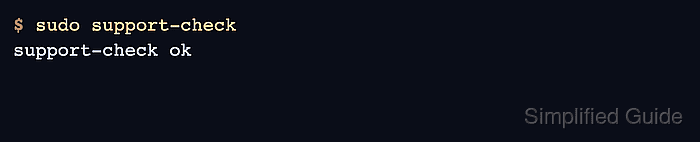
$ sudo support-check
support-check ok
The lookup issue is fixed when the same command that returned command not found now runs through sudo without requiring an absolute path.