How to run a GUI application over SSH with X11 forwarding
Remote GUI tools become awkward when the software is installed on a server but the display is on a workstation. X11 forwarding lets OpenSSH carry the display connection through the SSH session so a remote program opens on the local desktop while it continues to run on the remote host.

The local computer provides the X server or Xwayland display endpoint. The remote host runs the application, while ssh -X creates a temporary DISPLAY value such as localhost:10.0 and uses xauth to install an authorization cookie for that session.
The server must allow X11Forwarding and have xauth available before a forwarded window can open. Use ordinary -X forwarding first, and reserve -Y trusted forwarding for servers and applications that genuinely need the extra display access. A forwarded GUI program can observe or interact with the local display, so use it only with servers that should be allowed that access.
Steps to run a GUI application over SSH with X11 forwarding:
- Start the local X server on the client workstation.
Linux desktop sessions usually provide Xorg or Xwayland already. On macOS, start XQuartz before connecting. On Windows, start the local X server used by the SSH client.
- Check the remote server's effective X11 forwarding settings.
$ sudo sshd -T
##### snipped #####
x11displayoffset 10
x11forwarding yes
x11uselocalhost yes
xauthlocation /usr/bin/xauth
##### snipped #####
If x11forwarding is no, or xauthlocation is none, enable the server side before testing a GUI program.
Related: How to enable or disable X11 forwarding on an SSH server - Install xauth and a small X11 test application on the remote server when they are missing.
$ sudo apt install --assume-yes xauth x11-apps
Reading package lists...
Building dependency tree...
Reading state information...
The following NEW packages will be installed:
  x11-apps xauth
##### snipped #####
Setting up xauth (1:1.1.2-1.1build1)
Setting up x11-apps (7.7+11build4)
On RHEL, Fedora, and similar systems, install the xorg-x11-xauth package and an X11 test-app package from the distribution repositories.
- Run a forwarded-display check from the client.
$ ssh -X user@server.example.net 'printf "%s\n" "$DISPLAY"'
localhost:10.0
A blank value means the client did not request forwarding or no local X display was available. X11 forwarding request failed on channel 0 points to the server-side policy or xauth setup.
- Start a test GUI application through the forwarded session.
$ ssh -X user@server.example.net xclock
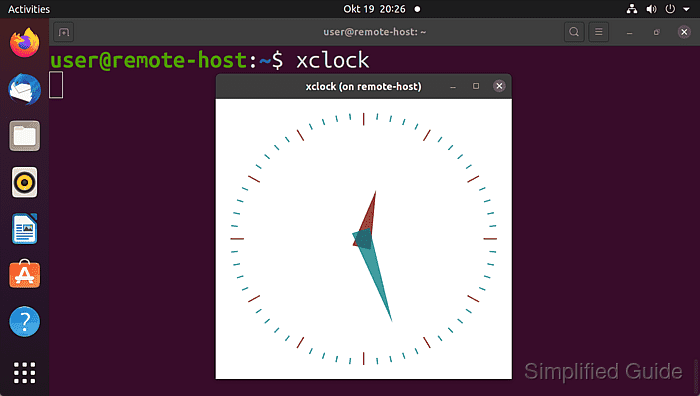
The terminal stays attached until the window closes. Replace xclock with the remote graphical program after the test window opens correctly.
- Use trusted forwarding only when the application refuses ordinary X11 forwarding and the remote server is trusted.
$ ssh -Y user@server.example.net xclock
-Y disables the X11 security restrictions applied to -X forwarding. Do not use trusted forwarding for untrusted servers.