How to limit failed login attempts in SSH
Public SSH endpoints attract repeated password guesses, abandoned prompts, and stale automation that can leave unauthenticated sessions open longer than intended. Setting both a connection-level attempt limit and an authentication grace period narrows each login window before using heavier IP bans or account lockout controls.
OpenSSH enforces these limits in the server configuration. MaxAuthTries controls how many authentication failures are accepted on one connection, while LoginGraceTime controls how long an unauthenticated connection may remain open before sshd disconnects it.
These settings do not ban an address or lock an account by themselves. Keep a working administrative session open, place the directives before unrelated Match blocks or in a loaded drop-in file, validate the daemon configuration, and confirm the effective values before closing the recovery path.
Related: How to limit SSH authentication attempts
Related: How to limit SSH LoginGraceTime
Related: How to automatically block failed SSH login attempts
Related: How to show failed SSH attempts
Steps to limit failed login attempts in SSH:
- Open a terminal on the SSH server with an account that can use sudo.
Keep an existing SSH session, console, or out-of-band path open until a new login succeeds after the reload.
- Check the existing effective login limits.
$ sudo sshd -T
port 22
addressfamily any
listenaddress [::]:22
listenaddress 0.0.0.0:22
usepam yes
pamservicename sshd
logingracetime 120
##### snipped #####
maxauthtries 6
maxsessions 10
##### snipped #####
sshd -T validates the configuration, applies defaults and included files, then prints lower-case effective settings.
Related: How to view SSH server configuration
- Check whether the main daemon file loads local drop-ins.
$ grep -i '^Include ' /etc/ssh/sshd_config
Include /etc/ssh/sshd_config.d/*.conf
If no Include line appears, put the same directives in the global section of /etc/ssh/sshd_config instead.
- Open a local failed-login limits drop-in file.
$ sudoedit /etc/ssh/sshd_config.d/90-failed-login-limits.conf
Use the local drop-in name that matches site policy when the server already has numbered sshd_config.d files.
- Set the authentication grace period and per-connection failure count.
# Limit failed authentication attempts per connection
LoginGraceTime 30
MaxAuthTries 3
Do not use LoginGraceTime 0 for hardening; zero disables the pre-authentication time limit. MaxAuthTries is per connection, not a per-address ban.
- Test the OpenSSH daemon configuration.
$ sudo sshd -t
No output means the configuration parsed successfully and the host-key checks passed.
Related: How to test SSH server configuration
- Reload the SSH service to apply the validated limits.
$ sudo systemctl reload ssh
Use sudo systemctl reload sshd on distributions where the server unit is named sshd. If the unit does not support reload, restart it only while the recovery session remains open.
- Confirm the effective limits after the reload.
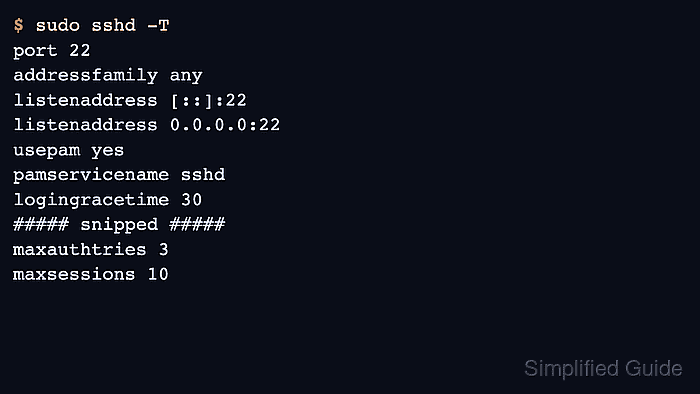
$ sudo sshd -T
port 22
addressfamily any
listenaddress [::]:22
listenaddress 0.0.0.0:22
usepam yes
pamservicename sshd
logingracetime 30
##### snipped #####
maxauthtries 3
maxsessions 10
##### snipped #####
- Confirm that a new SSH login still works from a separate client.
$ ssh user@host.example.net 'echo SSH login limits loaded'
SSH login limits loaded
Test from a trusted client before closing the original session. Use a controlled failed-login test only when monitoring or ban rules will not lock out the source address.