How to set an SSH agent key lifetime
Long-lived ssh-agent sessions can leave decrypted private keys available after the task that needed them is finished. Setting a key lifetime makes the agent forget the identity automatically, so repeated SSH or Git connections can reuse the key only inside a bounded window.
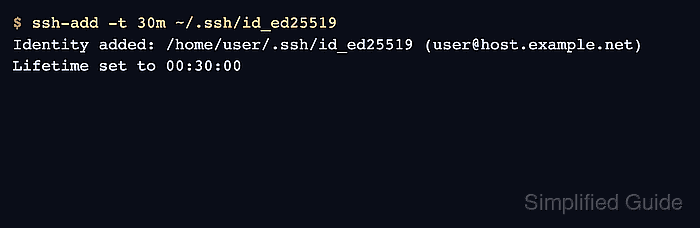
The ssh-add -t option sets a maximum lifetime for the identity being added. The value can be seconds or an OpenSSH time format such as 30m or 1h30m, and the agent removes the key after the timer expires. Starting ssh-agent with -t sets a default lifetime for later additions, while a host-specific AddKeysToAgent value can apply a lifetime when ssh loads a key from a client config block.
A lifetime controls how long the agent can use a loaded key, not how long an existing SSH session stays connected. Existing sessions continue after the agent drops the key, but new authentications need the passphrase again or another key source. Use shorter lifetimes on shared, forwarded, or long-running shells where an exposed agent socket would carry more risk.
Related: How to add an SSH key to ssh-agent
Related: How to remove SSH keys from ssh-agent
Related: How to connect with SSH using a private key
Steps to set an SSH agent key lifetime:
- Check whether the current shell can reach ssh-agent.
$ ssh-add -l
The agent has no identities.
The agent has no identities. means the shell can reach an agent but no keys are loaded. Could not open a connection to your authentication agent. means the shell needs a running agent or the correct SSH_AUTH_SOCK value.
- Start a new ssh-agent only when the current shell cannot reach one.
$ eval "$(ssh-agent -s)"
Agent pid 365
The eval "$(ssh-agent -s)" command exports the agent socket variables into the current shell.
Related: How to add an SSH key to ssh-agent - Add the private key with the lifetime that should apply to this agent entry.
$ ssh-add -t 30m ~/.ssh/id_ed25519
Enter passphrase for /home/user/.ssh/id_ed25519:
Identity added: /home/user/.ssh/id_ed25519 (user@host.example.net)
Lifetime set to 00:30:00
Replace 30m with the required time window and replace ~/.ssh/id_ed25519 with the private key path. The passphrase prompt appears only when the private key is encrypted.
- List the agent identities before the lifetime expires.
$ ssh-add -l -E sha256
256 SHA256:VWMIBu6zBtPfEDchZXtoedadcQpKyWKSvTqM+p6Ku30 user@host.example.net (ED25519)
The fingerprint line confirms that the key is currently loaded in the agent reached by this shell.
- Test that the loaded key can still sign while the lifetime is active.
$ ssh-add -T ~/.ssh/id_ed25519.pub
No output from ssh-add -T means the agent successfully signed and verified with the private key that matches the public key file. Run a normal ssh command to the target host if an end-to-end server check is also needed.
Related: How to connect with SSH using a private key - Wait until the configured lifetime has passed.
- Confirm that the timed identity has expired from the agent.
$ ssh-add -l -E sha256
The agent has no identities.
If other keys were loaded with different lifetimes, the output may still list those identities. The timed key should be absent after its own lifetime passes.
Related: How to remove SSH keys from ssh-agent - Add a host-specific automatic lifetime only when future ssh connections should load the key into the agent.
- ~/.ssh/config
Host host.example.net
    HostName host.example.net
    User user
    IdentityFile ~/.ssh/id_ed25519
    AddKeysToAgent 30m
    IdentitiesOnly yes
AddKeysToAgent 30m tells ssh to add the key to the running agent with a 30-minute lifetime after the client loads that identity from this Host block. Keep IdentitiesOnly yes when the host should use the configured key instead of unrelated agent identities.
Related: How to set per-host SSH identity files in SSH config - Check the resolved client configuration when using AddKeysToAgent.
$ ssh -G host.example.net
host host.example.net
user user
hostname host.example.net
port 22
##### snipped #####
identityfile ~/.ssh/id_ed25519
##### snipped #####
addkeystoagent 1800
forwardagent no
##### snipped #####
OpenSSH normalizes the 30m setting to 1800 seconds in ssh -G output.
Related: How to show SSH client configuration