How to check snap package information
Snap package information shows what the Snap Store knows about a package before or after installation. It helps identify the publisher, confinement, commands, available channels, and installed revision before changing a system.
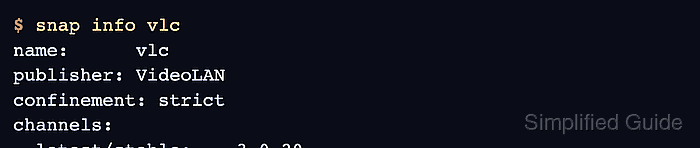
The snap info command queries store metadata and local install state. It is safer to inspect these fields before installing a package, switching a channel, or deciding whether a package needs --classic or another special install path.
A completed check should identify the package name, publisher, confinement, available channels, and installed or tracking state. Treat the output as decision support, not as proof that the application itself works after installation.
Related: How to install a snap package
Related: How to install a classic confinement snap
Related: How to switch snap channels
Steps to check snap package information:
- Query the package metadata.
$ snap info vlc
name:      vlc
summary:   The ultimate media player
publisher: VideoLAN
store-url: https://snapcraft.io/vlc
license:   unset
description: |
  VLC is the VideoLAN project's media player.
confinement: strict
commands:
  - vlc
channels:
  latest/stable:    3.0.20
  latest/candidate: 3.0.21
  latest/beta:      4.0.0
  latest/edge:      4.0.0
- Check the publisher and confinement fields.
strict confinement uses snap interfaces for host access. classic confinement requires explicit trust and the --classic install flag.
Related: How to install a classic confinement snap
Related: How to connect a snap interface - Check the channel list before selecting a non-default channel.
$ snap info vlc
channels:
  latest/stable:    3.0.20
  latest/candidate: 3.0.21
  latest/beta:      4.0.0
  latest/edge:      4.0.0
- Check the local install state when the snap is already installed.
$ snap list vlc
Name  Version  Rev   Tracking       Publisher  Notes
vlc   3.0.20   3777  latest/stable  videolan   -
- List the exposed commands for the installed snap.
$ snap apps vlc
App  Version  Notes
vlc  3.0.20   -