Classic confinement gives a snap broad system access similar to a traditional distribution package. Some developer tools and desktop applications need that wider access, so snap install stops and asks for an explicit --classic flag instead of silently weakening the sandbox.
The confinement field in snap info tells whether a package is strict, classic, or intended for devmode testing. A classic snap should be treated as trusted software from the named publisher because it is not limited to the same set of mediated interfaces as a strictly confined snap.
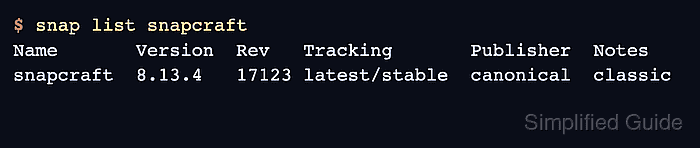
A completed classic install should show the package in snap list with the classic note and expose the expected command. Use the classic flag only for snaps that require it; do not add it to ordinary strict snaps as a troubleshooting shortcut.
Related: How to install a snap package
Related: How to check snap package information
Related: How to connect a snap interface
Steps to install a classic confinement snap:
- Inspect the snap confinement before installing it.
$ snap info snapcraft
name:      snapcraft
publisher: Canonical
summary:  Package, distribute, and update any app for Linux and IoT
confinement: classic
channels:
  latest/stable:    8.13.4
  latest/candidate: 8.13.4
  latest/beta:      8.13.5
  latest/edge:      8.13.5
Classic snaps have wider host access than strict snaps. Install them only from publishers you trust.
- Install the snap with the --classic flag.
$ sudo snap install snapcraft --classic
snapcraft 8.13.4 from Canonical installed
- Confirm that snapd recorded the classic confinement note.
$ snap list snapcraft
Name       Version  Rev   Tracking       Publisher  Notes
snapcraft  8.13.4   17123 latest/stable  canonical  classic
- Run the installed command.
$ snapcraft version
snapcraft 8.13.4
- Check the exposed app name when the command is not obvious.
$ snap apps snapcraft
App        Version  Notes
snapcraft  8.13.4   -

Mohd Shakir Zakaria is a cloud architect with deep roots in software development and open-source advocacy. Certified in AWS, Red Hat, VMware, ITIL, and Linux, he specializes in designing and managing robust cloud and on-premises infrastructures.


