How to install a local snap file
A local .snap file is installed directly from the filesystem instead of being downloaded from the Snap Store. That path is common during development, review, or internal testing when a package has not been published yet.
Local snaps are not signed by the store in the same way as store-installed snaps, so snap install requires --dangerous for an unsigned local file. If the snap also needs relaxed confinement for testing, --devmode is a separate choice and should not be used as a default install flag.
A completed local install should show the package in snap list, expose its declared commands or services, and make clear that automatic store refreshes do not apply until the local package is replaced with a store-backed snap.
Related: How to install a snap package
Related: How to check snap package information
Related: How to manage snap refresh schedule
Steps to install a local snap file:
- Locate the local .snap file.
$ ls -lh ./mytool_1.0_amd64.snap
-rw-r--r-- 1 user user 8.4M Jun 24 09:20 ./mytool_1.0_amd64.snap
- Install the local snap file.
$ sudo snap install ./mytool_1.0_amd64.snap --dangerous
mytool 1.0 installed
--dangerous tells snapd to install an unsigned local file. Use only packages from a trusted build or review process.
- Confirm that the snap is installed.
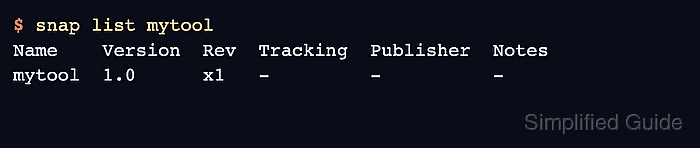
$ snap list mytool
Name    Version  Rev  Tracking  Publisher  Notes
mytool  1.0      x1   -         -          -
A dash in Tracking is expected for a local install that is not following a store channel.
- List the commands exposed by the local snap.
$ snap apps mytool
App          Version  Notes
mytool       1.0      -
mytool.daemon 1.0     service
- Run the command or check the service that the local snap provides.
$ mytool --version
mytool 1.0
- Replace the local snap with a store-backed snap when the same name is published.
$ sudo snap refresh mytool --amend
mytool 1.0 from Example Publisher refreshed
--amend lets a locally installed snap move to the Snap Store package with the same name when the publisher has made it available.