Snap refresh scheduling controls when snapd checks for and applies automatic updates. Adjusting the refresh window keeps background updates away from busy hours while still allowing the host to receive current revisions.
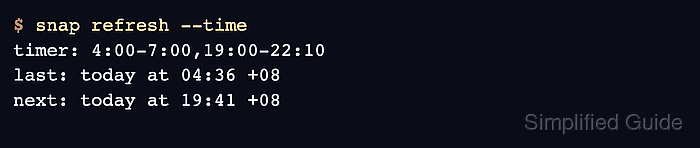
The schedule is stored in the refresh.timer system option and is inspected with snap refresh –time. Snapd accepts timer expressions such as daily windows, weekday lists, and month-week patterns, with a minimum refresh cadence enforced by the daemon.
A completed schedule change should be visible in snap get system refresh.timer and reflected in the next refresh window. Use a refresh hold for short emergency pauses; use the timer when the regular automatic update window needs a lasting policy.
Related: How to hold snap refreshes
Related: How to check snap changes and tasks
Related: How to revert a snap package
Steps to manage snap refresh schedule:
- Check the current refresh schedule.
$ snap refresh --time
timer: 00:00~24:00/4
last: today at 07:47 +08
next: today at 13:12 +08
- Set the refresh window.
$ sudo snap set system refresh.timer=4:00-7:00,19:00-22:10
This timer asks snapd to refresh during early morning and evening windows. Use the official timer format when the policy needs specific weekdays or month-week positions.
- Confirm the saved timer value.
$ snap get system refresh.timer
4:00-7:00,19:00-22:10
- Confirm the next scheduled refresh.
$ snap refresh --time
timer: 4:00-7:00,19:00-22:10
last: today at 04:36 +08
next: today at 19:41 +08
- Check which snaps would refresh when updates are available.
$ snap refresh --list
Name      Version  Rev  Size  Publisher  Notes
core22    20260609 2115 77MB  canonical   base
No output or a message that all snaps are current means the schedule is set but no package update is waiting.
- Reset the custom refresh timer when the host should return to the default cadence.
$ sudo snap unset system refresh.timer
- Confirm that the default schedule is active again.
$ snap refresh --time
timer: 00:00~24:00/4
last: today at 19:41 +08
next: tomorrow at 00:33 +08

Mohd Shakir Zakaria is a cloud architect with deep roots in software development and open-source advocacy. Certified in AWS, Red Hat, VMware, ITIL, and Linux, he specializes in designing and managing robust cloud and on-premises infrastructures.


