How to check Samba service status
A Samba host can have valid share configuration while the daemons that accept SMB clients are stopped, disabled, or mismatched with the server role. Check the service state before changing shares, firewall rules, or client mappings so a missing daemon is not mistaken for a permissions or mount problem.
On Debian and Ubuntu file servers, package-managed service names commonly appear as smbd and nmbd. Red Hat-family systems usually use smb and nmb for the file server daemons, while domain-member setups add winbind so Linux can resolve domain users and groups before file sharing starts.
The service check proves the daemon state on one server. Use smbstatus when the question is who is connected, testparm when the question is whether /etc/samba/smb.conf parses, and a client-side share listing when the question is whether a user can reach a share.
Steps to check Samba service status:
- Check the configured Samba server role.
$ sudo testparm --suppress-prompt --parameter-name='server role' /etc/samba/smb.conf
standalone server
For a standalone file server, check the SMB file-sharing daemon first. For a domain member, also check winbind. For an Active Directory domain controller, check the distribution's samba or samba-ad-dc unit instead of smbd.
- List the Samba service units visible to systemd.
$ systemctl list-unit-files smbd.service nmbd.service smb.service nmb.service winbind.service samba-ad-dc.service
UNIT FILE         STATE    PRESET
smbd.service      enabled  enabled
nmbd.service      enabled  enabled
winbind.service   disabled enabled
If the host shows smb.service and nmb.service instead, use those names in the status checks. A domain member that relies on domain users should also show winbind.service.
- Check the live state of the file-sharing daemons.
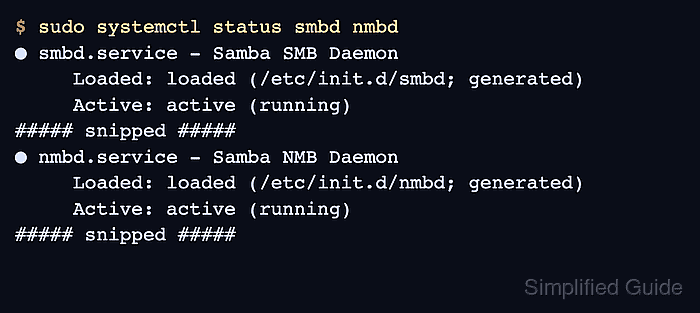
$ sudo systemctl status smbd nmbd
● smbd.service - Samba SMB Daemon
     Loaded: loaded (/etc/init.d/smbd; generated)
     Active: active (running)
##### snipped #####
● nmbd.service - Samba NMB Daemon
     Loaded: loaded (/etc/init.d/nmbd; generated)
     Active: active (running)
##### snipped #####
On Red Hat-family file servers, use sudo systemctl status smb nmb. On domain members, use sudo systemctl status smb winbind when winbind supplies domain identities.
- Confirm whether the file-sharing daemons start during boot.
$ systemctl is-enabled smbd nmbd
enabled
enabled
active means the daemon is running now. enabled means systemd should start it during normal boot.
- Check the SMB listener when the service is active but clients still cannot connect.
$ sudo ss --tcp --listening --numeric --processes 'sport = :445'
State  Recv-Q Send-Q Local Address:Port Peer Address:Port Process
LISTEN 0      50           0.0.0.0:445       0.0.0.0:*    users:(("smbd",pid=1842,fd=28))
LISTEN 0      50              [::]:445          [::]:*    users:(("smbd",pid=1842,fd=26))
Port 445/tcp is the direct SMB listener for file sharing. A firewall, name-resolution, or share-permission problem can still block clients even when smbd is listening.
- Read recent service logs when any required unit is failed or inactive.
$ sudo journalctl --unit=smbd --unit=nmbd --since "30 minutes ago"
Jun 16 09:42:18 fileserver systemd[1]: Started smbd.service - Samba SMB Daemon.
Jun 16 09:42:18 fileserver smbd[1842]: smbd version 4.23.6 started.
Jun 16 09:42:18 fileserver nmbd[1844]: nmbd version 4.23.6 started.
Replace smbd and nmbd with the service names shown by systemctl list-unit-files when the host uses another package layout.