How to create a window in Screen
A Screen window is a separate terminal workspace inside one Screen session. Create one when a long-running command, log view, editor, or shell needs its own place without replacing the command already running in the current window.
Inside an attached session, the default C-a c binding runs Screen's screen command and switches to a new shell window. From another terminal, screen -S work -X screen -t logs sends that same Screen command to the named work session and gives the new window a title.
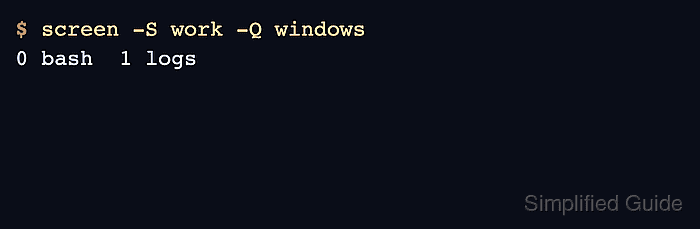
Use short titles for windows that will be selected, moved, monitored, or targeted later. Verify the result with the interactive window list or screen -S work -Q windows; if more than one session matches the same name, list sessions first and target the full process-qualified session name.
Related: How to create a Screen session
Related: How to rename a window in Screen
Related: How to move a window in Screen
Steps to create a Screen window:
- Create a new shell window from inside an attached session.
C-a c
Screen switches to the new window immediately.
- Create a titled shell window from outside the session when the session is detached or controlled by automation.
$ screen -S work -X screen -t logs
The -t logs option sets the Screen window title. Without a command after the title, Screen starts the default shell in the new window.
- Query the named session to confirm the new window exists.
$ screen -S work -Q windows
0 bash  1 logs
screen -Q windows prints the session's window numbers and titles. In an attached session, C-a “ opens the interactive window list instead.
Related: How to list Screen sessions
- Create a titled window that starts a specific command when that window should run one program.
$ screen -S work -X screen -t monitor top
monitor is the Screen window title, and top is the command started inside that window.
- Query the window list again to verify the command window was added.
$ screen -S work -Q windows
0 bash  1 logs  2 monitor
When the command running in a command window exits, that Screen window normally closes.