How to enable Redmine time tracking
Redmine records work hours through a project module named Time tracking. Enable it when a project needs spent-time totals, activity-based reports, or a Log time form for issue and project work.
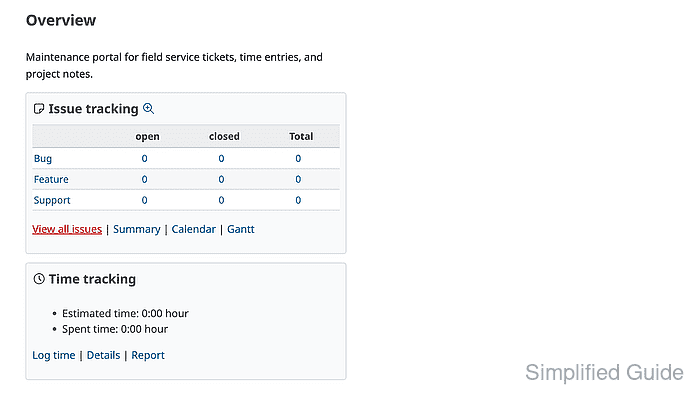
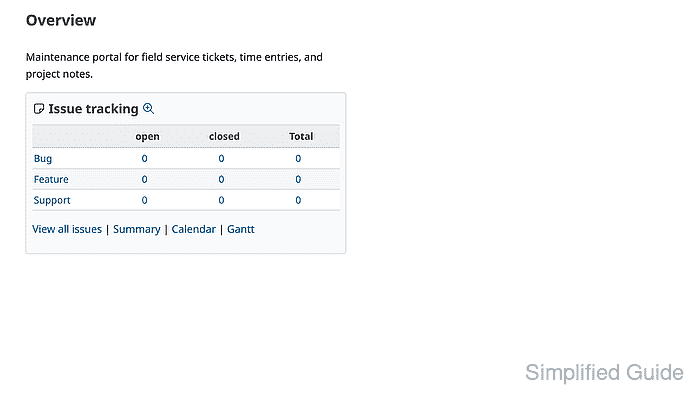
The module is controlled from the project settings page. When it is disabled, issue tracking can still work, but the project overview does not show the Time tracking panel and users cannot open the project Log time form.
Project activities come from Redmine time tracking enumerations and can be narrowed per project. Keep only the activities that match the team's reporting categories, then confirm the Log time form offers the intended activity before handing the project to users.
Related: How to create a Redmine project
Related: How to log time in Redmine
Steps to enable Redmine time tracking:
- Sign in to Redmine with an administrator account or a project role that can select project modules.
- Open the target project and confirm the overview does not show a Time tracking panel while the module is disabled.
- Click Settings to open the project settings page.
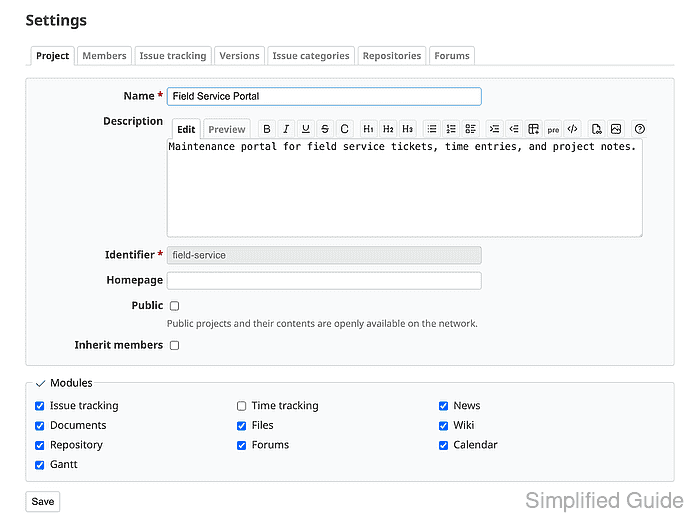
- Select Time tracking under Modules in the Project tab.
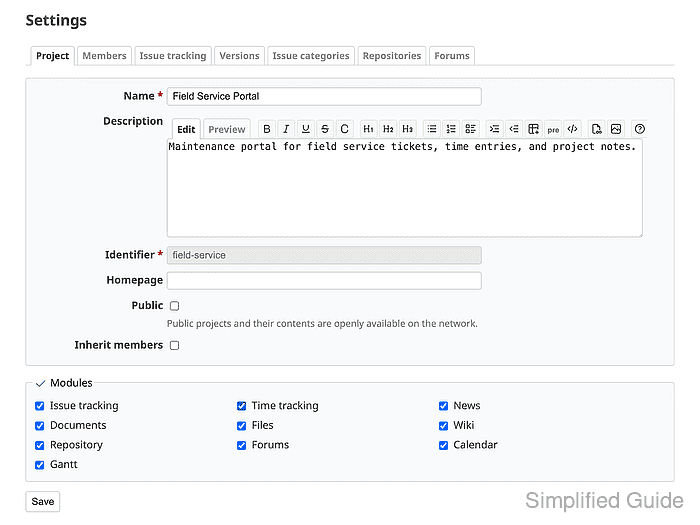
- Click Save and confirm Successful update appears with the Time tracking settings tab available.
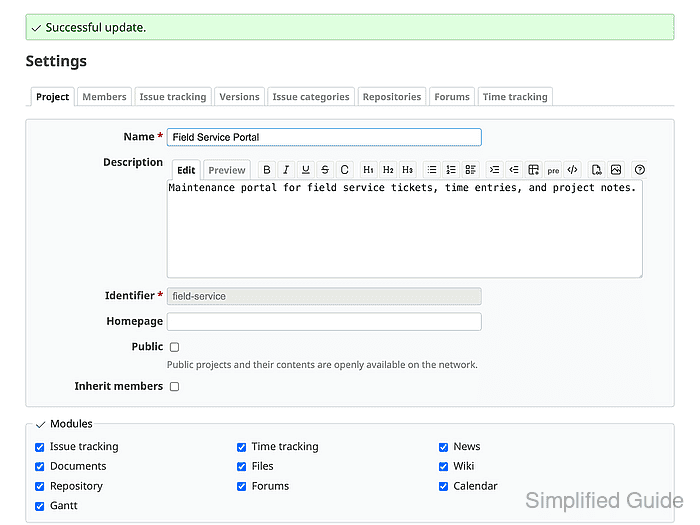
- Open the Time tracking tab, keep the activities the project should use checked, and click Save.
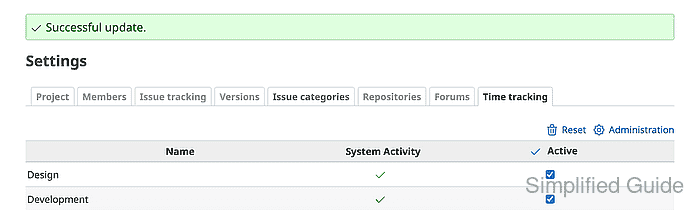
Activity names are managed under Administration → Enumerations. The project tab only enables or disables existing activities for this project.
- Open the project Overview and confirm the Time tracking panel shows Estimated time, Spent time, Log time, Details, and Report.
- Click Log time and confirm the Activity field offers an enabled activity such as Development.
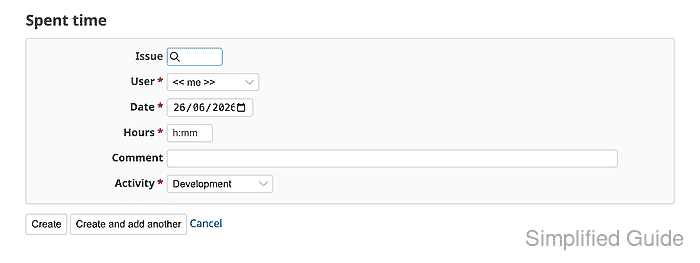
Users who record entries need a role with Log spent time permission.
Related: How to set Redmine role permissions