How to troubleshoot Redmine permissions
Redmine access problems often show up as a missing button, a 403 page, a hidden issue field, or a status option that never appears for one project member. The fastest repair is to trace the denied action back to the project role, tracker, and workflow rule that Redmine is applying.

A project member receives permissions from every role assigned on that project, and Redmine combines those roles instead of subtracting the weaker ones. Issue actions add another layer: the role must have the permission, the project must use the tracker, the permission must cover that tracker, and status changes must be allowed in the Workflow matrix for the same role and tracker.
Use the affected account or a matching test account throughout the repair. For a user who can view Field Service Portal issues but receives a 403 at the New issue form, keep the fix limited to the Support Lead role, Maintenance tracker coverage, and matching workflow row before retesting as that user.
Related: How to add members to a Redmine project
Related: How to set Redmine role permissions
Related: How to configure a Redmine workflow
Steps to troubleshoot Redmine permissions:
- Reproduce the blocked action as the affected user.
https://redmine.example.net/projects/field-service/issues/new

Use the exact page, button, status transition, or field that failed for the user. A 403 proves a permission denial; a missing link or missing status option usually points to a role, tracker, or workflow mismatch.
- Open the project membership list as an administrator.
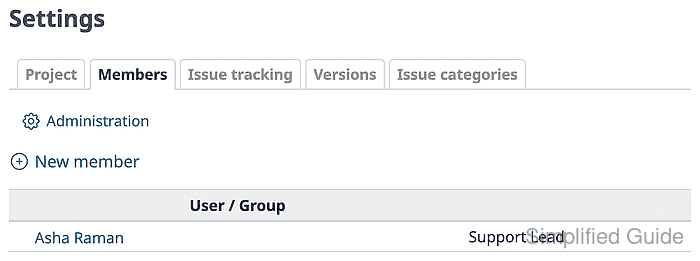
Check every role on the user or group. Multiple roles combine permissions for the same project, so a second role can hide the role that actually needs correction.
Related: How to add members to a Redmine project - Open Administration → Roles and permissions and edit the role shown on the project member row.
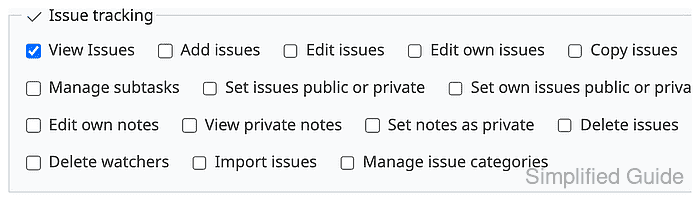
- Select the missing permission for the blocked action.
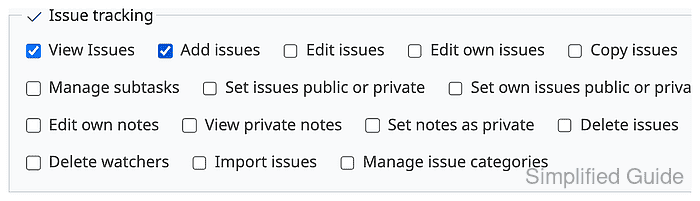
For a denied New issue form, select Add issues. For update or assignment failures, check permissions such as Edit issues, Add notes, and watcher or assignee permissions instead of granting a broad administrator-style role.
Related: How to set Redmine role permissions - Select the same tracker under the permission matrix.
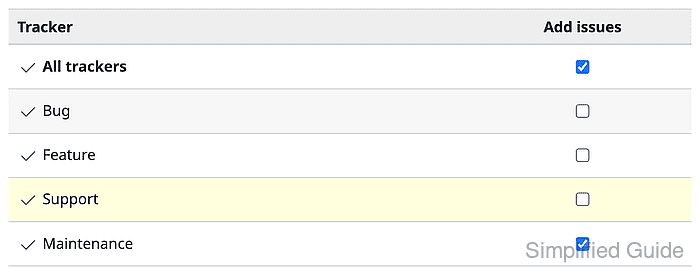
If All trackers is not selected for the permission, the specific project tracker must be checked. In this repair, Maintenance is the tracker used by the blocked issue form.
- Save the role and confirm Redmine reports a successful update.
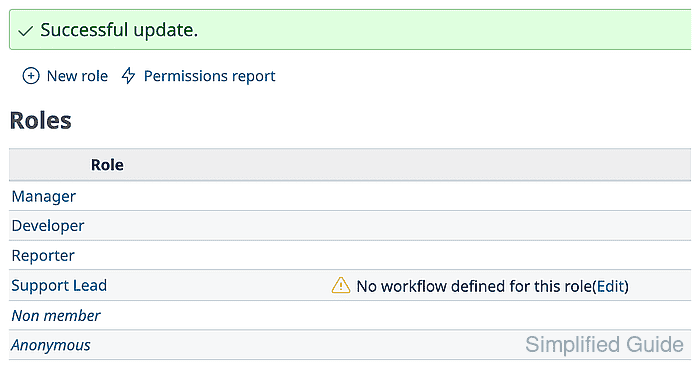
- Open Administration → Workflow for the same role and tracker.
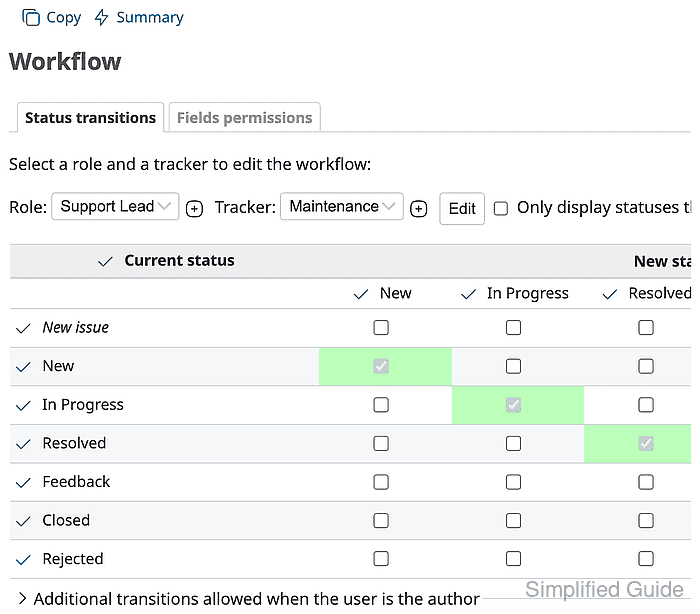
Issue creation and status changes can still fail after the role permission is enabled if the workflow has no allowed row for the same role and tracker.
Related: How to configure a Redmine workflow - Enable the initial workflow row for the action.
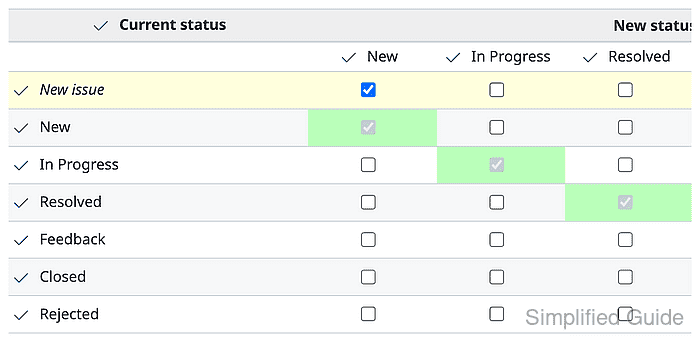
For issue creation, allow New issue → New. For a blocked status change, enable the transition from the current status to the target status for the affected role and tracker.
- Save the workflow and confirm Redmine reports a successful update.
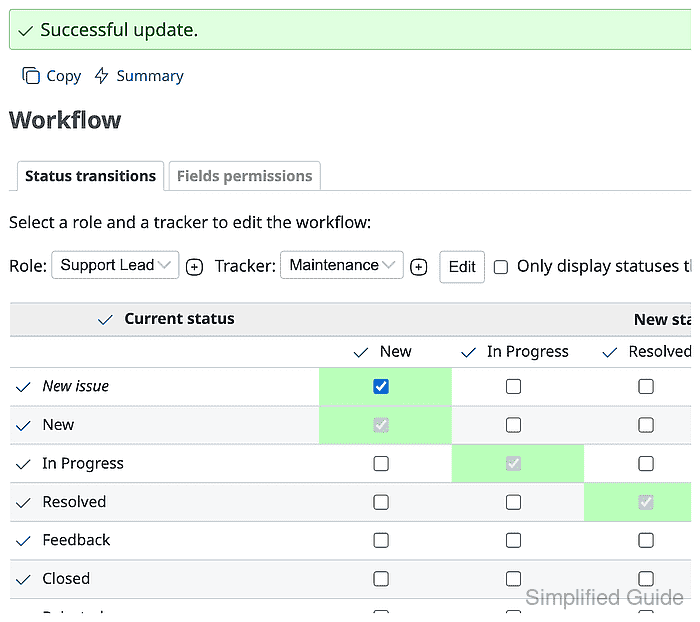
- Sign in as the affected user and reopen the blocked form.
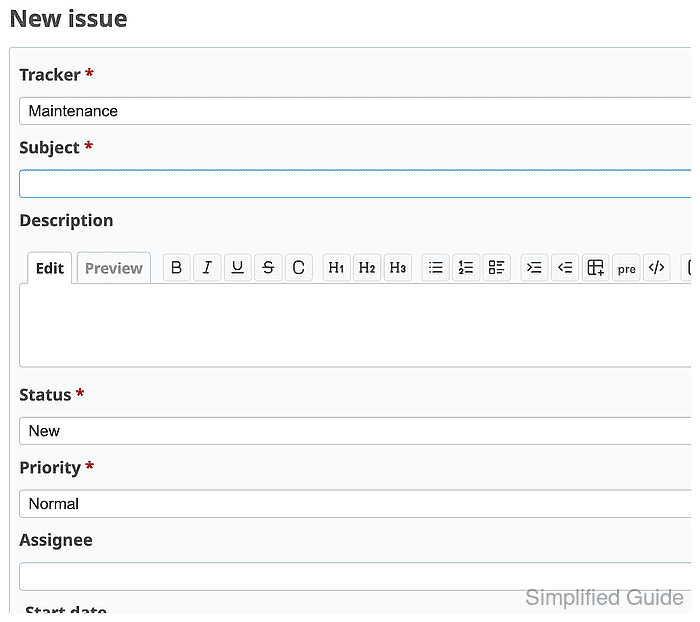
- Create a small test issue to prove the permission path works end to end.
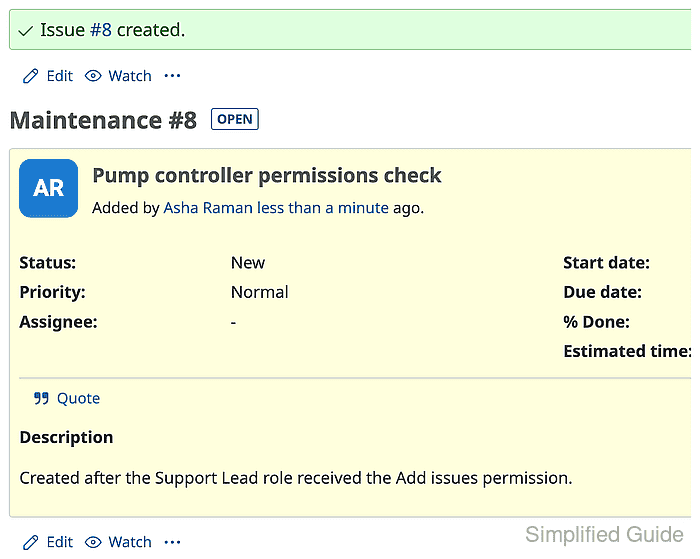
The same retest pattern applies to other permission failures: perform the original blocked action with the affected user, then confirm the saved issue, visible field, or status transition appears in Redmine.