How to import issues from CSV into Redmine
Redmine can turn rows from a .csv file into project issues through its browser-based import assistant. This is useful when backlog items, service tickets, or migration records already exist in a spreadsheet and need to become normal Redmine issues with trackers, statuses, assignees, priorities, and custom fields.
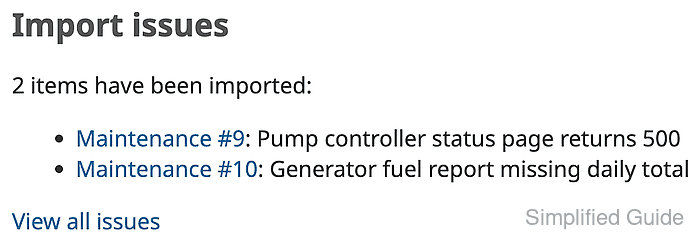
The import assistant reads the first row as column names, shows parsing options for the file, and then maps each CSV column to a Redmine issue field. Opening the importer from the target project keeps the project selection fixed while still letting each row supply values such as Tracker, Status, Assignee, and project-specific custom fields.
Start with a small file before importing a full migration set. Trackers, statuses, users, priorities, and custom fields should already exist, and any imported status other than New must be allowed by the workflow for new issues. Leave import notifications off during a test run unless the imported issues should immediately email watchers or assignees.
Related: How to create a Redmine project
Related: How to create a Redmine tracker
Related: How to create a Redmine custom field
Related: How to configure a Redmine workflow
Steps to import Redmine issues from CSV:
- Prepare a CSV file with one header row and one issue per row.
- field-service-issues.csv
Subject,Description,Tracker,Status,Assignee,Priority,Customer impact
Pump controller status page returns 500,Import row for the field service maintenance queue,Maintenance,Waiting for Vendor,araman,Normal,High
Generator fuel report missing daily total,Second import row to confirm row counts and field mapping,Maintenance,Waiting for Vendor,araman,Normal,Medium
Use the Redmine login for Assignee when the import must target a specific user. A display name can be ambiguous when two users share similar names.
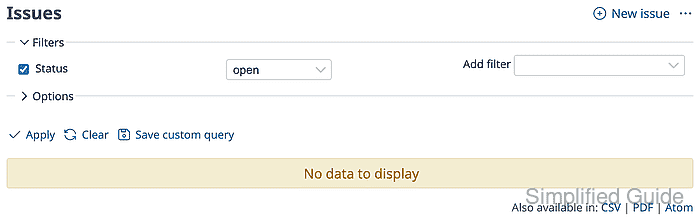
Tool: Comma-Separated Values (CSV) Converter - Open the target project Issues tab and click Import.
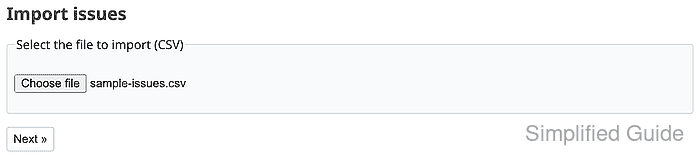
- Select the CSV file and click Next.
- Confirm the file options and keep notifications disabled for the test import.
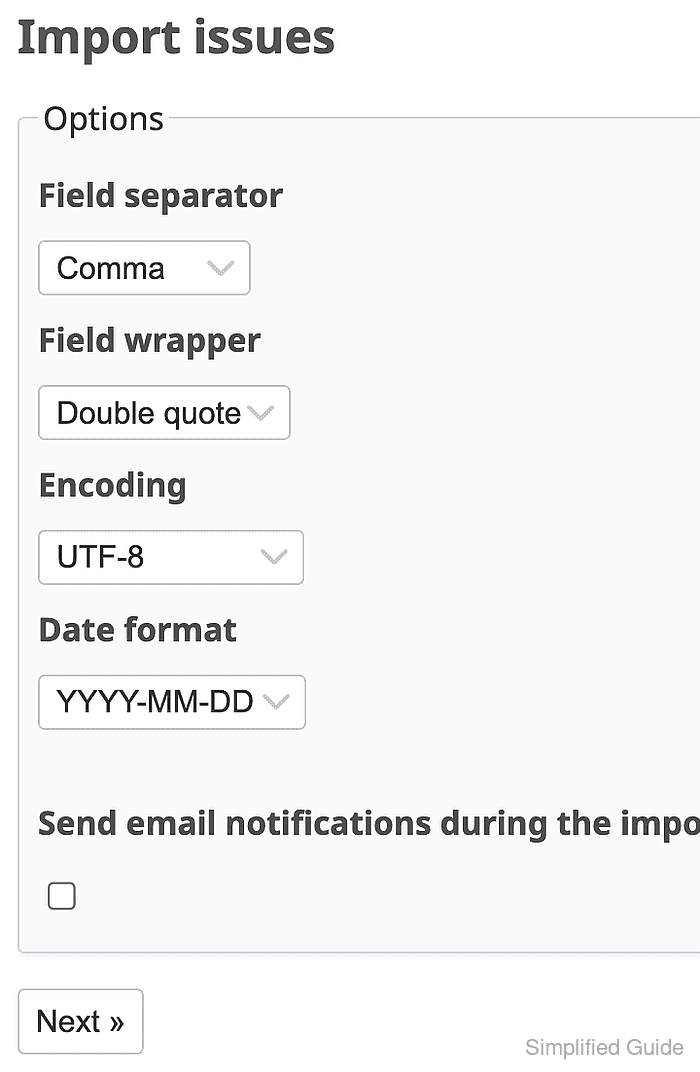
For a standard UTF-8 CSV file, use Comma as the field separator, Double quote as the field wrapper, and UTF-8 as the encoding. Select the date format that matches any date columns in the file.
- Check the required field mappings.
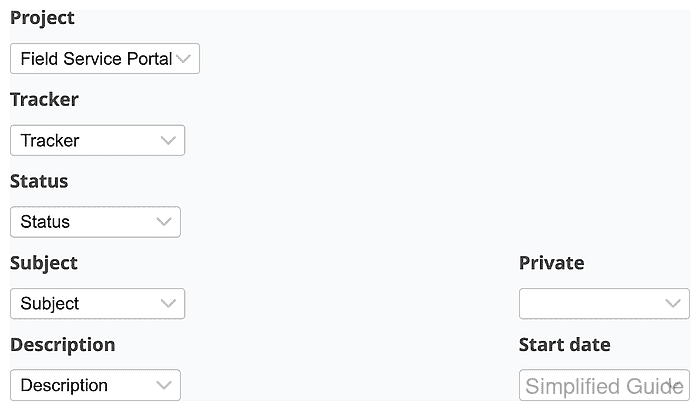
Redmine can auto-map columns whose headers match issue fields. Change any dropdown that points at the wrong CSV column before importing.
- Check the assignee and custom-field mappings.
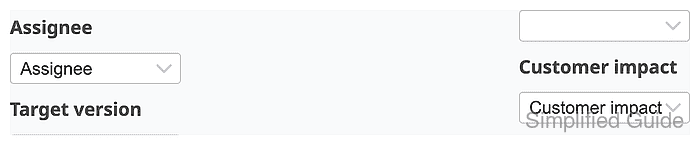
Custom fields appear in the mapping screen only when they are enabled for the selected project and tracker. Status values must also be valid for new issues in the workflow.
Related: How to create a Redmine custom field
Related: How to configure a Redmine workflow - Review the file content preview.
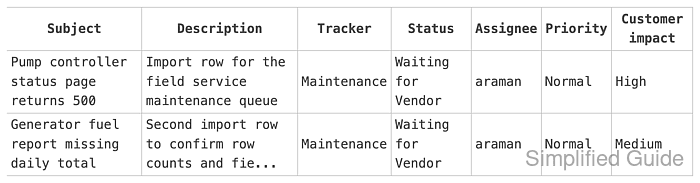
The preview should show the expected row count, headers, tracker values, assignee login, and custom-field values before any issues are created.
- Click Import and confirm the imported item count.
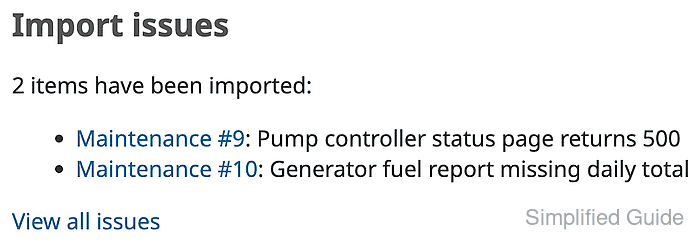
- Open one imported issue and verify the mapped fields.
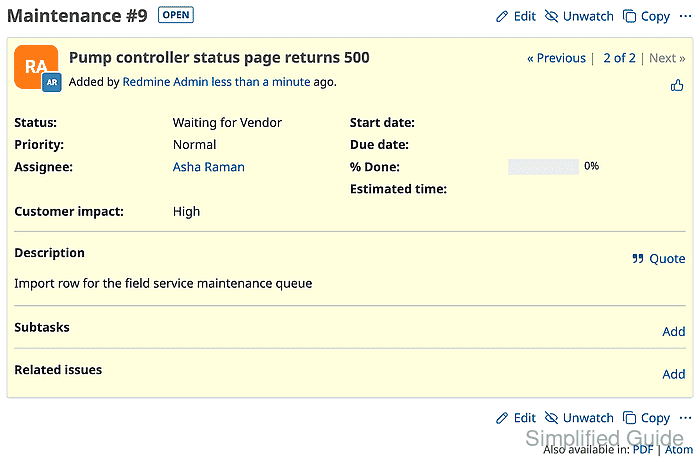
The issue should show the expected Tracker, Status, Assignee, Priority, description, and Customer impact value.