How to check the PyTorch version
PyTorch version problems usually come from environment drift, not from the model code itself. A shell may point to a global Python, a virtual environment, or a notebook kernel, and each interpreter can import a different torch package.
The value from torch.__version__ belongs to the package imported by the active interpreter. Suffixes such as +cpu, +cu..., or +rocm... identify the installed wheel build, while backend checks show whether the matching accelerator runtime is actually usable.
Use the same shell, virtual environment, Conda environment, service account, or notebook kernel that launches the training or inference code. Package metadata can confirm the installed path, but the import check is the source of truth when multiple Python environments contain PyTorch.
Related: How to install PyTorch with pip
Related: How to select a device in PyTorch
Steps to check the PyTorch version:
- Activate the Python environment that runs the PyTorch project.
$ source .venv/bin/activate
Use the matching Conda environment, service account, or notebook kernel instead when the project does not use a venv environment.
Related: How to create a virtual environment for PyTorch
Related: How to create a Conda environment for PyTorch - Print the imported PyTorch version and interpreter path.
$ python3 - <<'PY'
import sys
import torch

print(f"python: {sys.executable}")
print(f"torch: {torch.__version__}")
PY
python: /home/user/project/.venv/bin/python3
torch: 2.12.1+cpu
torch.__version__ reports the package that this interpreter imports. If the command raises ModuleNotFoundError: No module named 'torch', activate the expected environment or install PyTorch there first.
- Check the package metadata for the same interpreter.
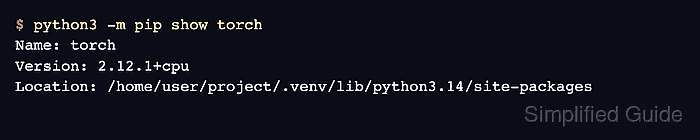
$ python3 -m pip show torch
Name: torch
Version: 2.12.1+cpu
Summary: Tensors and Dynamic neural networks in Python with strong GPU acceleration
Home-page: https://pytorch.org
Location: /home/user/project/.venv/lib/python3.14/site-packages
Requires: filelock, fsspec, jinja2, networkx, setuptools, sympy, typing-extensions
The Location path should match the interpreter path printed by the import check. Use python3 -m pip instead of a bare pip command so package metadata comes from the same interpreter.
- Check accelerator build and runtime availability.
$ python3 - <<'PY'
import torch

print(f"cuda build: {torch.version.cuda}")
print(f"hip build: {torch.version.hip}")
print(f"cuda available: {torch.cuda.is_available()}")
print(f"mps built: {torch.backends.mps.is_built()}")
print(f"mps available: {torch.backends.mps.is_available()}")
PY
cuda build: None
hip build: None
cuda available: False
mps built: False
mps available: False
cuda build and hip build identify CUDA or ROCm support compiled into the wheel. cuda available and mps available also require visible hardware, drivers, and platform support.
- Print the PyTorch build configuration when the version string is not enough.
$ python3 - <<'PY'
import torch
print(torch.__config__.show())
PY
PyTorch built with:
  - GCC 13.3
  - C++ Version: 202002
  - Intel(R) MKL-DNN v3.11.2 (Git Hash 03c022d3ffdcee958cfacbe720048e725fdf644c)
  - OpenMP 201511 (a.k.a. OpenMP 4.5)
  - LAPACK is enabled (usually provided by MKL)
  - NNPACK is enabled
  - CPU capability usage: DEFAULT
##### snipped #####
  - Build settings: BLAS_INFO=open, BUILD_TYPE=Release, TORCH_VERSION=2.12.1, USE_CUDA=0, USE_CUDNN=OFF, USE_ROCM=OFF, USE_MKLDNN=1, USE_OPENMP=ON
Check TORCH_VERSION, USE_CUDA, USE_ROCM, USE_MKLDNN, and USE_OPENMP when debugging wheel provenance, accelerator behavior, or CPU backend differences.