How to read an Excel file with pandas
Reading an Excel workbook with pandas turns a worksheet into a DataFrame without manually exporting the data to CSV first. It fits workbook-based handoffs where Python needs the rows for cleaning, filtering, joining, or reporting.
The pandas.read_excel() function reads the first sheet by default, and sheet_name selects a worksheet by name or zero-based position. For modern .xlsx files, openpyxl is the usual reader engine when engine=None lets pandas choose from the file extension.
Excel imports need explicit choices when a workbook has multiple sheets, helper columns, text-like IDs, or values that should become missing data. A checked import should show the intended worksheet, selected columns, preserved identifiers, parsed dates, expected row count, and dtypes before downstream analysis starts.
Related: How to read CSV files with pandas
Related: How to write an Excel file with pandas
Related: How to convert data types in pandas
Steps to read an Excel file with pandas:
- Install the openpyxl reader package in the Python environment that runs pandas.
$ python3 -m pip install openpyxl
pandas uses openpyxl for newer .xlsx workbooks unless another engine is selected. Install pandas too when the environment is new.
Related: How to install pandas with pip - Create a sample workbook generator.
- make_sales_workbook.py
import pandas as pd

orders = pd.DataFrame(
    {
        "Order ID": ["01001", "01002", "01003"],
        "Customer": ["Ada Lovelace", "Lin Chen", "Maya Patel"],
        "Region": ["EMEA", "APAC", "AMER"],
        "Total": [149.50, "pending", 212.00],
        "Order Date": ["2026-06-01", "2026-06-02", "2026-06-03"],
        "Internal Note": ["reviewed", "awaiting invoice", "reviewed"],
    }
)

lookup = pd.DataFrame(
    {
        "Region": ["EMEA", "APAC", "AMER"],
        "Owner": ["Finance Europe", "Finance Asia", "Finance Americas"],
    }
)

with pd.ExcelWriter("sales.xlsx", engine="openpyxl") as writer:
    orders.to_excel(writer, sheet_name="Orders", index=False)
    lookup.to_excel(writer, sheet_name="Lookup", index=False)

print("Created sales.xlsx")
print("Sheets: Orders, Lookup")
The sample workbook includes two sheets, one helper column, a text-like order ID column, and one pending value so the reader options have visible effects.
- Run the workbook generator.
$ python3 make_sales_workbook.py
Created sales.xlsx
Sheets: Orders, Lookup
- List the workbook sheets before choosing one.
$ python3 - <<'PY'
import pandas as pd

with pd.ExcelFile("sales.xlsx") as workbook:
    print(workbook.sheet_names)
PY
['Orders', 'Lookup']
ExcelFile is useful when a workbook has several sheets or when sheet names need to be checked before importing data.
- Create the Excel reader script.
- read_sales_excel.py
import pandas as pd

df = pd.read_excel(
    "sales.xlsx",
    sheet_name="Orders",
    engine="openpyxl",
    usecols=["Order ID", "Customer", "Region", "Total", "Order Date"],
    dtype={
        "Order ID": "string",
        "Customer": "string",
        "Region": "string",
    },
    parse_dates=["Order Date"],
    na_values=["pending"],
)

df = df.rename(
    columns={
        "Order ID": "order_id",
        "Customer": "customer",
        "Region": "region",
        "Total": "total_usd",
        "Order Date": "order_date",
    }
)

print(df.to_string(index=False))
print()
print(df.dtypes)
print()
print(f"Rows: {len(df)}")
print(f"Columns: {', '.join(df.columns)}")
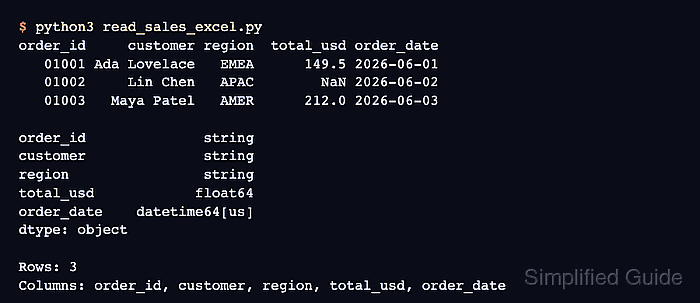
usecols selects workbook column labels before the rename. dtype preserves leading zeros in Order ID, parse_dates converts the date column, and na_values treats pending as missing data.
- Run the reader script.
$ python3 read_sales_excel.py
order_id     customer region  total_usd order_date
   01001 Ada Lovelace   EMEA      149.5 2026-06-01
   01002     Lin Chen   APAC        NaN 2026-06-02
   01003   Maya Patel   AMER      212.0 2026-06-03

order_id              string
customer              string
region                string
total_usd            float64
order_date    datetime64[us]
dtype: object

Rows: 3
Columns: order_id, customer, region, total_usd, order_date
Expect three rows, five selected columns, a preserved leading zero in each order_id value, a missing value for the pending total, and a parsed order_date dtype.
- Remove the sample files after the import behavior is confirmed.
$ rm sales.xlsx make_sales_workbook.py read_sales_excel.py