How to upload an image to OpenNebula
An OpenNebula image is the disk object that VM templates attach when they launch guest machines. Uploading a prepared .qcow2 or raw disk image into an image datastore turns a tested operating-system build into a reusable source for new VMs.
The CLI path uses oneimage create from a shell that already authenticates to the OpenNebula front-end. The --path value must point to a file or URL the front-end can read, and OpenNebula copies that source into the selected image datastore before the image becomes usable.
For shared base images, leave persistence disabled so each VM receives its own copy. The image should reach READY state, have permissions that match the intended users, and resolve correctly when a VM template references it as a disk.
Steps to upload an OpenNebula image:
- List the available image datastores.
$ onedatastore list --no-pager
  ID NAME                SIZE AVA CLUSTERS IMAGES TYPE DS      TM      STAT
   2 files                50G 86% 0             0 fil  fs      local   on
   1 default              50G 82% 0             3 img  fs      shared  on
   0 system                 - -   0             0 sys  -       shared  on
Choose an image datastore whose transfer driver and cluster membership match the hosts that will run VMs from the image.
Related: How to create an OpenNebula datastore - Check the source disk file on the front-end.
$ qemu-img info /srv/opennebula/images/ubuntu-24.04-server-cloudimg-amd64.img
image: /srv/opennebula/images/ubuntu-24.04-server-cloudimg-amd64.img
file format: qcow2
virtual size: 2.2 GiB (2361393152 bytes)
disk size: 645 MiB
Use a path that the front-end can read, or use an HTTP/HTTPS URL as the --path value. For OS images, install OpenNebula context packages in the guest before upload when templates depend on network or SSH contextualization. Sunstone is the desktop upload path when the disk image exists only on an administrator workstation.
- Register the image in the target datastore.
$ oneimage create --datastore default --name ubuntu-24.04-base --type OS \
  --format qcow2 --prefix vd \
  --path /srv/opennebula/images/ubuntu-24.04-server-cloudimg-amd64.img \
  --description "Ubuntu 24.04 cloud image"
ID: 42
Omit --persistent for a reusable base image. Add it only when a single VM should keep its disk changes on the original image.
- Check the image after the datastore copy finishes.
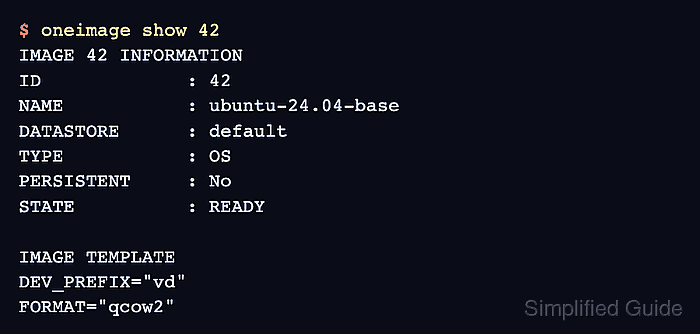
$ oneimage show 42
IMAGE 42 INFORMATION
ID             : 42
NAME           : ubuntu-24.04-base
USER           : oneadmin
GROUP          : oneadmin
DATASTORE      : default
TYPE           : OS
REGTIME        : 06/25 09:42:15
PERSISTENT     : No
STATE          : READY

IMAGE TEMPLATE
DEV_PREFIX="vd"
FORMAT="qcow2"
PATH="/srv/opennebula/images/ubuntu-24.04-server-cloudimg-amd64.img"
LOCKED means the copy is still running. ERROR means the import failed; inspect the same oneimage show output for the datastore error message.
- Grant group users permission to use the image when it backs self-service templates.
$ oneimage chmod 42 640 -v
IMAGE 42: Permissions changed
The group needs USE permission on the image before group-owned templates or tenant users can attach it.
- Create a temporary VM template that references the new image.
$ onetemplate create --name image-upload-smoke --memory 1024 --cpu 1 --disk ubuntu-24.04-base
ID: 81
This smoke template checks that the image name resolves as a VM disk. Add networks, context, graphics, and capacity policy in the production template.
Related: How to create an OpenNebula VM template - Inspect the temporary template disk.
$ onetemplate show 81
VIRTUAL MACHINE TEMPLATE 81 INFORMATION
ID             : 81
NAME           : image-upload-smoke
USER           : oneadmin
GROUP          : oneadmin

TEMPLATE CONTENTS
CPU="1"
MEMORY="1024"
DISK=[
  IMAGE="ubuntu-24.04-base",
  IMAGE_UNAME="oneadmin" ]
- Remove the temporary template after the disk reference check.
$ onetemplate delete 81
Delete only the smoke template created for this check. Do not remove production templates that already depend on the uploaded image.