How to apply morphology to an image with OpenCV
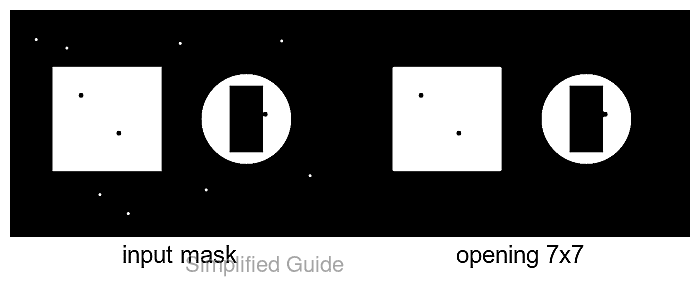
Binary masks often contain isolated foreground pixels that survive thresholding and later appear as false contours. Morphological operations use a small neighborhood, called a structuring element or kernel, to remove those specks or reshape the white regions before measurement and segmentation.
In OpenCV, opening applies erosion followed by dilation, while closing applies dilation followed by erosion. Opening removes white components that are smaller than the kernel, while closing fills small black gaps; an elliptical kernel limits the blocky corners that a rectangular kernel can introduce.
The input must be a single-channel mask with the foreground in white and the background in black. The completed Python program reloads its saved result, reports how many foreground components remain, and confirms that the output still contains only 0 and 255 pixel values.
Related: How to threshold an image with OpenCV
Related: How to blur an image with OpenCV
Related: How to find contours with OpenCV
Steps to apply morphology to an image with OpenCV:
- Place a single-channel mask with white foreground and black background at input/mask.png.
OpenCV treats every nonzero pixel as foreground, so the input must already use the required foreground polarity.
- Create apply_morphology.py with the imports and command-line input contract.
- apply_morphology.py
#!/usr/bin/env python3
import argparse
from pathlib import Path

import cv2
import numpy as np


def odd_positive(value: str) -> int:
    size = int(value)
    if size < 1 or size % 2 == 0:
        raise argparse.ArgumentTypeError("kernel size must be a positive odd integer")
    return size


parser = argparse.ArgumentParser(
    description="Apply an OpenCV morphology operation to a binary mask."
)
parser.add_argument("input_mask", type=Path)
parser.add_argument("output_mask", type=Path)
parser.add_argument(
    "--operation",
    choices=("erode", "dilate", "open", "close"),
    default="open",
)
parser.add_argument("--kernel-size", type=odd_positive, default=5)
args = parser.parse_args()
- Append the mask-loading and elliptical-kernel section below the argument parser.
- apply_morphology.py
mask = cv2.imread(str(args.input_mask), cv2.IMREAD_GRAYSCALE)
if mask is None:
    raise SystemExit(f"could not read mask: {args.input_mask}")

binary = np.where(mask > 0, 255, 0).astype(np.uint8)
kernel = cv2.getStructuringElement(
    cv2.MORPH_ELLIPSE,
    (args.kernel_size, args.kernel_size),
)
A larger kernel removes larger defects but can also erase narrow foreground details. A small odd size is the safest starting point for comparison with the original mask.
- Append the operation map and morphology call below the kernel.
- apply_morphology.py
operation_map = {
    "erode": cv2.MORPH_ERODE,
    "dilate": cv2.MORPH_DILATE,
    "open": cv2.MORPH_OPEN,
    "close": cv2.MORPH_CLOSE,
}
result = cv2.morphologyEx(binary, operation_map[args.operation], kernel)
open removes small white components, while close fills small black gaps. erode and dilate shrink or expand the foreground directly.
- Append the output write and verification report below the morphology call.
- apply_morphology.py
args.output_mask.parent.mkdir(parents=True, exist_ok=True)
if not cv2.imwrite(str(args.output_mask), result):
    raise SystemExit(f"could not write mask: {args.output_mask}")

saved = cv2.imread(str(args.output_mask), cv2.IMREAD_GRAYSCALE)
if saved is None or not np.array_equal(saved, result):
    raise SystemExit("saved mask does not match the morphology result")

components_before = cv2.connectedComponents(binary)[0] - 1
components_after = cv2.connectedComponents(saved)[0] - 1
changed_pixels = int(np.count_nonzero(binary != saved))
output_values = " ".join(str(int(value)) for value in np.unique(saved))

print(f"operation: {args.operation}")
print(f"kernel: ellipse {args.kernel_size}x{args.kernel_size}")
print(f"foreground components: {components_before} -> {components_after}")
print(f"changed pixels: {changed_pixels}")
print(f"output values: {output_values}")
print(f"output: {args.output_mask}")
- Run a 7-pixel opening operation on the input mask.
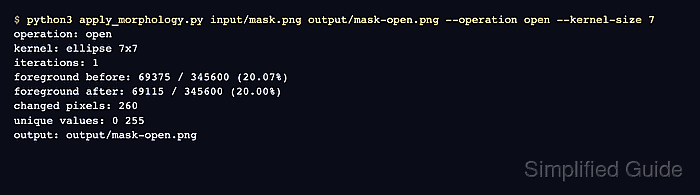
$ python3 apply_morphology.py input/mask.png output/mask-open.png --operation open --kernel-size 7
operation: open
kernel: ellipse 7x7
foreground components: 11 -> 2
changed pixels: 135
output values: 0 255
output: output/mask-open.png
The component count falls when opening removes isolated white specks. Unchanged counts can be valid when the mask has no foreground components smaller than the selected kernel.
- Inspect output/mask-open.png beside the original mask.